
Why Is My Browser So Slow? 10 Reasons and How to Fix Them
Find out why your browser feels slow, what may be causing the slowdown, and which fixes can help improve everyday browsing performance.

A browser can feel slow in several different ways. It may take too long to open, pages may load slowly, scrolling can become choppy, or tabs can freeze for a few seconds before responding. The cause is not always your internet connection because much of the work involved in browsing happens locally on your computer.
Open tabs, extensions, memory pressure, graphics settings, background processes, outdated software, and demanding websites can all affect performance. A network problem can create similar symptoms, which is why the fastest fix usually starts with identifying where the slowdown appears.
This guide works from the most common causes toward the less obvious ones. The goal is to find the part of the browsing process that is struggling and change only what is relevant to that problem.
Why Can a Browser Be Slow Even When the Internet Is Fast?
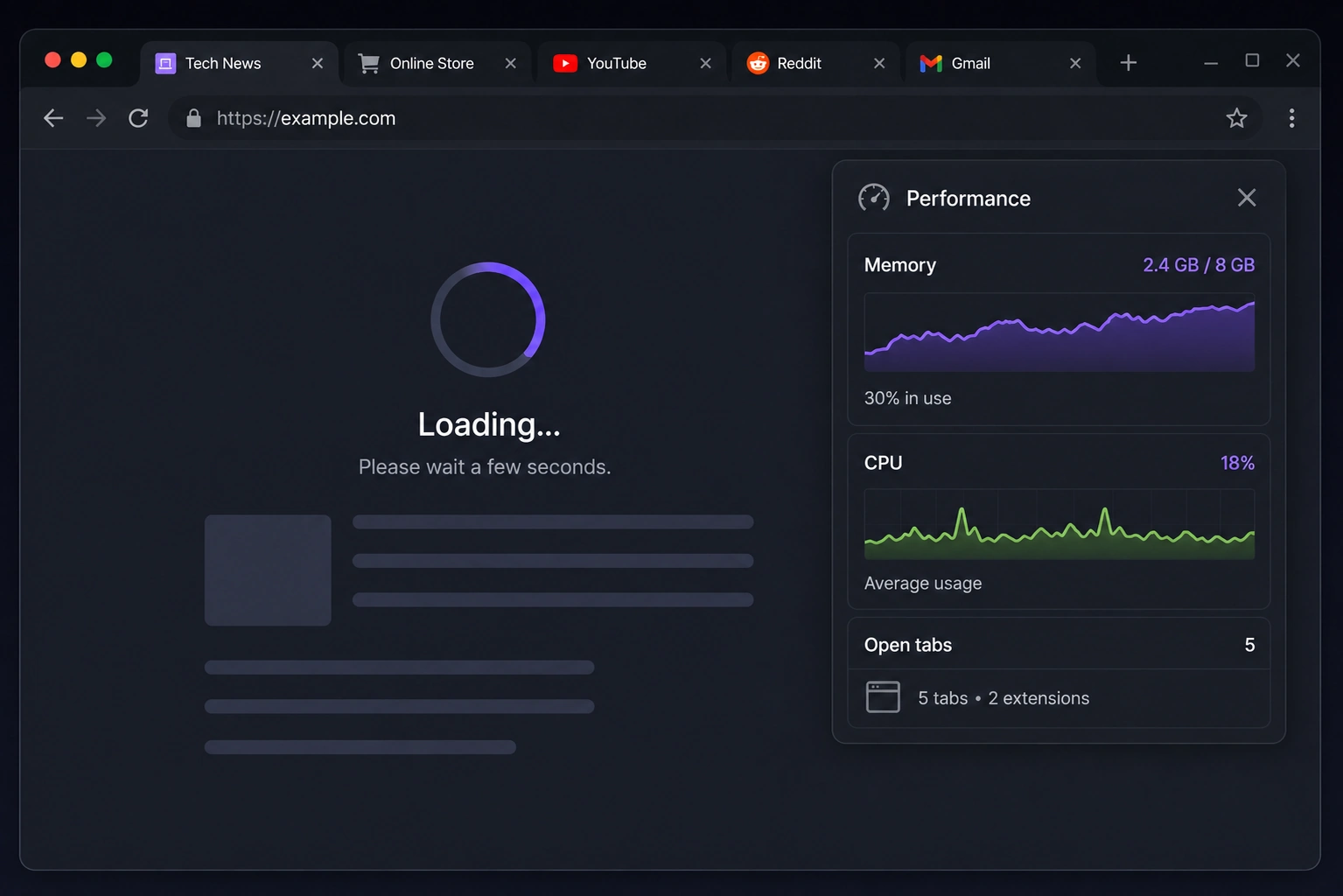
Internet speed mainly affects how quickly data reaches your device. The browser still has to process HTML, run JavaScript, apply styles, decode images and video, manage extensions, draw the page, and keep every active tab responsive. A fast connection cannot compensate for a device that is short on memory or a page that is doing a large amount of local work.
Google’s Chrome performance troubleshooting guidance separates browser performance into processes that can become limited by CPU, memory, disk access, graphics, or individual web apps. This is a useful way to think about a slow browser because several different bottlenecks can produce the same feeling of delay.
How to Tell What Is Slowing Down Your Browser
The pattern of the slowdown gives useful clues. If one tab is slow while everything else feels normal, the page itself is a stronger suspect. If every tab becomes sluggish after you open many pages, memory pressure is more likely. A browser that is slow from the moment it starts points more toward extensions, profile problems, background tasks, or the browser installation.
Testing the same website in another browser can also narrow the problem. If both browsers are slow on the same network, the connection or the website may be responsible. If only one browser is affected, its tabs, extensions, settings, cache, or profile deserve closer attention.
1. Too Many Open Tabs Are Using Memory
Every open tab needs some combination of memory, CPU time, and browser processes. A simple background page may use very little, while a web app, video stream, document editor, or dashboard can remain active even when you are looking at another tab. As the number of active pages grows, the browser has fewer resources available for the tabs you are actually using.
Chrome includes Memory Saver to deactivate unused tabs and free memory for active ones. Google’s Chrome performance settings guide explains that inactive tabs can be deactivated so active tabs continue to run smoothly. Microsoft Edge uses a similar idea with sleeping tabs, which free memory and CPU resources after a period of inactivity.
Close tabs that you no longer need and restart the browser if a long session has accumulated dozens of pages. If you regularly work with many tabs, use built-in sleeping or memory-saving features where they are available instead of keeping every page fully active.
2. Extensions Are Adding Work to Every Page
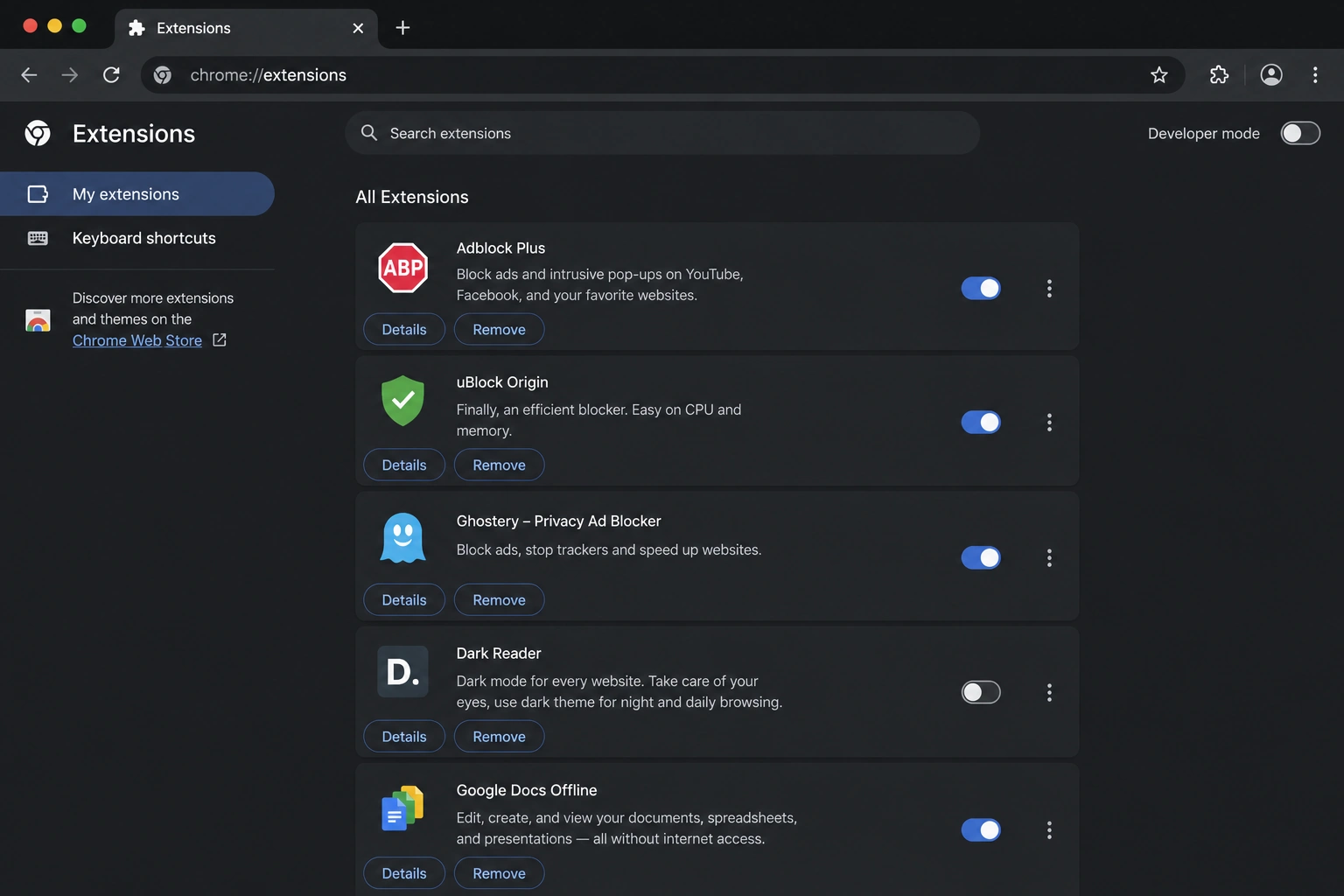
Extensions can read pages, modify content, inject scripts, filter requests, manage passwords, translate text, change themes, or communicate with external services. One lightweight extension may have little impact, while several extensions that run on every page can add noticeable work to navigation and rendering.
Mozilla recommends using Firefox Troubleshoot Mode when an extension, theme, or graphics setting may be causing a problem. Its troubleshooting guide temporarily disables extensions and hardware acceleration, which makes it easier to see whether the browser behaves normally without them.
Disable extensions in small groups and retest the pages that feel slow. Pay particular attention to extensions installed recently and tools that operate on every website. Removing an unused extension is usually better than leaving it disabled indefinitely.
3. Your Browser Is Running Out of Memory or CPU
A browser shares your computer with every other running application. Video calls, games, design tools, local AI software, cloud-sync clients, and operating-system processes can compete for the same memory and CPU resources. When the system is already under pressure, opening another heavy tab can make the whole browser hesitate.
Google’s enterprise performance guide recommends identifying processes with high CPU usage and notes that low system memory can slow the main Chrome process. It also points out that renderer processes can become expensive when a web app performs a large amount of work. The same guide is useful even for ordinary users because the underlying resource limits are the same.
Check Task Manager on Windows or Activity Monitor on macOS while the slowdown is happening. If memory pressure is high, close demanding applications and unnecessary browser tabs. If one browser process is consuming unusually high CPU for a long time, identify the tab or extension connected to it before changing unrelated settings.
4. The Browser Has Been Running for Too Long
Long browser sessions can accumulate tabs, background pages, temporary processes, and web apps that continue doing work. A tab that behaved normally when it opened can also become heavier after hours of use if the page itself keeps adding data or does not release resources efficiently.
A full browser restart is a useful diagnostic step because it ends the current processes and starts a clean session. Save anything you are working on, close the browser completely, open it again, and test the same page before restoring every previous tab. If performance immediately improves, the session itself was contributing to the problem.
5. An Outdated Browser or Operating System Is Causing Problems
Browser updates include performance fixes, compatibility changes, security patches, and improvements for modern websites. An old browser can struggle with pages that are built and tested against newer web-platform behavior. Operating-system and graphics-driver updates can matter as well because browsers depend on system networking, fonts, graphics, video decoding, and security components.
Install available browser updates and restart it afterward. If pages are still unusually slow, check operating-system updates and graphics drivers through the official tools provided by your device manufacturer or operating system. A recent slowdown that began immediately after an update may have a different cause, so compare more than one site before assuming the update itself is responsible.
6. Cache or Site Data Is Causing a Page Problem
Browser cache normally helps repeat visits by reusing images, scripts, styles, fonts, and other resources that have already been downloaded. A stale or damaged local resource can occasionally make one website display incorrectly or behave in a way that feels slow. This is why clearing cache appears so often in troubleshooting instructions.
Clear cached files when a specific page is showing outdated content, broken styling, or behavior that changes after a hard refresh. Avoid treating cache clearing as a daily speed routine because the browser may need to download those resources again on the next visit. If you also select cookies or site data, you may be signed out of websites, so review the clearing options before confirming.
7. Hardware Acceleration Is Not Working Well on Your Device
Browsers can use the graphics processor to handle parts of page rendering, video, animation, and other graphics-heavy work. This usually reduces work on the CPU, although some combinations of graphics hardware and drivers can produce stuttering, flickering, high GPU use, or crashes.
Firefox’s performance settings documentation explains that hardware acceleration uses the GPU for video, games, and animation and recommends testing with it disabled when graphics-related problems appear. Mozilla’s broader troubleshooting mode also turns hardware acceleration off temporarily, which can help isolate the setting.
If scrolling, video, animation, or page rendering is the main problem, test hardware acceleration in the opposite state and restart the browser. Keep the change only if performance becomes consistently better. Updating the graphics driver is preferable when the underlying issue is driver compatibility.
8. The Website Itself Is Heavy
Some pages ask far more from a browser than others. A lightweight article may contain mostly text and a few images, while a modern web app can load large JavaScript bundles, video, interactive components, analytics, advertising systems, embedded media, and background network requests. A single demanding page can therefore feel slow on an otherwise healthy browser.
Advertising and tracking are only part of that workload, although they can add extra requests and scripts. Our guide to how ad blockers work explains how blocking some advertising and tracking resources can reduce the amount of page work on sites that depend heavily on them.
Compare the slow page with several unrelated sites. If only one or two pages are affected, browser-wide resets are less likely to help. Closing other demanding tabs can give the page more resources, while disabling optional page features such as autoplay video can reduce ongoing work.
9. VPN, Proxy, Antivirus, or Network Filtering Is Adding Delay
A VPN or proxy changes the route that browser traffic takes before it reaches a website. Security products and managed networks can also inspect or filter traffic. These tools can be valuable, although a distant server, overloaded VPN endpoint, misconfigured proxy, or aggressive filtering layer can increase the time needed to open pages.
If the slowdown began after enabling one of these tools, test the same site briefly without that component and then re-enable your security software after the comparison. Managed work or school devices may use required network settings, so avoid changing administrator-controlled configuration without guidance.
Network and security tools can also produce certificate problems rather than simple slowness. If the browser shows a privacy warning, use our guide to “Your Connection Is Not Private” because that error involves HTTPS validation and needs a different troubleshooting path.
10. Unwanted Software or Malware Is Interfering With Browsing
Unwanted software can add extensions, inject ads, redirect searches, open background tabs, or change browser settings. These symptoms often come with poor performance because the browser is doing work you did not request. A sudden slowdown combined with persistent pop-ups, unfamiliar toolbars, or redirects deserves more attention than an ordinary heavy webpage.
Google’s malware and unwanted-software guidance lists recurring pop-ups, unwanted extensions, changed search settings, and redirects as signs that unwanted software may be present. Use your operating system’s security tools and remove browser extensions or applications you do not recognize.
Avoid downloading cleanup utilities from random advertisements that claim to make the browser faster. Use built-in security tools, a trusted security product, or the official support guidance for your browser and operating system. If the browser remains compromised after cleanup, creating a fresh browser profile or reinstalling the browser can be a reasonable next step.
Why Is Chrome So Slow?
Chrome can slow down for the same reasons as other modern browsers because tabs, extensions, web apps, memory pressure, graphics, and background processes all affect its workload. The fastest place to start is the Performance section in Chrome settings, where Memory Saver and performance issue alerts can help reduce resource use from inactive tabs.
If Chrome remains slow, check which tabs and extensions are consuming resources and compare the same workload with another browser. Sigma and Chrome are both built on Chromium, although browsers built on the same foundation can make different choices around interface, privacy, AI features, and background behavior. Our Chromium browser comparison explains how those product-level differences sit on top of the shared Chromium base.
Can Switching Browsers Fix a Slow Browser?
Sometimes. A different browser can use memory, background processes, extensions, privacy features, and interface components differently, so the same device can feel better with one browser than another. Switching does not solve a slow network or a demanding website, and two Chromium-based browsers can still behave differently because Chromium is only the technical foundation.
If you want the technical background, our article on browser engines and Chromium explains the difference between a browser product and the engine or open-source project underneath it. Sigma is Chromium-based and can be tested alongside your current browser without removing the existing installation.
If you decide to compare another Chromium browser in your normal workflow, the current Sigma builds are available from the Sigma Browser download page. Test the same sites and the same number of tabs so the comparison reflects your actual browsing habits.
How to Fix a Slow Browser in the Right Order
Start with the changes that are easy to reverse. Close unnecessary tabs, restart the browser, and test a page with extensions temporarily disabled. Check system memory and CPU while the slowdown is happening, then update the browser and test graphics acceleration only if scrolling, video, or rendering is involved.
Move to cache clearing when a specific site is stale or broken, and test VPN or proxy settings when the slowdown follows a network change. Malware checks make sense when performance problems appear together with redirects, unwanted extensions, or settings that change on their own. Reinstalling the browser or creating a new profile belongs near the end because those steps are more disruptive.
Final Takeaway
A slow browser usually comes from one of three places. The browser may be short on local resources, a website may be doing too much work, or the network path may be delaying requests. Looking at when the slowdown appears is more useful than changing every setting at once.
Start with tabs, extensions, memory use, and a clean restart. Update the browser, investigate graphics only when the symptoms point there, and clear cache when a specific site looks stale or broken. VPNs, proxies, security software, and unwanted programs deserve attention when the slowdown begins after a network change or arrives with unusual browser behavior.
If several browsers are slow on the same websites, the browser itself may not be the main problem. If one browser remains consistently slower under the same workload, testing another browser can help separate a product-level performance issue from a device or network limitation.
More articles


Download Sigma Browser
Questions & Answers
reach out to us on X at @Sigma_Browser
Get Sigma on Android


