
What "your browser is managed by your organization" means and how to remove it
What the managed browser message means, how to check who set the policies and how to remove them in Chrome, Edge, Firefox and Brave.

"Your browser is managed by your organization" means someone or something has set policies for your browser. Policies are rules that IT admins use to run work and school browsers. On your own PC, though, a program you installed usually put them there. Sometimes it's adware that wants to keep its own search engine in place. You can tell which case you're in within two minutes. Just open chrome://policy and read what's there.
Below you'll see what the message means in Chrome, Edge and Firefox. You'll also learn how to find out who set them. Then you'll remove them safely on Windows, macOS or Linux.
- A work or school account in Chrome or Windows
- Sign-in limits or an enrollment token
- A device your employer or school gave you
- Telemetry or usage reports switched off
- A setting from a download manager
- Your antivirus or parental control extension
- A forced extension you don't recognize
- A search engine or new tab page you didn't pick
- It started after a free download
What "managed by your organization" means
Every major browser accepts policies. Companies and schools use them to send the same settings to many computers at once. For example, they block certain sites, force-install a security extension or turn off password saving.
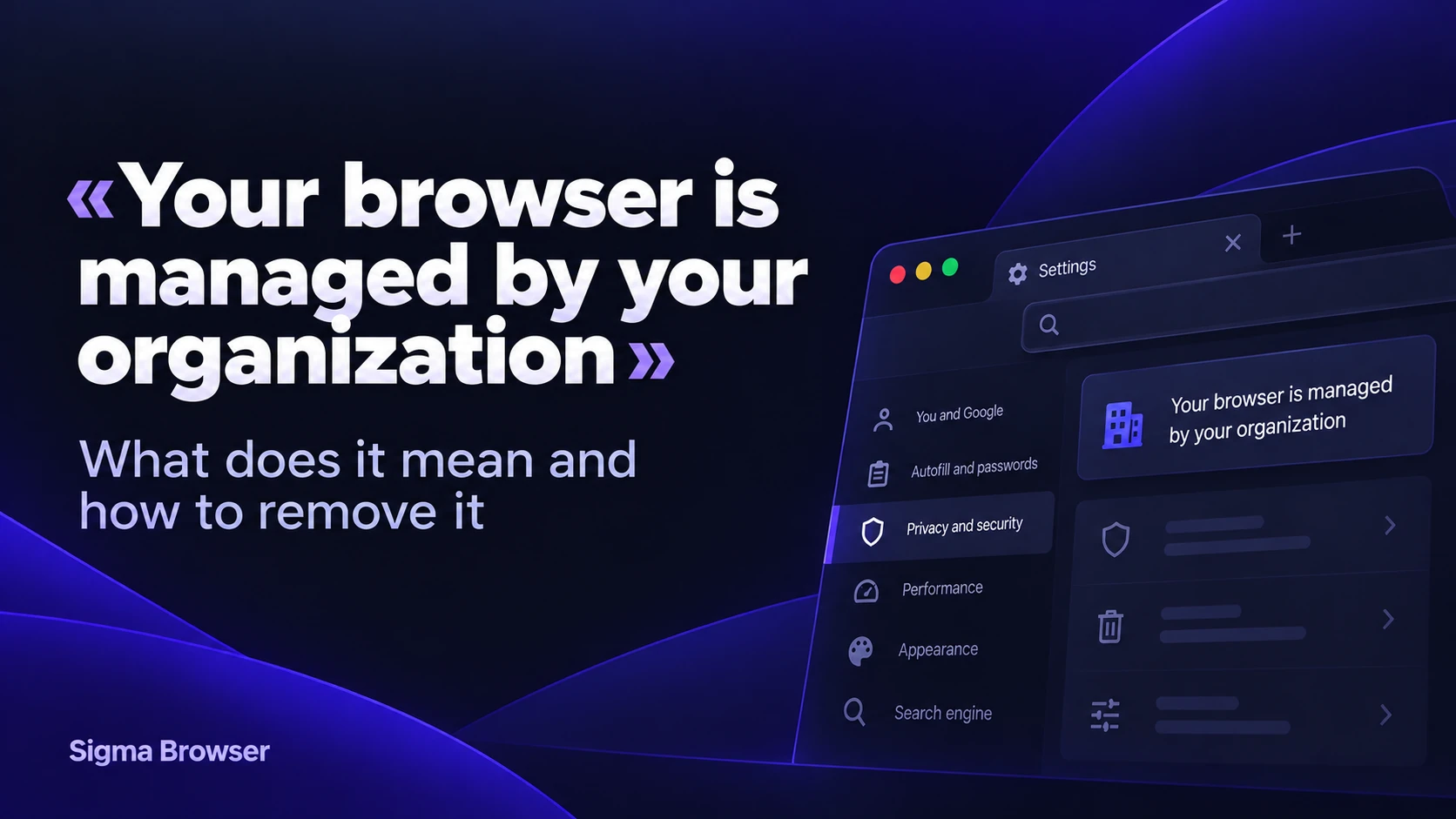
But the browser doesn't check who wrote the rules. As soon as it finds even one, it calls itself managed. In Chrome you'll see "Managed by your organization" at the bottom of the three-dot menu. The settings page then says "your browser is managed by your organization" at the top. Edge uses the same wording. Firefox adds one word. It says "Your browser is being managed by your organization."
That's why the message shows up on laptops that never belonged to any company. In fact, the "organization" can be a download manager that changed one registry value.
Browser, profile and device management mean different things
Chrome has three levels of management. The difference matters for your privacy. As Google explains, a managed work profile only shows that one profile to the admin. On the other hand, a browser enrolled in a company console shows every profile to the admin. That includes personal and guest profiles. Policies that a program just wrote on your computer don't report to anyone at all.
| Message | Where you see it | What is managed | What an admin can see |
|---|---|---|---|
| "Managed by your organization" / "Your browser is managed by your organization" | Chrome menu and the top of Settings | The whole browser, through policies on the computer or a cloud enrollment | Local policies alone report to no one. With cloud enrollment every profile, including personal and guest ones |
| "Your profile is managed by" plus a work domain | Profile menu after signing in with a work or school account | Only that signed-in profile | Only the managed work profile, not your other profiles |
| "Your device is managed by your organization. Administrators can access the data in any profile on this device" | When you sign in on a computer with machine-wide management | The computer itself | Data in any Chrome profile on that device |
Did you sign in to Chrome with a work account? If only that profile shows the message, that's normal. But if Chrome says "your browser is managed by your organization" and you never enrolled it anywhere, keep reading.
Why it shows up on a personal computer
On your own PC, "your browser is managed by your organization" almost always traces back to one of five sources. Here they are, from harmless to harmful.
- A work or school account. You signed in to Chrome with it or added it to Windows under Settings > Accounts > Access work or school.
- Privacy tweak tools. Apps that turn off usage data often do it with browser policies. For example, a moderator on Microsoft's support forum asked about exactly these tools when someone reported the message.
- Programs that adjust your browser. Internet Download Manager is a well-known case. Its own FAQ says Chrome may show the warning after you turn on its option for older extensions. The setting often stays long after it stops doing anything.
- Security and parental control software. Some of these tools use policies to install their extension or lock settings.
- Adware and search hijackers. These force-install an extension through a policy so you can't remove it. Then they change your search engine or new tab page. If your search keeps switching to Yahoo, this is often why.
The first four are harmless or simply annoying. The last one is the reason to check first instead of deleting things at random.
Is it dangerous? Check chrome://policy first
"Your browser is managed by your organization" alone doesn't tell you who set the policies. chrome://policy does. Type it into the address bar and press Enter. In Edge use edge://policy, in Brave use brave://policy and in Firefox use about:policies.
You'll see every active policy with its name and value. Also look at the "Applies to" column. It shows whether a policy covers the whole machine or only your user account.
The policy names tell you a lot. This table covers the ones you're most likely to find on a personal computer.
| Policy in chrome://policy | What it does | Usually set by | What to do |
|---|---|---|---|
Extension | Installs extensions you can't remove or turn off | Security tools or adware | Look up each extension. Unknown? Remove it and the program behind it |
Default | Locks your search engine | Search hijackers, rarely IT | Remove unless your IT set it |
Homepage, New, Restore | Locks the homepage, new tab or startup pages | Search hijackers | Remove and check for adware |
Metrics set to false | Turns off Chrome usage statistics | Privacy tweak tools | Harmless. Keep it or remove it |
Extension | Kept old Manifest V2 extensions working. Chrome removed this policy in version 139 | Download managers such as IDM | Harmless leftover. Safe to delete |
Cloud | Enrolls the browser in a company console | Your employer or school | Leave it on a work device. On your own PC, follow Google's removal guide |
Browser, Restrict | Limits which accounts can sign in | Employer or school | Leave it on a work device |
These red flags point to adware, not a harmless tool:
- an extension you don't recognize in ExtensionInstallForcelist
- a search engine, homepage or new tab page you didn't choose
- the message showed up right after you installed a free converter, game booster or "cracked" program
If you see any of these, delete those rules. Then also remove the program that put them there. Otherwise they'll come back.
Finally, open chrome://management. It lists what an admin can see and which extensions they control. That tells you exactly what the rules allow.
How to remove "your browser is managed by your organization" in Chrome
Only do this on a computer you own. On a work or school device the rules are there on purpose. Deleting them can cut you off from work tools. Besides, the company's system will usually put them back.
First uninstall any program you don't recognize. Also remove any program that matches a policy you found. Then delete the rules themselves.
Windows
The quickest route is the Registry Editor. Press Win + R, type regedit and back up the registry first (File > Export). Then delete these keys if they exist:
- HKEY_CURRENT_USER\Software\Policies\Google\Chrome
- HKEY_LOCAL_MACHINE\Software\Policies\Google\Chrome
Does chrome://management mention cloud management? Then follow Google's removal guide as well. It lists the extra keys and the token to delete. It also names the folder %ProgramFiles(x86)%\Google\Policies, where Chrome keeps saved cloud policies.
Or run these commands in PowerShell as admin:
reg delete HKCU\Software\Policies\Google\Chrome /f
reg delete HKLM\Software\Policies\Google\Chrome /f
Next, open chrome://policy and click "Reload policies". If the list is empty, restart Chrome. "Your browser is managed by your organization" should now disappear from Settings.
macOS
Open System Settings and look for profiles. On recent macOS versions you'll find them under General > Device Management. On older versions look for Profiles. Remove any profile you didn't install yourself. Then delete apps you don't recognize from the Applications folder.
If Chrome still says "your browser is managed by your organization", run this in Terminal:
defaults delete com.google.Chrome
Google also lists two policy files worth checking. One is /Library/Managed Preferences/com.google.Chrome.plist and the other is /Library/Preferences/com.google.Chrome.plist. You'll need an admin password to delete them. Still, if a company's tool created them, deleting them won't help for long. Someone has to change that tool's settings.
Linux
Chrome reads policies from /etc/opt/chrome/policies. Delete the JSON files in the managed and recommended folders there with sudo. Then restart Chrome. Chromium usually reads /etc/chromium/policies, though some packages use /etc/chromium-browser/policies.
Edge, Firefox and Brave
The fix works the same way in other browsers. Only the policy page and the storage place change.
| Browser | Policy page | Windows registry | macOS | Linux |
|---|---|---|---|---|
| Chrome | chrome:/ | Software\ | Configuration profiles, com. | / |
| Edge | edge:/ | Software\ | Configuration profiles | / |
| Firefox | about:policies | Software\ | policies. in the app's distribution folder | / |
| Brave | brave:/ | Software\ | / | / |
Edge
Edge shows "your browser is managed by your organization" at the top of its settings too. Open edge://policy to see what's set. Then delete HKEY_CURRENT_USER\Software\Policies\Microsoft\Edge and HKEY_LOCAL_MACHINE\Software\Policies\Microsoft\Edge in the Registry Editor. Microsoft's own Edge guide confirms the machine-wide one. Also, did you once add a work or school account to Windows? If you no longer use it, remove it first. That account can push Edge policies too.
Firefox
Firefox words it a little differently, as mentioned above. Open about:policies to see the list. Firefox reads policies from the registry key Software\Policies\Mozilla\Firefox on Windows. It can also use a policies.json file in the distribution folder next to Firefox. On Linux that file may sit in /etc/firefox/policies instead. Delete the one you find and restart Firefox.
Brave
Check brave://policy. On Windows Brave keeps its policies under Software\Policies\BraveSoftware\Brave. Mac users should check /Library/Managed Preferences/com.brave.Browser.plist. On Linux look in /etc/brave/policies/managed.
It came back after you deleted it
If "your browser is managed by your organization" returns after a restart, something on your PC keeps rewriting the rules. That something is the real problem.
For example, Malwarebytes described a clear case in 2022. Modified installers of popular free tools added a scheduled task. Every four hours it ran a script. The script wrote search hijacker extensions back into the Chrome and Edge policies. Users removed the extensions and deleted the keys. Still, both kept coming back.
So here's what to check in that case:
- Open Task Scheduler and look for tasks you don't recognize, especially ones that run PowerShell scripts.
- Uninstall programs you installed around the time the message first appeared.
- Run a full scan with Microsoft Defender. If it finds nothing but the rules keep returning, use Microsoft Defender Offline. It scans before Windows starts.
- Delete the rules again and restart.
Google is also working on a fix of its own. In August 2026 BleepingComputer reported new Chrome code for unmanaged Windows and Mac computers. It would let Chrome block extensions that use policies to take over your search engine or new tab page. But the feature was still in development at the time. Until it ships you have to clean things up yourself.
When you shouldn't remove it
If your browser is managed by your organization on a device your employer or school gave you, leave the rules alone. That includes a school Chromebook. In that case the setup is there on purpose. Removing it can lock you out of work apps. And the organization's system will usually restore it on the next sync.
If you only need a work account on your own PC, keep it in a separate browser profile. As Google's comparison explains, a managed profile doesn't give the admin access to your other profiles.
Keep work and personal browsing apart in Sigma
Switching browsers won't remove adware from your PC. So if the rules keep coming back, clean the system first.
After that, Sigma gives you a cleaner way to keep accounts apart. Private Profiles create separate spaces for work, personal and other accounts. Sigma encrypts each profile's data and secures it with a 12-word recovery phrase. It also warns you about phishing sites in real time. Plus, it has a built-in ad blocker. Because Sigma runs on Chromium, your Chrome extensions, bookmarks and password manager work in it too.
Private Profiles secured by a 12-word recovery phrase, real-time phishing warnings and a built-in ad blocker. Works with your Chrome extensions.
More articles

Download Sigma Browser
Questions & Answers
reach out to us on X at @Sigma_Browser
Get Sigma on Android


