
Why Does Your Browser Say “Your Connection Is Not Private”? How to Fix It
Why does your browser say “Your Connection Is Not Private”? See what the warning means, what causes it, and how to fix it safely.

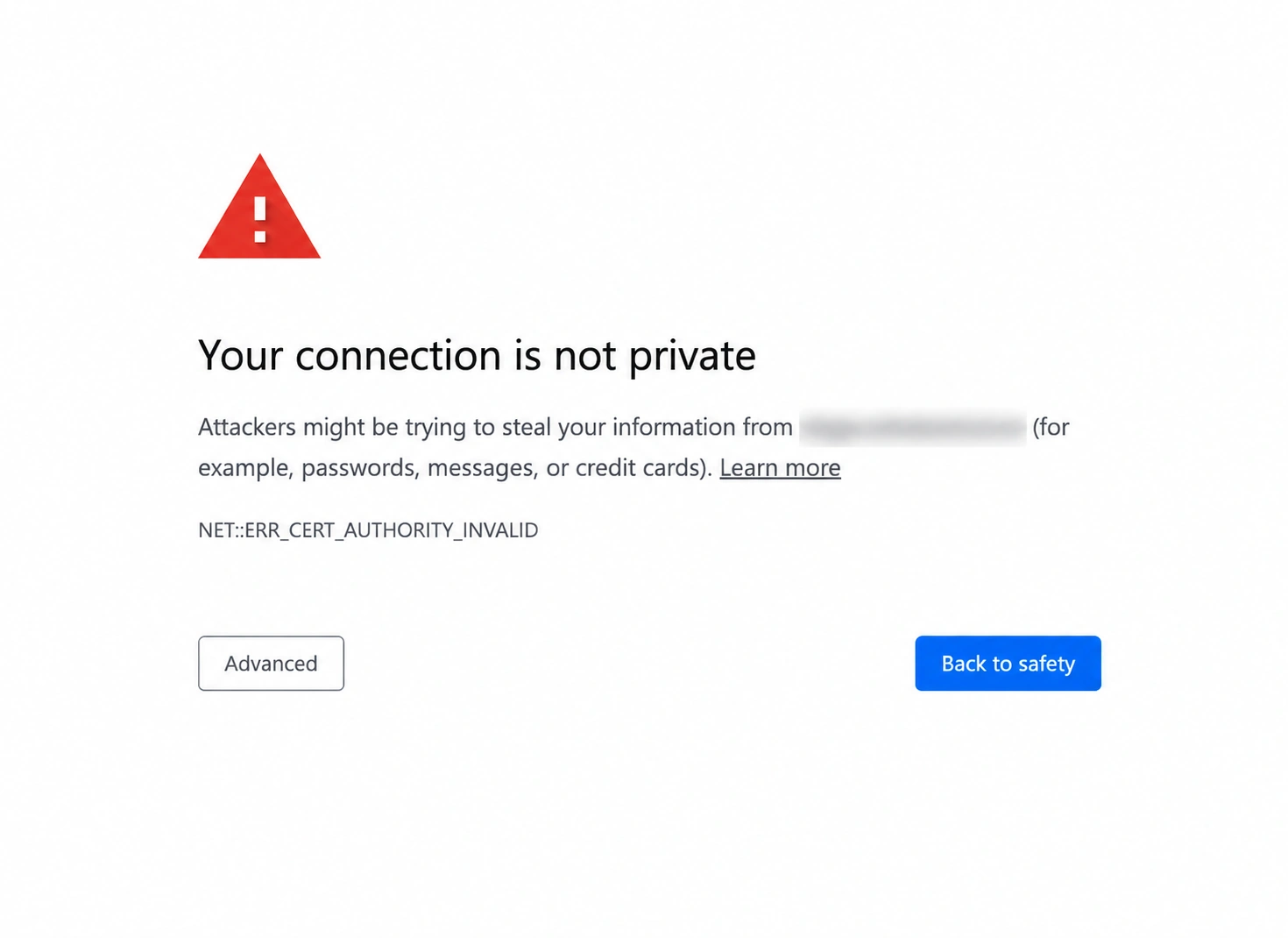
You open a website and instead of the page, your browser shows a warning saying “Your connection is not private.”
Don’t be scared, the message may look alarming, although it does not necessarily mean the website has been hacked or someone is trying to steal your data. It appears when the browser cannot verify the secure HTTPS connection it expects to establish with the site.
The cause may be as simple as an incorrect date on your device. An expired website certificate, public Wi-Fi login page, VPN, proxy, or security software can produce a similar warning.
Before continuing to the website, it is worth finding out what caused the error.
What Does “Your Connection Is Not Private” Mean?
When you visit an HTTPS website, your browser encrypts the connection and checks the site's digital certificate.
The certificate helps the browser confirm that it is communicating with the website shown in the address bar. During this process, the browser checks whether the certificate is currently valid, whether it belongs to the correct domain, and whether it can be traced to a certificate authority the browser trusts.
If those checks succeed, the HTTPS connection can continue normally. When an important check fails, the browser may stop loading the page and show a privacy warning.
Is “Your Connection Is Not Private” Dangerous?
The warning should be taken seriously because the browser cannot verify the connection with its usual level of confidence.
There are many possible explanations. A website owner may have forgotten to renew a certificate, configured it for the wrong domain, or failed to install the certificate chain correctly. Problems with a local network or security software can also interfere with certificate validation.
More serious situations are possible as well. A malicious network or intermediary could attempt to interfere with an encrypted connection. Since the browser cannot always determine the exact reason immediately, it warns the user instead of assuming that the connection is safe.
Until you understand the cause, avoid entering passwords, payment details, private documents, or other sensitive information.
Why Does This Error Happen?
Several certificate and network problems can produce the same browser warning. The error code shown underneath the message often provides the best clue.
The Website's Certificate Has Expired
HTTPS certificates have a limited validity period. When a certificate expires, the browser can no longer validate it as a currently trusted credential for that website.
Chrome may show the error code NET::ERR_CERT_DATE_INVALID.
A similar error can appear when the website certificate is valid and the clock on your own device is incorrect.
Your Device's Date or Time Is Wrong
Certificate validation depends on the current date and time.
If your computer thinks it is months or years ahead or behind, a valid certificate can appear expired or not yet valid. Checking the system clock is therefore one of the quickest troubleshooting steps.
Make sure the date, time, and time zone are correct. Automatic time synchronization is usually the easiest option.
The Certificate Does Not Match the Website
Certificates are issued for particular domain names. When the server presents a certificate belonging to another domain, the browser cannot confirm that it belongs to the website currently open.
Chrome may report NET::ERR_CERT_COMMON_NAME_INVALID.
This can happen because of a server configuration problem. It is also worth checking the address bar carefully, especially if you reached the site through an unfamiliar email, message, or advertisement.
The Certificate Authority Is Not Trusted
Browsers rely on trusted certificate authorities to verify website certificates.
When the browser cannot establish a valid chain of trust between a site's certificate and a trusted authority, Chrome may display NET::ERR_CERT_AUTHORITY_INVALID.
Firefox uses its own certificate error codes, including SEC_ERROR_UNKNOWN_ISSUER, when it cannot establish a trusted issuer.
Why Can Public Wi-Fi Cause the Warning?
Hotels, airports, cafés, universities, and other public networks often require users to open a login page before normal internet access begins.
Problems can arise when the first website you open uses HTTPS. Your browser expects to establish an encrypted connection with that site, while the Wi-Fi network is trying to redirect you to its own login portal.
That interruption can trigger a certificate warning because the connection no longer matches what the browser expected.
If this happens shortly after joining public Wi-Fi, try opening an ordinary HTTP page to trigger the network's login portal. Complete the sign-in process and then reopen the HTTPS website.
.webp)
Can a VPN, Proxy, or Antivirus Cause the Error?
VPNs, proxies, corporate security systems, parental controls, and antivirus software can sometimes affect HTTPS traffic.
Some security products inspect encrypted connections as part of their web protection features. This may involve presenting a locally trusted certificate to the browser while the software scans traffic. Certificate problems can appear when that setup is incomplete, outdated, or incorrectly configured.
A similar issue can occur on managed company or school networks where HTTPS traffic passes through a security gateway.
If the error started immediately after enabling a VPN, proxy, antivirus feature, or network filtering tool, temporarily testing without that component can help identify the source. Security software should be re-enabled after testing rather than left disabled permanently.
How to Fix “Your Connection Is Not Private”
The safest approach is to start with simple checks and gradually narrow down the source of the problem.
1. Check the Website Address
Read the domain in the address bar carefully.
Certificate problems on the correct domain can happen because of a technical mistake. A similar warning on a misspelled or unfamiliar domain deserves much more caution.
If the link came from an email, message, advertisement, or another unfamiliar source, verify the website address independently before entering any information.
2. Reload the Page
Temporary connection or server issues can occasionally disappear after reconnecting.
Reload the page once. If the warning immediately returns, continue troubleshooting instead of repeatedly refreshing it.
3. Check Your Date, Time, and Time Zone
Make sure the device shows the correct date, local time, and time zone.
Certificate validity depends on these settings. A significantly incorrect clock can cause secure websites to fail validation even when their certificates are configured properly.
After correcting the settings, close and reopen the page.
4. Complete the Public Wi-Fi Login
If you recently joined public Wi-Fi, check whether the network is waiting for you to accept terms or sign in.
Opening an HTTP page can help trigger the captive portal. Once the network login is complete, try the original HTTPS website again.
5. Try a Private or Incognito Window
Opening the site in a Private or Incognito window can help determine whether an extension or browser configuration is involved.
If the warning disappears there, look at recently installed extensions or settings in your normal browser profile.
Private browsing does not repair an invalid certificate. It is useful here as a troubleshooting method.
6. Check Your VPN or Proxy
Temporarily disconnect a VPN or proxy if the problem appeared after enabling it.
If the website starts working normally, the service or its configuration may be interfering with certificate validation.
Managed work and school devices require more caution. Certificate and proxy settings may be controlled by an administrator, so changing them manually can create additional problems.
7. Check HTTPS Scanning in Security Software
Some antivirus applications include options such as HTTPS scanning, SSL scanning, encrypted connection scanning, or web protection.
Temporarily disabling the relevant scanning feature can help determine whether the software is causing the certificate error. If it is, updating or reconfiguring the security application is preferable to permanently turning protection off.
8. Update Your Browser and Operating System
Browsers and operating systems maintain certificate trust information and support for modern TLS standards.
Very old software may have trouble validating certificates or certificate authorities that newer versions support correctly. Install available updates, restart the device, and test the website again.
9. Try Another Network
Open the same website through another connection, such as mobile data.
A site that works on another network while failing on your Wi-Fi points toward a local network problem. The router, captive portal, proxy, DNS configuration, or network security system may be involved.
Testing several sites can reveal even more.
Should You Bypass “Your Connection Is Not Private”?
Bypassing a certificate warning is usually a poor idea when you do not know why it appeared.
The browser is warning you because it could not verify a security property that HTTPS normally provides. Continuing is especially risky on websites used for banking, email, payments, cloud storage, account logins, or other sensitive tasks.
There are controlled environments where an untrusted certificate may be expected. Developers sometimes use self-signed certificates on local servers, while companies can operate internal services with private certificate authorities. In those cases, the user or administrator usually knows why the certificate is treated differently.
An unexplained certificate warning on a public website deserves a more cautious response.
What Is HSTS and Why Is There No “Proceed Anyway” Button?
HSTS stands for HTTP Strict Transport Security. It allows a website to tell the browser that future connections to that domain should use HTTPS.
This protects against attempts to downgrade a secure connection to ordinary HTTP. When strict HTTPS rules apply, the browser may also refuse to provide an option for bypassing certain certificate failures.
The missing button can therefore be an intentional security measure. The browser is enforcing a policy that prevents the connection from continuing when its security requirements cannot be satisfied.
“Not Secure” vs “Your Connection Is Not Private”
These warnings refer to different connection problems.
A “Not Secure” label commonly appears when a page uses an unencrypted HTTP connection or otherwise lacks the protection expected from HTTPS.
“Your Connection Is Not Private” generally appears after the browser tries to establish HTTPS and encounters a problem validating the certificate or secure connection.
The first situation is usually about the absence of a properly protected connection. The second is about a secure connection that the browser cannot authenticate correctly.
What If the Error Appears Only on One Website?
When other HTTPS websites work normally and a single domain consistently shows the warning, the problem is more likely to be associated with that website.
Its certificate may have expired, contain the wrong hostname, lack part of the certificate chain, or be installed incorrectly on the server.
Testing the website from another device or another network can help confirm this. If the same certificate warning appears everywhere, there may be little you can fix locally.
Waiting for the website owner to correct the configuration is safer than weakening your browser's security settings.
What If Every Website Suddenly Shows the Error?
Certificate warnings across many unrelated sites usually point toward something on the device or network.
Check the system clock first, then think about recent changes. A newly installed antivirus program, VPN, proxy, company network profile, local certificate, or router configuration could affect secure connections.
Trying another network and another browser can quickly narrow down the possibilities. If several browsers fail on one device, the problem is more likely to involve the operating system, network, or security software. If several devices fail only on the same Wi-Fi network, the network itself becomes the stronger suspect.
Repeatedly bypassing certificate warnings does not solve the underlying problem and can expose sensitive traffic.
What Do Chrome, Firefox, and Safari Call This Error?
Browsers use different wording for certificate problems, although the underlying checks are broadly similar.
Chrome and other Chromium-based browsers commonly display “Your connection is not private” along with codes such as NET::ERR_CERT_DATE_INVALID, NET::ERR_CERT_AUTHORITY_INVALID, or NET::ERR_CERT_COMMON_NAME_INVALID.
Firefox may show “Warning: Potential Security Risk Ahead” or “Secure Connection Failed” together with its own certificate error codes.
Safari can display security warnings when a website uses an invalid certificate, an insecure connection, or unsupported security settings.
How Does the Browser Protect Secure Connections?
Certificate warnings are part of the browser's HTTPS security model. The browser checks the site's identity before treating the connection as trusted and warns the user when those checks fail.
Sigma is based on Chromium and uses the same underlying web platform for HTTPS and certificate handling while adding its own privacy and security features.
A privacy-focused browser should still surface certificate problems clearly. Hiding or silently ignoring these errors would weaken the security of the connection.
Final Takeaway
“Your connection is not private” means the browser could not verify an HTTPS connection in the way it normally expects.
The cause can come from the website, your device, the network, or software that handles encrypted traffic. Common examples include expired certificates, incorrect system time, public Wi-Fi login pages, VPN or proxy configuration, antivirus HTTPS scanning, and server mistakes.
Start with the safest checks. Verify the address, check your clock, complete any Wi-Fi login, try another network, and look for software that may be affecting HTTPS.
A warning that appears on one website often points toward the site itself. Errors across many unrelated websites are a stronger reason to investigate your device or network.
Until you understand the cause, avoid entering sensitive information or bypassing the warning.
More articles

Download Sigma Browser
Questions & Answers
reach out to us on X at @Sigma_Browser
Get Sigma on Android


