
Why Do I Keep Getting Logged Out of Websites? 8 Reasons and How to Stay Signed In
Websites keep logging you out? Learn why sessions expire, how cookies and browser settings affect sign-ins, and what to check if you cannot stay logged in.

You sign in, close the browser, come back an hour later, and the website asks for your password again. On another site, everything works until a message suddenly appears saying your session has expired. Sometimes it happens every few days. Sometimes it happens every time you restart the browser.
Websites can sign you out for legitimate security reasons, but repeated logouts usually come down to how your login session is being stored or how long the website allows it to remain active. Cookies are one of the most common pieces of that system, although browser privacy settings, extensions, private browsing, security software, account policies, and damaged site data can also interfere.
The useful first step is to work out whether every website is affected or only one. If you are being logged out of several unrelated services, look at the browser. If one account keeps signing you out while everything else works normally, the website or account itself becomes a stronger suspect.
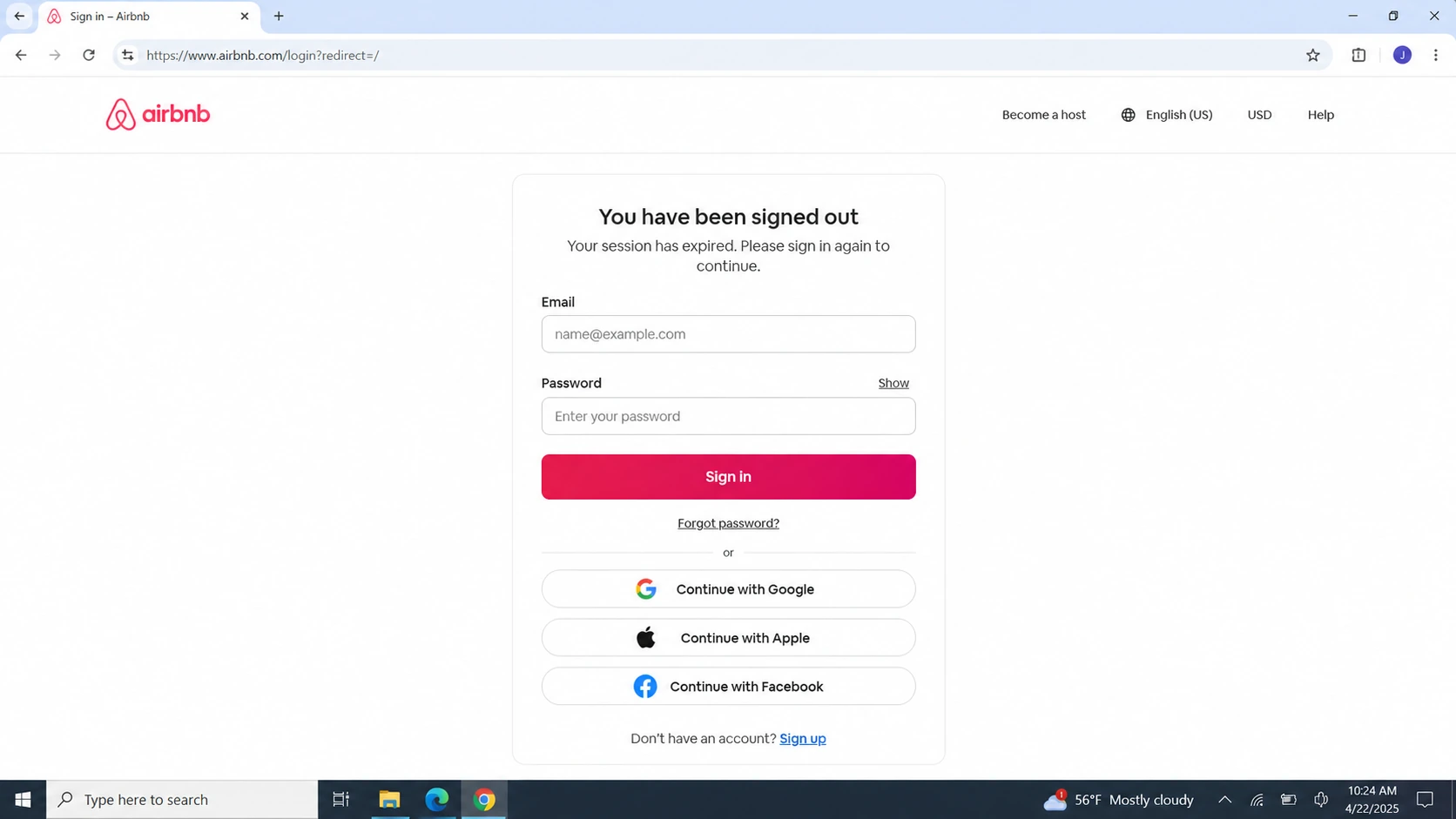
What Does “Session Expired” Mean?
When you sign in to a website, the server normally creates a session that allows it to recognize subsequent requests as coming from an authenticated user. Instead of asking for your password on every page, the browser keeps information that allows the website to associate your requests with that active session.
Cookies are commonly involved in this process. Mozilla explains that cookies can store information such as login status, allowing a website to recognize you when you return.
That session is not necessarily permanent. A website may give it an expiration time, end it after a period of inactivity, invalidate it after a password change, or require authentication again when it detects something unusual.
This is what messages such as Session expired, Your session has expired, or Please log in again to continue usually mean. The website no longer accepts the authentication state your browser was using.
An expired session therefore does not automatically mean something is wrong with your browser. The important distinction is whether it happens occasionally as part of the website's normal security policy or repeatedly during ordinary use.
1. Your Login Session Has Expired Normally
Not every logout is a malfunction.
Websites decide how long authenticated sessions remain valid. A banking service may require another login relatively quickly, while a news site or shopping account may keep the same browser recognized for much longer.
Some websites also use separate timers for activity and total session lifetime. Continuing to use the site may reset an inactivity timer while a longer maximum session duration continues counting in the background.
This is why a website can suddenly show session expired even though you never clicked Log Out.
The website may also end existing sessions after important account changes. Changing a password, resetting security settings, removing trusted devices, or signing out of other sessions can intentionally invalidate authentication tokens that were issued earlier.
If the same service logs you out at roughly predictable intervals but other websites stay signed in normally, the behavior may simply reflect that site's session policy.
2. Your Browser Is Deleting or Blocking the Cookies Used to Keep You Signed In
Cookies are one of the first things to check when multiple websites refuse to remember your login.
A website can store a cookie after authentication and read it again on later requests. If that cookie disappears, the site may no longer have the browser-side information it expects when confirming that you already signed in.
This does not mean every cookie is a login cookie. Websites use cookies for many purposes, including preferences, analytics, consent choices, and advertising. Our guide to what accepting cookies actually means explains why different cookies serve different purposes.
Login persistence is one reason deleting all cookies can have a much more noticeable effect than simply clearing cached files. In our guide to clearing browser cache, we explain why clearing only the cache normally leaves login sessions alone while removing cookies or broader site data may sign you out.
Check whether your browser is automatically deleting website data and whether the affected site is allowed to store the cookies it needs.
3. Your Browser Is Clearing Site Data When You Close It
This is one of the clearest explanations when the pattern is extremely specific.
You sign in, use the website normally, close the browser, reopen it, and discover that you have been signed out.
Browsers and privacy tools can be configured to remove cookies or other website data when a browsing session ends. Firefox, for example, provides controls that can delete cookies automatically when Firefox closes.
If this option is enabled, websites that depend on persistent cookies may behave as though you are visiting from a new session every time the browser starts.
The same thing can happen when a third-party cleanup utility removes browser data during shutdown or on a schedule. Before changing individual website settings, check whether the problem affects many accounts immediately after restarting the browser.
If websites stay signed in for hours while the browser is open but forget you as soon as you close it, automatic data deletion should be near the top of the troubleshooting list.
4. You Are Using Private or Incognito Mode
Private browsing is designed to reduce what remains on the device after the private session ends.
That makes it useful when you do not want the browser to preserve the same local browsing state, but it also makes it unsuitable when your goal is to remain signed in across separate private sessions.
Safari, for example, states that changes to cookies and website data are not saved in Private Browsing. When the private session ends, websites should not be expected to preserve the same local authentication state for the next private window.
Google similarly recommends private browsing when somebody specifically wants to avoid remaining signed in on another person's computer.
Chrome Incognito, Firefox Private Browsing, Safari Private Browsing, and similar modes vary in implementation, but the practical rule is simple. If you want a website to remember your session after you close the window, use a normal browsing profile unless you have a specific reason not to.
For more detail on what these modes do and do not protect, see our guide to Safari Private Browsing and our explanation of private browsing on Mac.
5. “Keep Me Signed In” Is Not Working
A checkbox labelled Keep me signed in, Remember me, or Stay signed in does not override everything else happening in the browser.
The option usually tells the website that you want a longer-lived authentication state. The website still has to store the necessary browser data successfully, and it can still impose its own security rules.
That means selecting Keep me signed in may appear to do nothing if the browser deletes the relevant cookie, private browsing is being used, an extension removes site data, or the website itself invalidates the session.
It is also important not to confuse staying signed in with saving a password. A password manager can remember the credentials needed for your next login without keeping the current website session alive.
If the browser fills your username and password automatically but the site still asks you to sign in every time, password storage is probably working. Session persistence is the part that is failing.
6. An Extension, Privacy Tool, or Security App Is Interfering
Browsers rarely operate alone.
Extensions can modify requests, block scripts, manage cookies, isolate tabs, clear browser data, or apply privacy rules to specific websites. Antivirus products and other security applications can also interact with browser storage or authentication.
Google's own troubleshooting guidance for accounts that repeatedly sign out specifically notes that cookies should be enabled and that antivirus or related software may delete them.
If the problem began immediately after installing an extension or changing privacy software, test the affected site with those tools disabled temporarily.
A private window is not always a perfect extension test because private mode changes session behavior by itself. It is often better to create a clean browser profile or disable extensions gradually in a normal window.
Start with anything that manages cookies, automatically cleans browsing data, blocks scripts, changes privacy behavior, or promises to remove tracking information after every session.
7. The Website Is Ending Your Session for Security Reasons
Sometimes the browser is preserving the session correctly and the website is intentionally rejecting it.
A service may require another login after detecting a new device, a significant account change, an unusual authentication event, or activity it considers risky. Enterprise and work accounts can also have administrator-defined session policies that are much stricter than those used for ordinary consumer accounts.
Network changes can sometimes contribute to additional security checks, although switching Wi-Fi networks or changing IP addresses does not automatically sign you out of every service. The reaction depends on how that particular website evaluates sessions and account risk.
This distinction matters when troubleshooting VPNs. If logging out happens only with one service while a VPN is active, test the same account without the VPN and compare the behavior. If every website loses its login after the browser closes, the problem is much more likely to involve browser storage than the network itself.
Repeated authentication requests from a work account can also be intentional. In that case, changing browser cookie settings will not override a server-side policy controlled by the organization.
8. Stored Site Data or Your Browser Profile Is Damaged
A browser can have cookies enabled and still behave incorrectly if the data associated with one site has become inconsistent.
This is particularly worth considering when one website repeatedly logs you out while other accounts remain stable.
Instead of immediately deleting all browsing data, clear the stored data for the affected website and sign in again. This forces the site to create a new local session without wiping cookies for every other account.
If many unrelated websites continue losing their sessions, create a temporary fresh browser profile and test there.
Browser profiles keep separate sets of browsing data. Safari, for example, documents that its profiles maintain separate cookies and website data, along with history and extensions.
If a fresh profile keeps you signed in normally while the old one does not, you have narrowed the problem substantially. An extension, setting, or piece of stored profile data in the original profile is likely involved.
Do not delete the original profile until bookmarks, passwords, open tabs, and anything else you need have been synchronized or backed up.
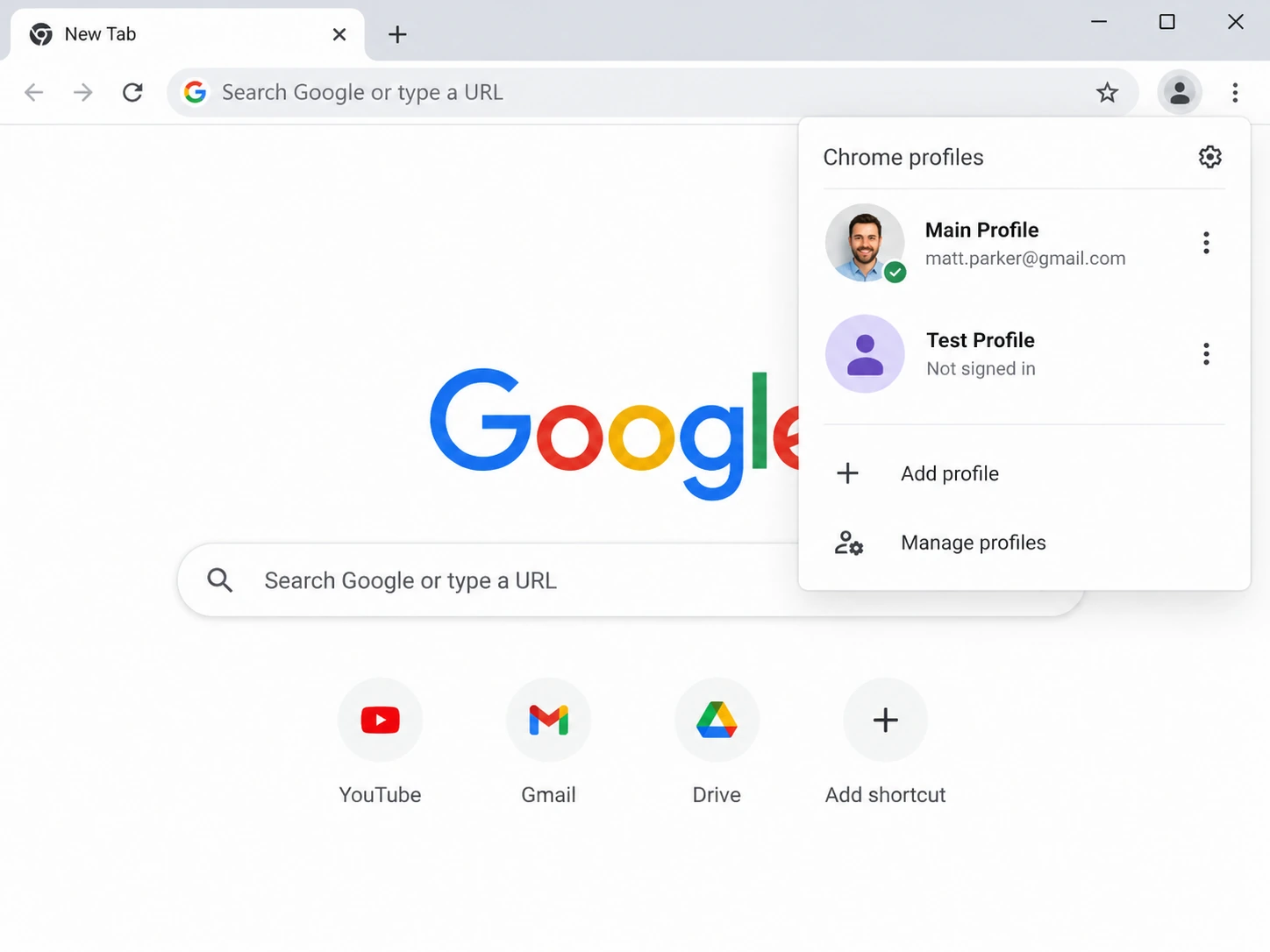
Why Does Google Keep Signing Me Out?
Google is one of the clearest examples of why the browser's stored session data matters.
Google's official account help says that if Google repeatedly signs you out, you should make sure cookies are enabled, check whether antivirus or related software is deleting them, clear the browser cache when appropriate, and make sure the browser is current.
If Google is the only service affected, do not assume the entire browser is broken.
First, test another website where you normally stay signed in. If other accounts remain authenticated after closing and reopening the browser, focus on Google-specific site data and account settings.
If Google, Reddit, Amazon, and several unrelated websites all forget their sessions at the same time, investigate browser-wide cookie deletion, private browsing, extensions, or profile problems instead.
Google also distinguishes between intentionally staying signed in and using private browsing on somebody else's device, where closing the private windows is intended to end the session.
Why Does Chrome Keep Logging Me Out?
There are two different problems people often describe as Chrome signing them out.
The first is being signed out of websites inside Chrome. That usually points toward website cookies, automatic data deletion, extensions, or individual account policies.
The second is Chrome itself no longer remaining connected to a Google account or sync setup. That involves the browser account layer rather than only the website you have open.
When websites are the problem, start with cookie and site-data behavior. Check whether the issue occurs after every browser restart and whether multiple unrelated websites are affected.
If only one website refuses to stay logged in, clear that site's stored data rather than deleting all cookies immediately.
If you do remove cookies broadly, expect other websites to forget active sessions as well. Cookies are separate from the browser cache, and deleting them can have a much larger effect on authentication. Our guide to clearing cache, cookies, passwords, and history explains what each category controls.
Why Does Firefox Keep Logging Me Out?
Firefox also uses cookies to preserve login status, and Mozilla explicitly notes that cookies can allow users to remain logged in when they return to a website.
If Firefox signs you out whenever it closes, check whether cookies are configured to be deleted on exit.
Extensions are another useful test. Disable privacy or cleanup extensions temporarily and see whether normal login persistence returns.
If only one site is affected, remove that site's stored cookies and data and create a fresh login rather than resetting the entire browser.
Why Does Safari Keep Logging Me Out?
Start by checking whether you are browsing in a normal Safari window.
Private Browsing intentionally does not preserve changes to cookies and website data in the same way as ordinary browsing, so a login created inside a private session should not be treated as a persistent login.
Safari profiles can also matter because cookies and website data are separated between profiles. Signing in to a site under one Safari profile does not mean another profile has the same session.
If the problem occurs in an ordinary profile and affects one specific website, clear that site's website data and sign in again.
Why Do I Get Logged Out After Closing My Browser?
This pattern narrows the possibilities considerably.
If you remain signed in while browsing but lose the session every time the application closes, something is probably preventing persistent session data from surviving between launches.
The most likely areas to inspect are automatic cookie deletion, cleanup extensions, private browsing, browser profiles, and third-party utilities that remove website data.
Can Clearing Cookies Log You Out?
Yes. Clearing cookies can end website sessions because cookies are commonly used to retain login state.
That is different from clearing only cached images and files. Cache mainly stores reusable website resources, while cookies can contain information associated with your current session.
This is why pressing a broad Clear browsing data button without checking the selected categories can create a confusing result. The broken page may be fixed, but several websites may also ask you to sign in again.
If your goal is only to refresh outdated website resources, select the cache category without cookies when the browser provides separate controls.
Does Blocking Third-Party Cookies Log You Out?
Not necessarily.
First-party cookies created by the site you are actively visiting can continue to support ordinary login sessions even when third-party cookies are restricted.
However, modern authentication can involve multiple domains. A website may use an external identity provider, embedded account system, or cross-domain sign-in flow. More aggressive cookie or storage restrictions can therefore cause certain authentication systems to behave differently.
If login problems began immediately after changing cookie protection settings, test the affected website with an exception rather than weakening privacy settings globally.
Cookies are also only one part of online tracking. Websites can recognize browsers through other mechanisms, which we cover in How Websites Track You: What Your Browser Reveals About You.
How to Stay Signed In Without Weakening Your Security
Staying signed in does not require accepting every cookie, disabling every privacy feature, or turning off your security software.
The goal is to preserve the specific site data required for accounts you trust while keeping unnecessary tracking controls in place.
Use a normal browser profile for accounts where you want persistent sessions. Avoid automatically clearing all cookies at every shutdown unless that behavior is intentional. When a privacy extension causes trouble, create an exception for the affected site rather than disabling the extension everywhere.
Do not use Keep me signed in on shared or public computers. Persistent authentication is convenient precisely because the device continues to have access to the account after the initial login.
For sensitive accounts, the occasional requirement to authenticate again is also a reasonable security trade-off. The objective is to fix unexplained repeated logouts, not to prevent websites from ever asking for your credentials again.
What to Try First
Do not reset everything at once. A short diagnostic sequence usually tells you much more.
Start by checking whether the problem affects one website or many. Then confirm that you are not using private browsing and that cookies are not being deleted when the browser closes. Disable cookie cleaners, privacy extensions, or related utilities temporarily and test again.
If one site continues signing you out, clear only that site's stored data and create a new login session. If many sites are affected, test a clean browser profile.
Only after those steps should you consider a broader browser reset or reinstall. Reinstalling the application will not necessarily solve the problem if the same damaged profile or problematic settings are restored immediately afterward.
Final Thoughts
When websites keep logging you out, the password itself is often not the problem. The browser may be losing the information that tells the website you already authenticated, or the website may be deliberately ending the session.
A session expired message that appears occasionally can be completely normal. Being signed out of every website whenever you close the browser points toward a different class of problem, especially cookie deletion, private browsing, cleanup tools, or browser-profile settings.
Start with the pattern rather than immediately clearing all browsing data. Check whether one site or many are affected, whether the logout happens while the browser is still open, and whether closing the application is what triggers it.
Once you know when the session disappears, finding out why becomes much easier.
More articles


Download Sigma Browser
Questions & Answers
reach out to us on X at @Sigma_Browser
Get Sigma on Android


