
What Does Clearing Cache Do? What Happens to Passwords, Cookies, and History
Does clearing cache delete passwords, cookies, or history? See what actually gets removed, whether you’ll be logged out, and when clearing cache helps.

Clearing the browser cache is one of the most common troubleshooting suggestions on the web. A site looks broken, an old image refuses to update, or a page behaves strangely, and somebody tells you to clear the cache. The advice is often useful, although it is easy to misunderstand what the browser actually removes.
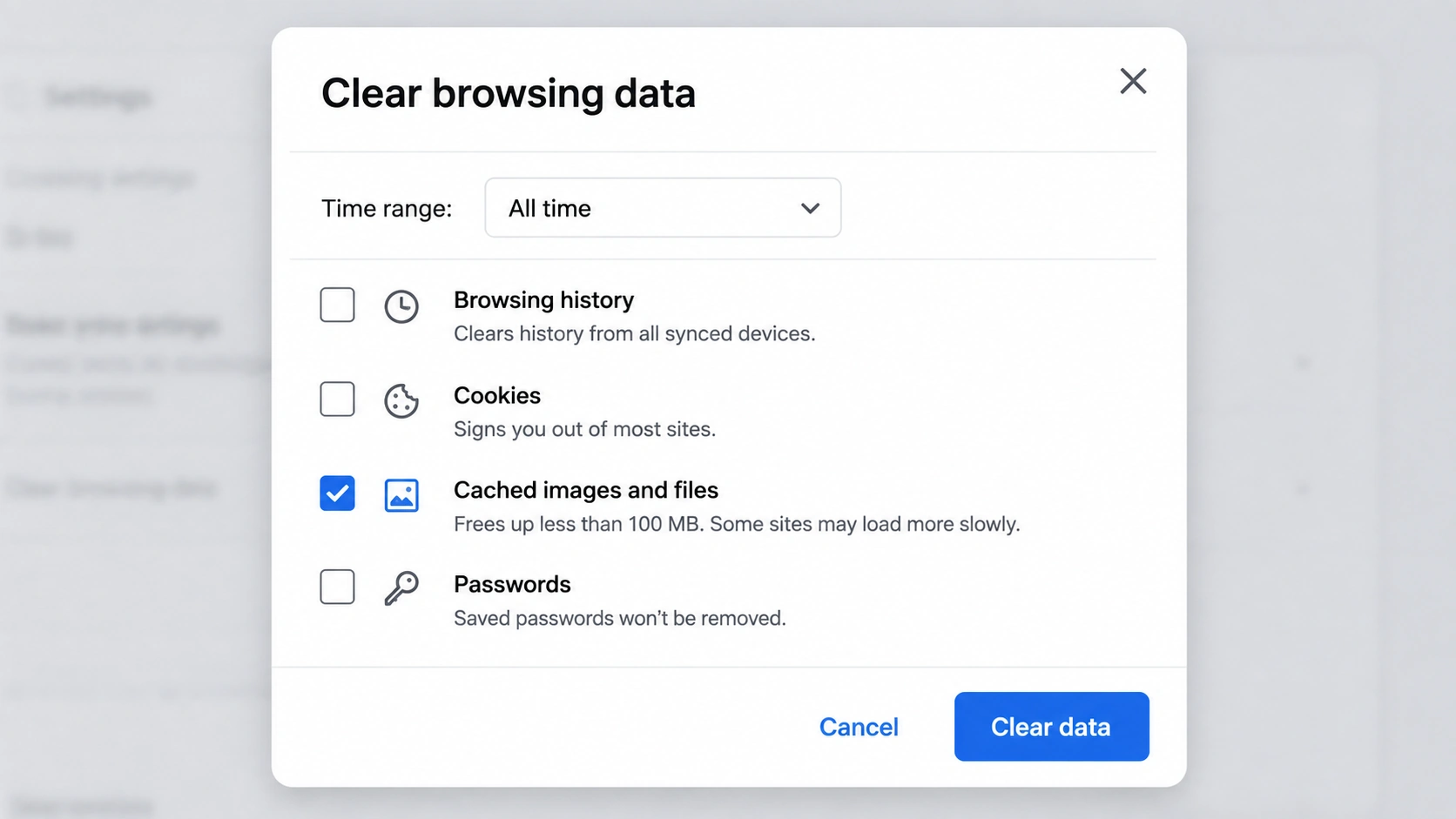
When you clear only the browser cache, you remove temporary copies of website resources that were stored on your device. Your browser then downloads fresh versions when you revisit those pages. Saved passwords, bookmarks, browsing history, and cookies are separate categories in most browsers, so they normally remain unless you choose to remove them as well.
The exact wording varies between Chrome, Firefox, Edge, Safari, and other browsers. Some clearing tools place several types of browsing data in the same window, which makes it worth checking the selected categories before you confirm.
What Is Browser Cache and Why Does It Exist?
A browser cache is local storage for temporary copies of resources that websites use. MDN’s guide to HTTP caching explains that cached responses can be reused for later requests, which reduces the need to download the same content from the origin server again.
Images, style sheets, scripts, fonts, and other reusable resources are common examples. When you return to a page, the browser can use a cached copy when it is still suitable instead of requesting every file again. This saves network traffic and can make repeat visits feel faster.
The cache is temporary by design. Websites can tell browsers how long a resource should be considered fresh, and browsers can replace or remove stored copies as space is needed. Clearing the cache manually forces that process to start again with fresh downloads.
What Changes After You Clear Your Browser Cache?
The immediate change is simple. The browser no longer has the cached copies you removed, so the next visit to a website may require more files to be downloaded again. That first load can be slightly slower, while later visits can build a new cache.
This is also why clearing cache can fix stale or broken pages. If the browser has an outdated image, script, style sheet, or another resource, removing the local copy gives the website a chance to provide a fresh version. The page may then render correctly without changing your account or saved browser information.
Does Clearing Cache Delete Passwords?
Clearing the cache by itself does not normally delete saved passwords. In Google Chrome’s browsing-data controls and Microsoft Edge’s data-clearing settings, cached images and files are presented separately from saved passwords.
The important part is the selection you make before clearing data. If the browser offers several checkboxes and you select passwords as well as cache, those saved credentials can be removed. If only the cache category is selected, passwords should remain.
Password managers and browser sync can introduce additional layers, so a synced account may store credentials separately from the local cache. That is another reason to treat cache, passwords, and account data as different types of browser storage.
Does Clearing Cache Delete Cookies?
Cache and cookies serve different jobs. Clearing only cached files normally leaves cookies in place, while selecting cookies or site data can remove login sessions, preferences, consent choices, and other information that websites have stored.
Firefox’s cache guide explicitly tells users who want to clear only the cache to leave the other browsing-data categories unselected. This separation is useful because it lets you refresh temporary website resources without automatically removing every site session.
Safari requires a little more attention because some of its controls are described as website data and can include cookies together with cached data. Apple notes that removing website data may sign you out or change how a site behaves, so the effect depends on which Safari control you use.
Will Clearing Cache Log You Out?
Clearing cache alone usually does not log you out because websites commonly keep login state in cookies or other site storage rather than in ordinary cached images and files. A page may reload from scratch, although your session can remain active.
You are more likely to be signed out when cookies or broader website data are removed at the same time. This distinction matters on browsers that present cache, cookies, and site data in one clearing dialog. If staying signed in matters, check the selected categories before you confirm.
Does Clearing Cache Delete Browsing History?
Browsing history is another separate category in most desktop browsers. Clearing cached images and files does not normally erase the list of pages you have visited, while selecting browsing history in the same clearing tool will.
Edge makes this separation particularly clear in Microsoft’s browsing-data guide, where history, cookies, cached images and files, passwords, and form data appear as different data types. Chrome uses a similar category-based approach.
Safari can behave differently depending on the command you choose. Apple’s Clear History controls remove several records associated with browsing, while its website-data controls focus on cookies and site data. The label on the button therefore matters as much as the browser you are using.
What Is the Difference Between Cache and Cookies?
Cache is mainly about reusable website resources. Cookies are small pieces of site data that can remember sessions, preferences, consent choices, or identifiers. Both live on your device, but they solve different problems and have different effects when deleted.
Clearing cache makes the browser fetch fresh page resources. Clearing cookies can reset a website’s memory of your session or preferences and may sign you out. That is why deleting both at once can feel much more disruptive than clearing the cache alone.
The distinction also matters for privacy. Removing cached resources is mostly a maintenance action, while cookies can be involved in tracking and cross-site recognition. If privacy is the goal, browser protections against trackers and third-party cookies matter more than repeatedly deleting the cache. Sigma’s private browsing features focus on reducing tracking at the browser level.
Is It Safe to Clear Your Cache?
For normal browsing, clearing the cache is generally safe. The browser can rebuild it as you revisit websites, and ordinary downloaded files, bookmarks, and saved passwords are not part of the cache category in browsers that separate those controls.
The most noticeable consequence is usually temporary. Pages may take longer to load on the first visit because images, scripts, fonts, and other resources need to be downloaded again. Some web apps can also recreate local resources after the cache is cleared, so the first session afterward may feel less immediate.
The main risk comes from clearing more than you intended. A button labelled Clear Browsing Data can include several selected categories, so review the options rather than assuming the action means cache only.
When Should You Clear Browser Cache?
Cache clearing is most useful when there is evidence that a stored resource may be causing a problem. A page can show an outdated design, a recently changed image may refuse to update, or a website may display incorrectly after a deployment or browser update. Removing the old local resources gives the browser a clean copy to work with.
It can also be a reasonable troubleshooting step when one website behaves strangely while the rest of the browser works normally. Microsoft’s Edge troubleshooting guidance notes that clearing cached data can sometimes fix page display problems.
If the problem affects secure connections, certificates, or many unrelated websites, cache may have nothing to do with it. Our guide to “Your Connection Is Not Private” errors covers a different class of problems involving HTTPS, certificates, networks, VPNs, and security software.
Does Clearing Cache Make Your Browser Faster?
Clearing cache is not a reliable way to make a healthy browser faster. The cache exists partly to improve repeat loading, so removing useful cached resources can make the next visit slower while the browser downloads them again.
There are situations where performance can improve after clearing it. A corrupted or unusually problematic cache can contribute to bad page behavior, and rebuilding those resources may remove the issue. That is different from using cache clearing as a routine speed boost.
Page performance also depends on what a website loads in the first place. Our explanation of how ad blockers work shows how blocking unnecessary advertising and tracking requests can reduce page workload before those resources are downloaded. That mechanism is different from deleting files that are already stored in the cache.
How Often Should You Clear Cache?
There is no useful schedule that fits everyone. Modern browsers manage cache storage automatically and replace old resources as websites change or local storage fills. For most people, clearing it every day or every week creates extra downloads without solving a real problem.
A better rule is to clear the cache when you are troubleshooting a page, when a website keeps showing stale content, or when browser support specifically recommends it. If only one site is affected, a site-specific cleanup can be preferable to removing cached resources for every website.
How to Clear Browser Cache Without Deleting Passwords and History
The safest method is to open the browser’s data-clearing controls and select only the category that refers to cached files or temporary cached pages. Leave passwords, browsing history, cookies, and other site data unchecked unless you also want those categories removed.
Sigma
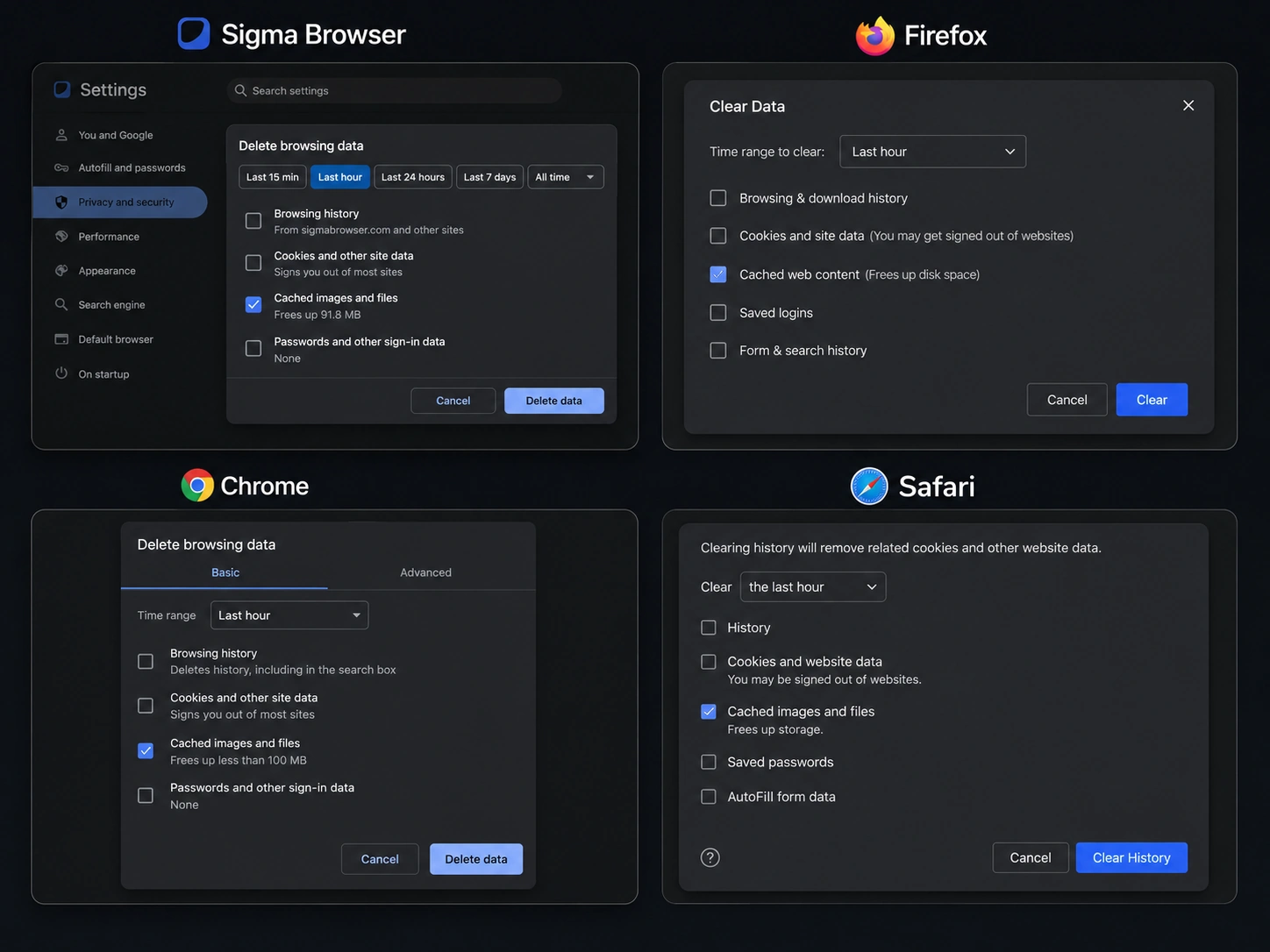
In Sigma Browser, open Settings and go to Privacy and security, then choose Delete browsing data. Cached images and files appears as a separate category alongside Browsing history, Cookies and other site data, and Download history. If you only want to clear the cache, leave the other categories unchecked before selecting Delete from this device. Saved passwords are managed separately and are not removed when you clear only cached images and files.
Chrome
Chrome lets you choose individual categories in its Clear browsing data window. Google’s official instructions describe browsing history, cookies and other site data, cached files, passwords, and other stored information separately. Choose the appropriate time range and keep only the cache-related category selected when that is all you want to remove.
Firefox
Mozilla’s instructions for clearing Firefox cache recommend selecting Temporary cached files and pages while leaving other data you want to keep unselected. Firefox also provides broader history-clearing tools, so the selected data type remains important.
Safari
Safari uses several related controls for history and website data. Apple’s Safari guide notes that removing website data can also remove cookies and may sign you out, so Safari users should check whether they are clearing cache alone or broader site data.
What Clearing Cache Does Not Fix
Cache clearing cannot solve every browser problem. A slow internet connection, failing DNS, an expired HTTPS certificate, a broken extension, a VPN issue, malware, or a problem on the website’s own server can produce symptoms that have nothing to do with cached files.
It is also a weak privacy strategy on its own. Cached images and scripts are different from trackers, third-party cookies, fingerprinting, and network requests. For users who care about reducing everyday tracking, a browser with stronger privacy controls can address those mechanisms directly.
Sigma is a Chromium-based browser, so it keeps broad modern web compatibility while adding privacy features such as tracker protection and built-in ad blocking. You can compare its approach with other options in our guide to the most private browsers in 2026 or review Sigma Private Browser directly.
Should You Clear Cache Before Switching Browsers?
Clearing cache is not required before you install or test another browser. Cache files belong to the browser profile that created them, and a new browser builds its own local storage as you use it.
If you are switching because your current browser feels slow, it is worth separating a cache problem from broader performance issues involving extensions, open tabs, background work, and browser design. Our comparison of Chromium-based browsers looks at speed, privacy, compatibility, and everyday resource use across several browsers.
If you decide to try Sigma, you can install it without clearing the cache in your existing browser first. The current builds are available from the Sigma Browser download page.
Final Takeaway
Clearing browser cache removes temporary copies of website resources and forces the browser to download fresh versions. It can fix stale pages, outdated images, broken styling, and some display problems, while the first visit afterward may take slightly longer because the cache has to be rebuilt.
If you clear only cache, saved passwords, cookies, bookmarks, and browsing history normally remain in browsers that separate those data categories. The practical risk comes from selecting additional data in the same clearing window, especially cookies or broader website data that can affect login sessions.
Use cache clearing as a targeted troubleshooting step rather than a routine speed or privacy treatment. When a problem clearly points to stale website resources, it is a useful reset. When the issue involves tracking, network security, extensions, or general browser performance, another fix is more likely to address the real cause.
More articles




Download Sigma Browser
Questions & Answers
reach out to us on X at @Sigma_Browser
Get Sigma on Android


