
How to export bookmarks from Chrome (and where they go)
Export bookmarks from Chrome to an HTML file in under a minute, plus single folders, iPhone and Android, the file location and how to move them.

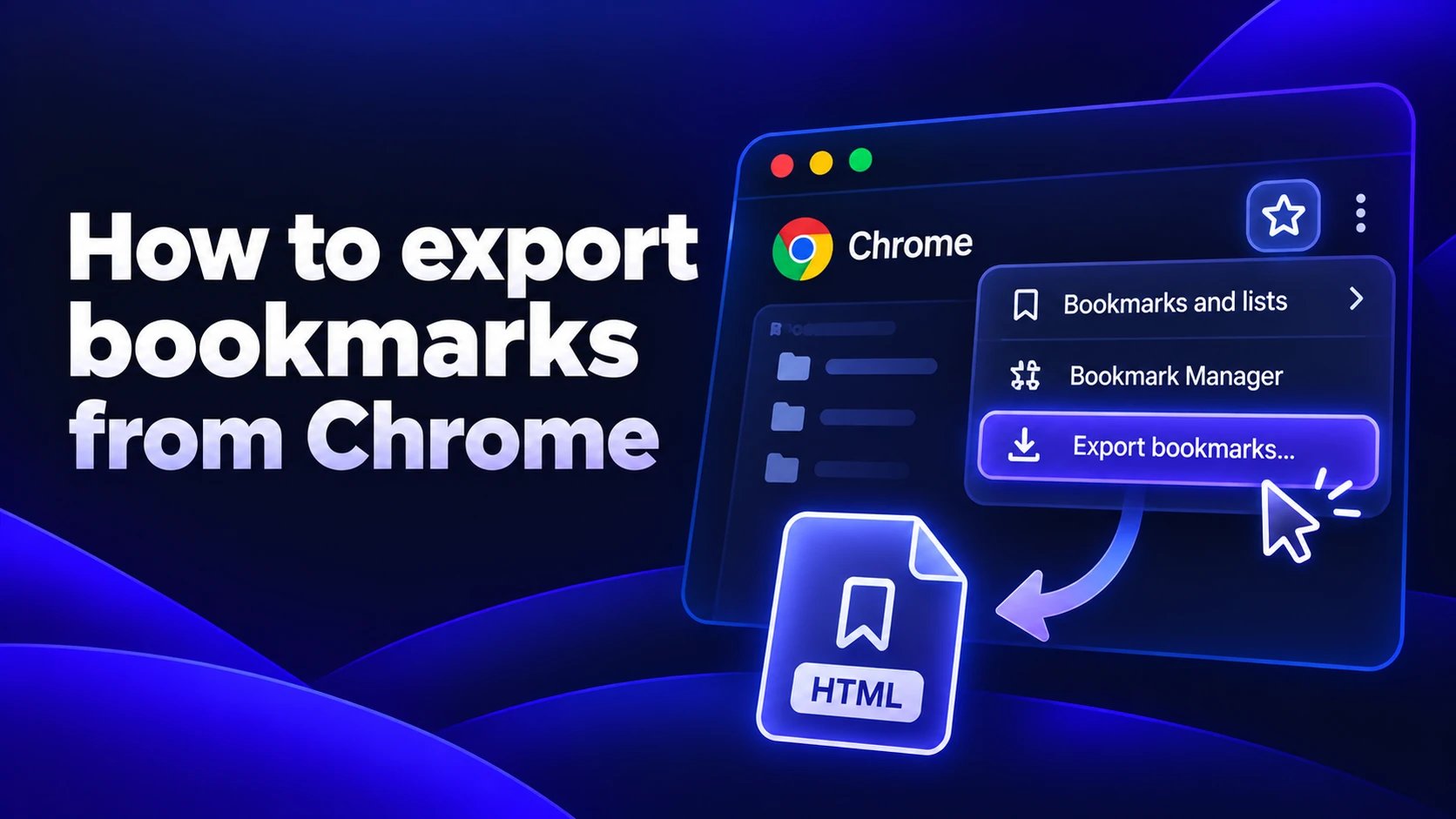
To export bookmarks from Chrome, open the Bookmark manager, click the three-dot menu at the top right and choose Export bookmarks. Chrome saves every bookmark and folder to one HTML file that any browser can import.
That takes under a minute. The rest of this guide covers what the file leaves out, how to export just one folder, what to do on a phone and how to move everything to a new computer. Updated November 2026.
How to export Chrome bookmarks to an HTML file
These steps are the same on Windows, Mac, Linux and ChromeOS. They match Google's Chrome help page.
- Open the Bookmark manager. Press Ctrl+Shift+O on Windows and Linux or Cmd+Option+B on a Mac. You can also type chrome://bookmarks in the address bar.
- Click the three-dot menu at the top right of the Bookmark manager (not the one in Chrome's toolbar).
- Choose Export bookmarks.
- Pick a folder and click Save.
Chrome names the file "bookmarks" plus today's date, for example bookmarks_11_3_26.html. It goes to your Downloads folder unless you choose another one. Save a copy to a USB stick or cloud drive if this is a backup, because a file on the same disk won't help if that disk fails.
Exporting doesn't change anything in Chrome. Your bookmarks stay where they are.
What the export includes and what it doesn't
The HTML file holds your bookmarks and folders only. This table shows what you'd still need to move by hand.
| Data | In the HTML file? | How to move it instead |
|---|---|---|
| Bookmarks and folders | Yes | Already in the file |
| Bookmarks bar items | Yes, as a folder | Already in the file |
| Saved passwords | No | Export a CSV from Google Password Manager |
| Browsing history | No | Chrome sync or the other browser's import tool |
| Open tabs | No | Chrome sync, or bookmark all tabs first |
| Extensions and settings | No | Chrome sync, or reinstall from the Web Store |
If you're moving to a new computer and want everything at once, Chrome sync is the easier route. Sync is covered below.
How to export a single bookmark folder
Chrome doesn't have this option. Export bookmarks always saves the whole library. You have two workarounds:
- Copy the links. In the Bookmark manager open the folder, select the bookmarks with Ctrl+A (Cmd+A on a Mac) and copy them. Paste into a note or email and you get a plain list of URLs, without titles.
- Trim the HTML file. Export everything and open the file in a text editor. Each folder starts on a line with its name between <H3> tags. Its links sit below it until the matching </DL> line. Delete the folders you don't need, save and import the file as usual.
The second way keeps titles and the folder structure. Use it if someone else will import the file.
Where Chrome stores your bookmarks file
Chrome keeps your live bookmarks in a file called Bookmarks (no extension) inside your profile folder. It's JSON, a text format other browsers can't import. Use Export bookmarks to move them. The raw file is still useful for backups and repairs.
Here's where the file lives on each system:
- On Windows it's in %LOCALAPPDATA%\Google\Chrome\User Data\Default
- On a Mac it's in ~/Library/Application Support/Google/Chrome/Default
- On Linux it's in ~/.config/google-chrome/Default
If you use more than one Chrome profile, the folder may be called Profile 1 or Profile 2 instead of Default. Type chrome://version in the address bar and look at Profile Path to see the exact folder.
Next to it sits Bookmarks.bak, an older copy Chrome makes on its own. If bookmarks vanished after a crash, close Chrome completely, rename Bookmarks to Bookmarks.old and rename Bookmarks.bak to Bookmarks. Then open Chrome. Do this soon after the loss, because Chrome refreshes the backup copy as you keep using it.
How to export bookmarks from Chrome on iPhone and Android
You can't. Chrome on iPhone and Android has no export option and Google's help page only covers computers. What works instead:
- On your phone, sign in to Chrome with your Google account and make sure bookmarks are turned on in sync.
- On any computer, sign in to Chrome with the same account.
- Wait for your bookmarks to appear, then export them there with the steps above.
If you don't have a computer, sync is the only way to get the bookmarks off the phone in Chrome.
How to move bookmarks to a new computer or another browser
Pick the method by where the bookmarks are going.
To Chrome on another computer
Sign in to Chrome with your Google account on both computers and turn on sync for bookmarks. They show up on the new machine on their own, along with your saved passwords and settings if you sync those too.
If you'd rather not use a Google account, copy the HTML file over. On the new computer open Chrome's menu, then Bookmarks and lists, then Import bookmarks and settings. Choose Bookmarks HTML file and pick your file.
To Firefox, Safari or Edge
- In Firefox open Settings and under Import browser data click Import Data. Choose Bookmarks from HTML file, according to Mozilla's guide.
- In Safari on a Mac open File, then Import From, then Bookmarks HTML File. Safari puts them in a new folder named "Imported" with the date.
- In Edge open Settings, then Profiles, then Import browser data. Choose the option for a favorites or bookmarks HTML file.
Firefox, Safari and Edge can also import straight from Chrome if both browsers are on the same computer, without a file.
Export your Chrome passwords too
Chrome exports bookmarks and passwords separately. Google's password help page gives these steps:
- Open Chrome's menu, then Passwords and autofill, then Google Password Manager.
- Click Settings.
- Next to Export passwords, click Download file.
The file is a CSV, a spreadsheet file with every password in plain, readable text. Import it where you need it, then delete it and empty the Trash. Don't email it to yourself or leave it in Downloads.
Switching browsers? Your bookmarks file is all you need
If you're exporting because you're leaving Chrome, the HTML file and your passwords CSV are the two things to bring.
Sigma is a free browser built on Chromium, the same engine as Chrome. It works with your bookmarks, Chrome extensions and password manager. Moving over takes a few minutes. It also has a built-in ad blocker and Eclipse, a local AI model that runs on your computer and works offline. Sigma is available for Windows, Mac and iPhone.
Still comparing? See these Chrome alternatives side by side.
Sigma is a free Chromium browser that works with your bookmarks and Chrome extensions, with a built-in ad blocker and local AI.
More articles

Download Sigma Browser
Questions & Answers
reach out to us on X at @Sigma_Browser
Get Sigma on Android


