
How to turn on dark mode in Chrome and on every site
Turn on dark mode in Chrome in a few clicks, then make websites, Google Search and your phone dark too. Plus how to fix pages that stay white.

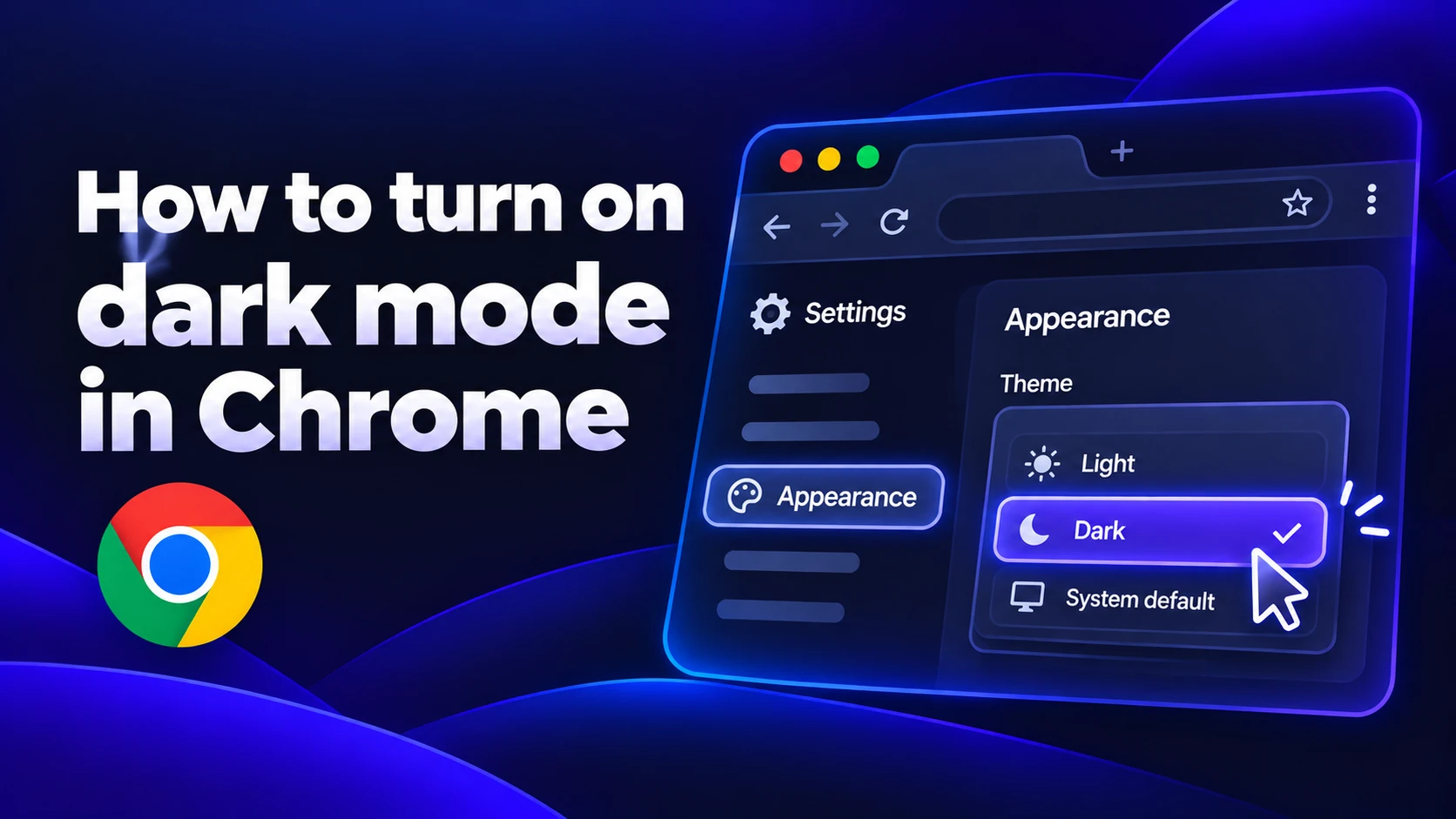
To turn on dark mode in Chrome, open a new tab, click Customize Chrome at the bottom right and pick Dark under Appearance. That changes Chrome's tabs, toolbar and menus. Websites keep their own colors so most pages will still be white.
If you want the pages dark too, you need one more step: a Chrome flag or an extension. This guide covers both, plus phones, Google Search and how to undo it all. Updated November 2026.
How to turn on dark mode in Chrome on a computer
These steps work on Windows, Mac and ChromeOS and match Google's Chrome help page.
- Open a new tab.
- Click Customize Chrome at the bottom right. You can also open it from the side panel icon at the top right.
- Under Appearance choose Dark.
You'll also see Light and Device. Device makes Chrome follow your computer's theme so it turns dark when your system does. Pick it if you switch your computer to dark mode at night and want Chrome to follow.
Turn on dark mode in Windows
Open Settings, then Personalization, then Colors. Next to Choose your mode pick Dark. With Chrome set to Device it switches right away.
Turn on dark mode on a Mac
Open System Settings, then Appearance and choose Dark. Auto switches between light and dark by time of day and Chrome follows it on Device.
Why Chrome is dark but websites are still white
Chrome's dark mode only covers Chrome itself. Each website chooses its own colors. Most sites only go dark if they were built with a dark version. YouTube and Google Search have one. Many news sites, shops and older pages don't.
This table shows what each method changes.
| Method | Chrome itself | Websites | Downside |
|---|---|---|---|
| Appearance: Dark | Yes | Only sites with a dark version | Most pages stay white |
| Appearance: Device | Yes, when your system is dark | Only sites with a dark version | Turns light with your system |
| Flag: Auto Dark Mode | No | Every site | Can break images, no per-site off |
| Extension (Dark Reader) | No | Every site, with exceptions | Needs access to the sites you visit |
| Google Search setting | No | Google Search only | Nothing else changes |
How to force dark mode on every website in Chrome
Chrome has a hidden switch that turns every page dark, even pages with no dark version. It's a flag, an experimental setting that Google can change or remove in any update.
- Type chrome://flags/#enable-force-dark in the address bar and press Enter.
- Find Auto Dark Mode for Web Contents and change Default to Enabled.
- Click Relaunch at the bottom.
The flag works by inverting colors and that can go wrong. Photos may look like negatives and some logos turn into dark blobs. If that happens open the flag again and try another option. "Enabled with selective inversion of non-image elements" is a good one to try first, because it darkens text and backgrounds and leaves images alone.
There's no way to exclude a single site with the flag. If one page you use every day looks broken, an extension is the better tool.
Dark mode extensions for Chrome
An extension gives you more control than the flag. You can turn dark mode off for one site, change brightness and contrast and switch it all off from the toolbar.
Dark Reader is the best known. It's free, works on almost any page and lets you add sites to a "don't darken" list. Install it from the link on its own website, because the Web Store has copycats with similar names.
Like most dark mode extensions, it asks to read and change data on all the websites you visit. That's how it restyles pages. If you'd rather limit it, right-click its icon, go to This can read and change site data and choose When you click the extension. You'll then turn it on page by page.
How to make Google Search dark
Google Search has its own setting, separate from Chrome. By default it matches your device's theme. To set it yourself:
- Go to google.com and run any search.
- Click Settings, then See all settings.
- Choose Appearance and pick Dark theme.
- Click Save.
Sign in to your Google account first if you want the setting to follow you to other browsers, says Google's Search help page. While you're in Search settings you might also want to hide the AI summaries at the top. Here's how to turn off Google AI.
Chrome dark mode on Android and iPhone
On Android open Chrome, tap the three-dot menu, then Settings, then Theme. Choose Dark or System default to follow your phone. On some versions the same Theme screen has an option to apply the dark theme to websites too, if your phone's own dark mode is on.
On iPhone Chrome has no theme switch. It follows your phone. Open Settings, then Display & Brightness and choose Dark. Chrome switches with it.
Neither phone version supports extensions. For sites that stay white there's no Dark Reader option.
How to turn off dark mode in Chrome
Undo whichever method you used. Open Customize Chrome on a new tab and choose Light under Appearance. If Chrome was on Device, picking Light also stops it following your computer's dark mode.
If pages are still dark after that, something else is doing it. Go through this list.
Incognito windows look dark whatever theme you pick. That's normal.
Keep Dark Reader in a more private browser
Sigma is a free browser built on Chromium, the same engine as Chrome. Chrome extensions work in it, which means you can install Dark Reader and keep your settings the way you like them. It also has a built-in ad blocker and Eclipse, a local AI model that runs on your computer and works offline.
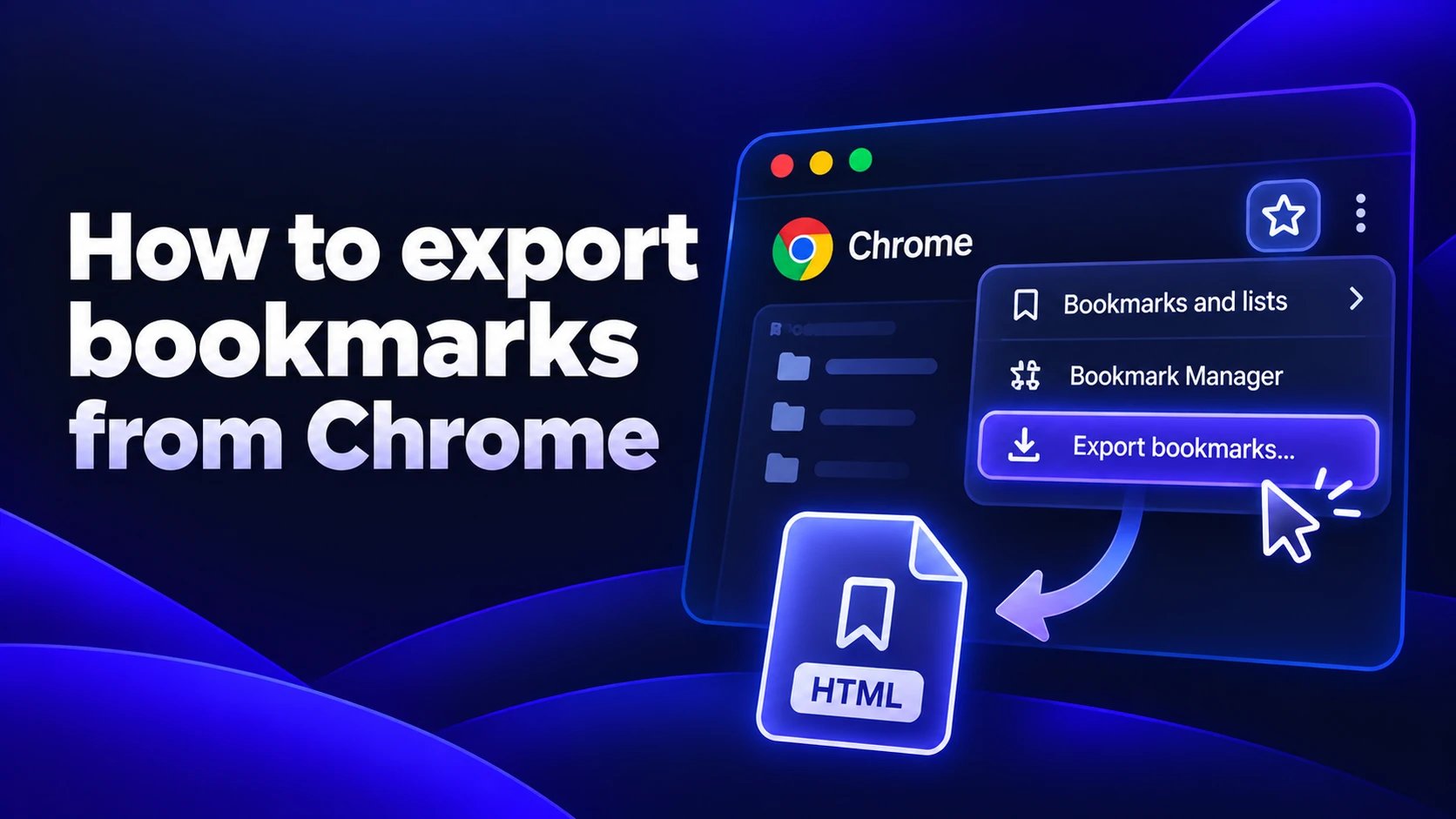
Moving over is quick. Here's how to export your bookmarks from Chrome first.
Sigma is a free Chromium browser that runs Chrome extensions like Dark Reader, with a built-in ad blocker and local AI.
More articles

Download Sigma Browser
Questions & Answers
reach out to us on X at @Sigma_Browser
Get Sigma on Android


