
What Does Hardware Acceleration Do in a Browser? Should You Turn It On or Off?
What does hardware acceleration do in a browser? See when it improves performance, why it can cause problems, and whether you should turn it on or off.

If you have ever searched through your browser settings, you may have seen an option called hardware acceleration or graphics acceleration. It sounds like a setting that should obviously make the browser faster, which makes the option to turn it off seem strange.
Hardware acceleration allows a browser to use specialized hardware, most importantly the graphics processor, for work that the GPU can handle efficiently. This can help with page compositing, video, animation, WebGL graphics, and other visually demanding tasks while reducing some of the work left to the CPU. Chromium’s documentation on GPU-accelerated compositing explains how the CPU and GPU can work in parallel as part of the browser graphics pipeline.
For most users, hardware acceleration should stay enabled. Turning it off becomes useful as a troubleshooting test when you see flickering, black screens, broken video, unusual GPU behavior, graphics-related crashes, or stuttering that appears only in the browser.
What Does Hardware Acceleration Do in a Browser?
A browser has to do much more than just download HTML and display text. Modern webpages can contain video, animated interfaces, layered elements, interactive maps, 2D and 3D graphics, games, visual effects, and applications that redraw parts of the screen many times per second.
Without graphics acceleration, more of that work has to be handled through software paths that depend heavily on the CPU. With acceleration available, the browser can send suitable graphics work to the GPU, which is designed to process large amounts of visual data efficiently.
The CPU still remains essential. It runs browser logic, JavaScript, networking tasks, and many other processes. Hardware acceleration changes how certain workloads are divided between the available hardware, leaving the GPU to handle work that suits it well.
What Does the GPU Actually Do for a Browser?
One important job is compositing. A webpage can be thought of as a set of visual layers that eventually need to become the final image you see on the screen. Chromium’s graphics architecture uses GPU acceleration for parts of this process when the system supports it.
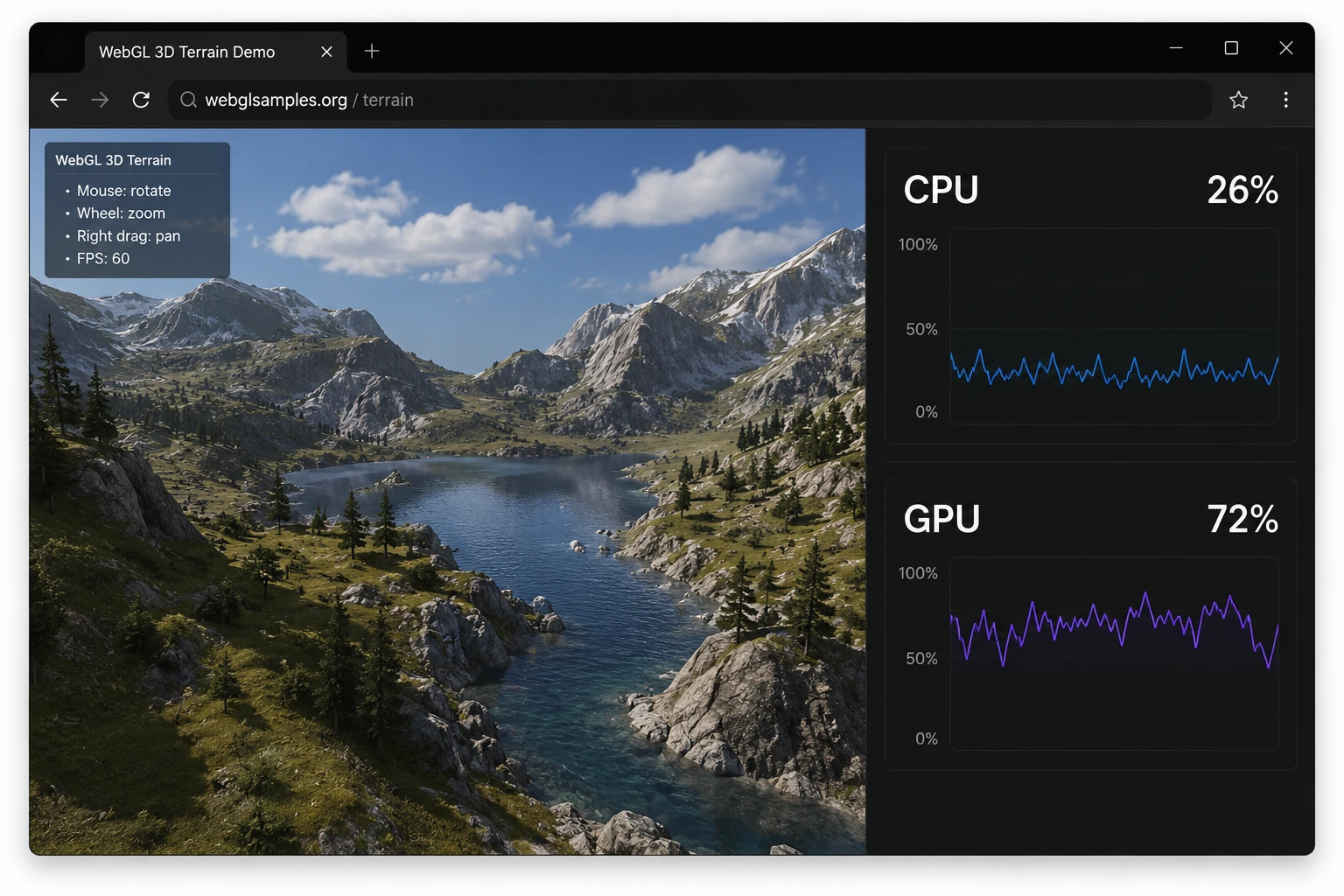
Web technologies can also interact much more directly with graphics hardware. MDN’s WebGL documentation explains how compatible browsers expose accelerated 2D and 3D graphics to webpages. This matters for browser games, maps, 3D product viewers, visualizations, and other graphics-heavy web applications.
Video and animation can benefit from graphics hardware as well, although the exact pipeline depends on the operating system, browser, codec, and device. Mozilla’s performance guidance describes Firefox hardware acceleration as using the GPU for video, games, and animation while reducing work on the main processor.
Does Hardware Acceleration Make Your Browser Faster?
Sometimes, although speed needs context. Hardware acceleration can make graphics-heavy browsing smoother because suitable tasks can run on hardware designed for them. Scrolling, animation, video playback, and interactive visual content may feel better when the graphics pipeline is working correctly.
It does not automatically reduce every kind of browser delay. A slow website server remains slow, a weak connection still limits downloads, heavy JavaScript can keep the CPU busy, and an extension that performs expensive work on every page can still affect performance.
This is why graphics acceleration is a poor universal answer to every slow-browser complaint. Our guide to a slow browser separates tab pressure, extensions, CPU and memory use, graphics problems, network layers, and heavy websites so each cause can be tested independently.
Is Hardware Acceleration Good?
On a healthy modern system, it usually is. A capable GPU can perform certain graphics operations efficiently and work alongside the CPU. Browsers commonly enable graphics acceleration when the hardware and drivers support it because this division of work can improve graphics efficiency.
The graphics stack still needs to behave correctly. The browser sits above the operating system, GPU driver, and physical graphics hardware, so problems lower in that chain can become visible inside the browser.
High GPU usage does not automatically indicate a problem. A GPU doing graphics work can be exactly what acceleration is supposed to produce. The more useful question is whether the browser remains smooth and stable while that work is happening.
Should Hardware Acceleration Be On or Off?
For normal browsing, start with it enabled. Leave it enabled when video plays correctly, scrolling and animation are smooth, pages render normally, and the browser is stable. There is little reason to disable a working graphics pipeline simply because the setting exists.
Testing it disabled makes sense when the symptoms look graphics-related. Mozilla’s Firefox performance guidance recommends trying hardware acceleration off when users encounter graphics-driver-related video playback problems, flickering, or crashes.
Treat the change as a controlled test. Change the setting, restart the browser, and reproduce the same workload. If the problem disappears consistently, you have useful evidence about the cause. If nothing improves, turn acceleration back on and continue troubleshooting elsewhere.
What Happens If You Turn Hardware Acceleration Off?
The browser has to rely more heavily on software rendering paths for work that could otherwise use the GPU. This can increase CPU involvement and change how graphics-heavy content behaves.
You may notice no obvious difference while reading simple websites. A page containing mostly text and static images does not place the same graphics demands on the browser as a 3D application, game, high-resolution video, or animated interface.
The difference can become more visible under heavier workloads. Video may become less smooth, interactive graphics can perform differently, and CPU use may rise. On a system where the accelerated path itself is causing a graphics problem, the software path can behave more reliably.
Can Hardware Acceleration Make a Browser Slower?
It can on certain systems. A graphics driver bug, unsupported feature, unusual GPU configuration, or conflict elsewhere in the graphics stack can make an accelerated path behave worse than a software path. Symptoms can include stuttering, flickering, visual corruption, crashes, or video problems.
The effect can depend on workload. A browser may appear completely normal on ordinary pages and begin showing problems when video, WebGL, or a graphics-heavy web application starts using the GPU more intensively.
The useful question is whether hardware acceleration works well on your particular system. Comparing the same workload with acceleration enabled and disabled gives a much better answer than treating the feature as universally good or bad.
How Hardware Acceleration Works in Chromium Browsers
Chrome, Sigma, Brave, Opera, Vivaldi, and Edge share a large part of their technical foundation through Chromium. Sigma Browser is Chromium-based and uses Blink as its rendering engine, which we explain in more detail in our guide to Chromium, Blink, WebKit and Gecko.
That shared foundation includes Chromium’s graphics infrastructure. Browser companies can still build different interfaces, settings, privacy systems, and product features around it. Our comparison of Chromium-based browsers shows how products that share the same underlying project can feel very different in everyday use.
For Sigma users, the practical behavior is familiar because graphics acceleration belongs to the browser’s system-level performance layer while the rendering stack comes from the Chromium foundation. Troubleshooting concepts that apply to Chromium graphics are therefore relevant even though Sigma and Chrome are separate browser products.
How to Tell If Hardware Acceleration Is Causing a Problem
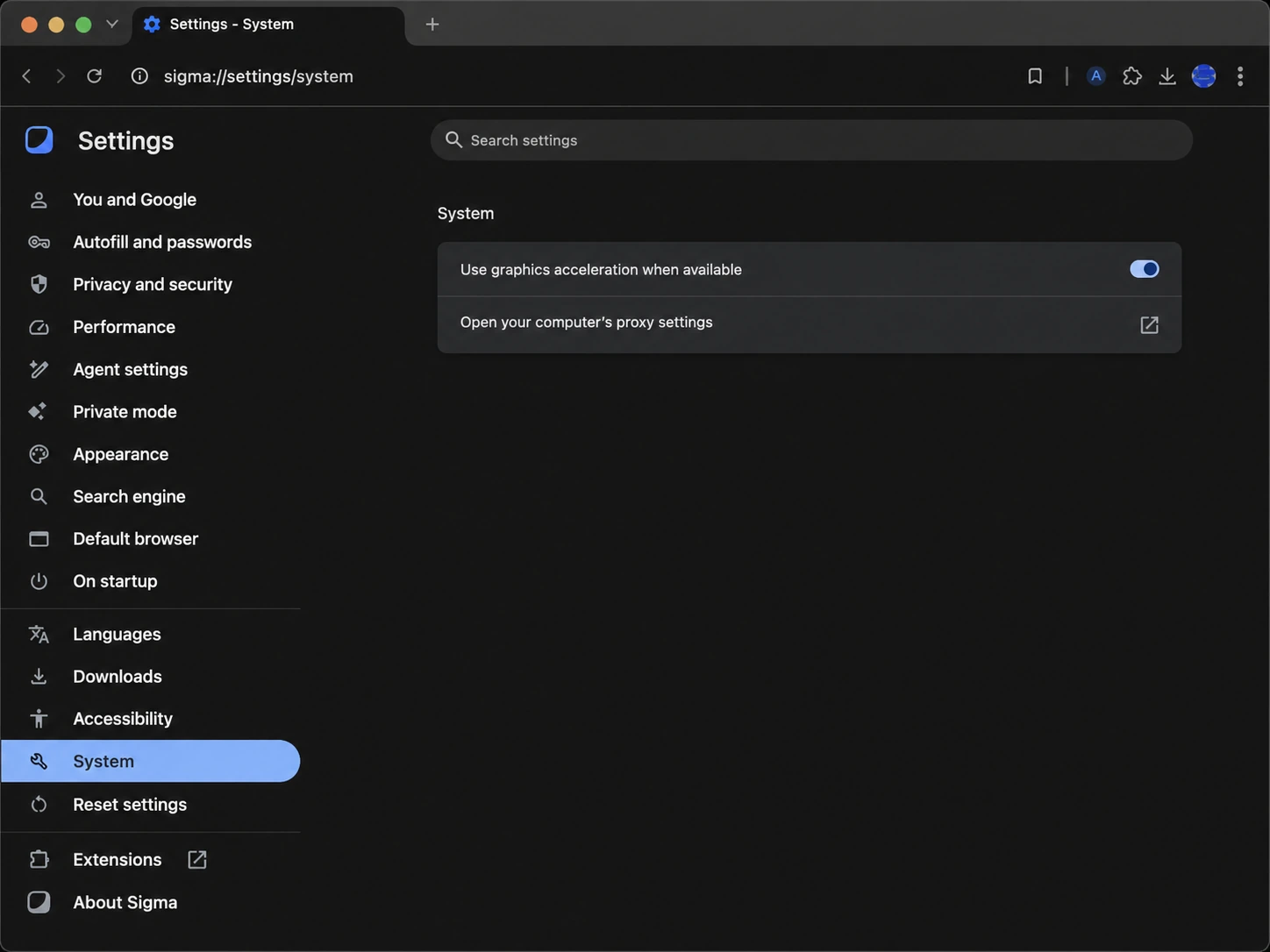
Start by reproducing the problem before changing anything. Use the same page, video, or web application so you have something meaningful to compare. Then change only the graphics acceleration setting and restart the browser.
If the issue disappears, repeat the test once more before drawing a conclusion. A single smooth reload can happen for unrelated reasons. If disabling acceleration helps, updating the graphics driver should usually be the next investigation.
Mozilla’s graphics-driver guidance recommends keeping graphics drivers current when hardware acceleration or WebGL does not work correctly. If the setting makes no difference, turn it back on and check extensions, memory pressure, browser updates, the website itself, and other causes instead.
Hardware Acceleration and WebGL Are Related
WebGL is one of the clearest examples of browser content designed to use graphics hardware. MDN’s WebGL guide describes the API as a way to render interactive 2D and 3D graphics in compatible browsers using GPU-backed graphics capabilities.
That is why some browser games, visualizations, maps, and 3D tools can behave very differently when GPU acceleration is unavailable. A simple article may continue working normally while a graphics-heavy application becomes slow or loses part of its expected visual performance.
WebGL is one part of a wider browser graphics pipeline. Hardware acceleration also applies to compositing, video, animation, Canvas work, and other operations depending on the browser and platform.
Is Browser Hardware Acceleration the Same as Hardware-Accelerated GPU Scheduling?
No. These settings operate at different levels. Browser hardware acceleration controls whether the browser can use GPU-backed paths for suitable browser workloads, while Hardware-Accelerated GPU Scheduling is an operating-system feature in Windows that changes part of how GPU work is scheduled.
Turning one feature on or off therefore does not mean you changed the other one. The names are similar, which is why troubleshooting discussions sometimes mix them together even though they belong to different layers of the system.
Does Hardware Acceleration Use More Battery?
There is no useful universal yes-or-no answer. Moving suitable graphics work to specialized hardware can be more efficient than asking the CPU to do the same work. Chromium’s accelerated compositing documentation discusses both speed and power efficiency as reasons for using the GPU for suitable drawing and compositing operations.
Real battery use still depends on the device, integrated or discrete graphics, drivers, display, workload, and browser behavior. A laptop playing video has a very different workload from one displaying a static article, so measuring the actual device is more useful than assuming that disabling the GPU always saves power.
Should You Disable Hardware Acceleration to Save RAM?
Usually not as a general memory fix. GPU acceleration and browser memory use affect different parts of performance. Moving graphics work can involve graphics memory and additional browser graphics processes, while disabling acceleration can shift more work elsewhere.
If memory is the main problem, tab count, active web applications, extensions, and background programs deserve more attention. Those causes are covered separately in our browser performance troubleshooting guide.
What Should Sigma Browser Users Do?
Sigma is built on Chromium, so the same general principle applies. Keep graphics acceleration enabled when the browser is stable and visually smooth. If a graphics-specific problem appears, test the opposite setting and compare the same workload after restarting the browser.
Using a Chromium foundation also means the hardware-acceleration question is separate from the features that distinguish Sigma Browser as a product. AI Chat, page-aware assistance, Deep Research, local AI, and browser automation sit above the underlying browser and rendering infrastructure.
If you are comparing Sigma with Chrome specifically, our Sigma Browser vs Google Chrome guide explains where the products differ despite sharing Chromium as a technical foundation.
Final Takeaway
Hardware acceleration lets a browser use specialized hardware such as the GPU for suitable graphics workloads. It can improve the efficiency and smoothness of video, animation, page compositing, WebGL, and other visually demanding content.
For most users, leaving it enabled is the best starting point. Turning it off is useful when you have a specific graphics-related problem and want to test whether the accelerated path is involved.
If the browser becomes stable after disabling it, investigate the graphics driver and system configuration before deciding to keep the setting changed. If the setting makes no difference, restore it and continue troubleshooting another cause.
More articles




Download Sigma Browser
Questions & Answers
reach out to us on X at @Sigma_Browser
Get Sigma on Android


