
This Site Can’t Be Reached? 10 Ways to Fix Browser Connection Errors
This site can’t be reached? Learn what causes browser connection errors, how DNS and network issues affect loading, and what to check first.

You open a website and instead of the page, the browser shows This site can’t be reached. Another site works normally. Your Wi-Fi icon still says you are connected. Refreshing does nothing.
This type of error does not always mean your internet connection is completely down. The problem can come from the website itself, DNS resolution, a VPN or proxy, browser extensions, security software, corrupted network settings, or a connection that works well enough for some services but fails when the browser tries to reach a particular server.
The exact error message can help narrow it down. Chrome may display ERR_NAME_NOT_RESOLVED or ERR_CONNECTION_RESET, while Firefox, Safari, and Edge use slightly different wording for similar connection failures.
Before changing browser settings at random, work through the problem in a logical order. The first few checks can usually tell you whether the issue is with one website, one browser, your device, or the network itself.
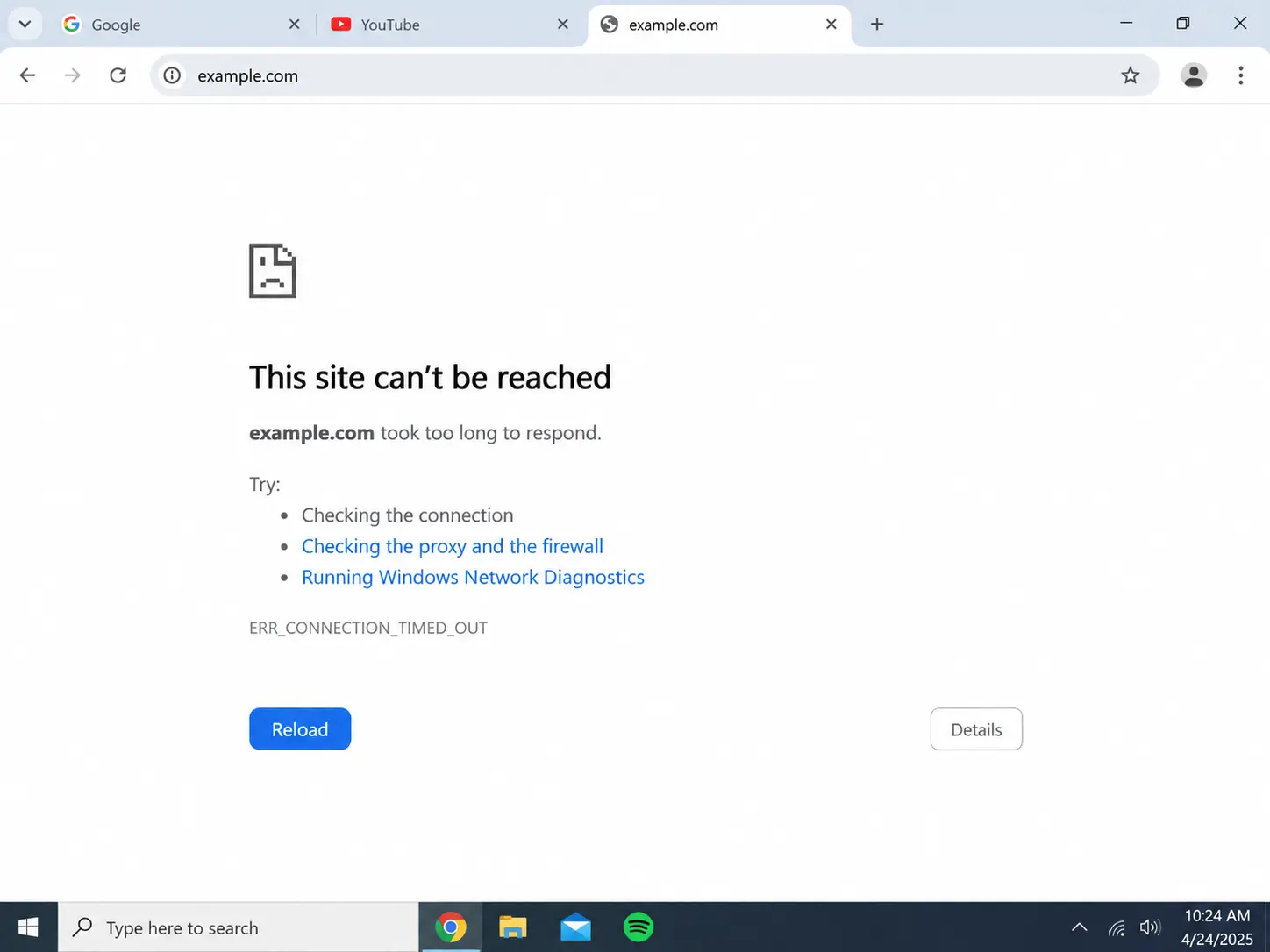
What Does “This Site Can’t Be Reached” Mean?
The message means your browser was unable to complete the connection needed to load the requested website.
That failure can happen at several stages.
Your browser first needs to determine which server corresponds to the domain name you entered. DNS handles that translation. The device then attempts to establish a connection with the destination server. After that, the browser and server exchange the information needed to load the page.
A failure anywhere in that chain can result in a page that does not load.
This is why two people can see the same generic This site can’t be reached message for completely different reasons. One may have a DNS problem, while another is dealing with a VPN, firewall rule, temporary server outage, or interrupted network connection.
1. Check Whether the Website Is Actually Down
Start with the simplest possibility.
Try opening two or three unrelated websites. If everything except one specific site loads normally, your internet connection is probably not the main problem.
The website may be temporarily unavailable, undergoing maintenance, overloaded, or experiencing a regional outage.
Try opening the same site on your phone using mobile data rather than the same Wi-Fi network. If the website fails there too, the problem becomes more likely to be on the site's side.
If it works over mobile data but not on your normal network, investigate DNS, your router, VPN settings, or network filtering next.
This distinction saves a lot of unnecessary troubleshooting. Resetting your browser will not fix a server that is offline.
2. Restart the Browser and Try the Page Again
Browsers maintain many active network connections at the same time. Occasionally, a temporary connection state can become stuck even though the rest of the browser continues working.
Close the browser completely rather than only closing the affected tab. Open it again and retry the website.
If the page loads after a restart, you probably do not need to make deeper changes.
If the browser itself has also been freezing or closing unexpectedly, the problem may go beyond a single connection error. Our guide to browser crashes and how to troubleshoot them covers that separately.
3. Check Whether Your Internet Connection Is Really Working
A connected Wi-Fi icon does not guarantee that the device currently has a working route to the internet.
Your computer can remain connected to the router while the router itself has lost internet access. Some applications may also appear to work because they are displaying previously loaded content or maintaining an existing connection.
Open several new websites that you have not visited recently. If none of them load, check another device on the same network.
If every device is affected, restart the router and modem if they are separate devices. Give them enough time to reconnect before testing again.
If other devices work normally while your computer does not, the problem is more likely to be local to that device.
4. Disable Your VPN or Proxy Temporarily
VPNs and proxies change the route your traffic takes before it reaches a website.
Normally this works without any visible difference, but a problem with the VPN server, DNS configuration, routing, or the destination website can cause specific pages to stop loading.
If This site can’t be reached appears while a VPN is active, disconnect it temporarily and reload the page.
The opposite can also happen. A site may fail through your normal network but work when traffic is routed through another connection.
That difference is useful diagnostically because it suggests the browser itself may be fine.
If switching the VPN on or off immediately changes whether the website loads, focus on the VPN connection, DNS settings, or the way that particular network reaches the site.
Do not leave security or privacy tools disabled permanently just because one test works. Use the result to identify which layer of the connection is creating the problem.
5. Check for a DNS Problem
DNS is one of the most common reasons a browser can have internet access but still fail to open a particular website.
When you enter a domain such as example.com, your device needs to find the corresponding IP address before it can contact the server.
If that lookup fails, the browser cannot reach the site even though the underlying internet connection may still be working.
This is often associated with errors such as:
ERR_NAME_NOT_RESOLVED
DNS_PROBE_FINISHED_NXDOMAIN
or messages saying the server's IP address could not be found.
Try another website first. If many domains suddenly stop resolving while services that already have active connections continue working, DNS becomes a particularly strong suspect.
6. Flush the DNS Cache
Your operating system keeps a local DNS cache so it does not have to repeat every lookup from scratch.
Usually this improves performance. Occasionally, however, the stored information can become outdated or incorrect.
Flushing the DNS cache forces the system to request fresh information the next time you open the website.
On Windows, open Command Prompt and run:
ipconfig /flushdns
On macOS, the exact command can vary by version, but restarting the Mac or restarting the relevant network services can also refresh parts of the local networking state.
Do not treat DNS flushing as a universal fix. It is most useful when the error suggests name resolution problems or when a domain recently changed servers.
If the site still fails after a fresh DNS lookup, continue to the next step.
7. Try a Different DNS Server
Your router or internet provider usually chooses the DNS resolver automatically.
If that resolver is unavailable, slow, or unable to resolve a particular domain correctly, switching to another reputable DNS service can help.
Common public resolvers include Google Public DNS and Cloudflare DNS.
Changing DNS is especially useful when the same website works through mobile data or another network but consistently fails on your normal connection.
After changing the resolver, restart the browser and test again.
If the website begins working immediately, the original DNS service was likely involved.
Changing DNS should not be confused with clearing browser cache. Browser cache stores website resources locally, while DNS is responsible for translating domain names into network addresses.
For more detail on what browser cache actually stores, see What Does Clearing Cache Do?.
8. Disable Browser Extensions That Affect Pages or Connections
Extensions can modify far more than the visible browser interface.
Ad blockers, privacy tools, script blockers, antivirus extensions, download managers, VPN extensions, and similar tools can change how pages or network requests behave.
If one website refuses to load while others work normally, try opening it with extensions disabled.
A private or incognito window can sometimes help with testing, but extensions may still be allowed there depending on your browser settings. Disabling them manually provides a cleaner test.
Start with extensions that directly affect website content, privacy, scripts, network requests, or filtering.
If the site loads once a particular extension is disabled, check whether the extension has site-specific settings rather than removing it entirely.
9. Check Firewall, Antivirus, and Security Software
Security software can block connections before the browser ever reaches the website.
This can happen after an antivirus update, firewall rule change, certificate inspection problem, or newly detected reputation issue.
If the browser cannot open a site while another device on the same network can, check whether security software is displaying warnings or blocking the browser.
Avoid disabling your firewall or antivirus completely as a permanent fix.
Instead, confirm that the browser is allowed through the firewall, update the security software, and check whether the blocked site or connection appears in its logs.
If turning off a non-essential network filtering feature temporarily makes the site work, re-enable protection and correct the relevant rule rather than leaving the entire security layer disabled.
10. Reset the Connection and Test Another Browser or Network
If the simpler checks have not identified the cause, compare different combinations.
Open the site in another browser.
Then try the same browser on another network, such as a mobile hotspot.
These two tests tell you a lot.
If the site works in another browser on the same connection, the issue is probably browser-specific.
If no browser can open it on your Wi-Fi but everything works through a mobile hotspot, the network, router, DNS, or ISP route becomes much more likely.
If the website fails everywhere, the problem may be with the site itself.
At this point, restarting network settings or resetting the operating system's network configuration may help, but use broader resets only after simpler tests have failed.
How to Fix ERR_NAME_NOT_RESOLVED
ERR_NAME_NOT_RESOLVED usually means the browser could not translate the domain name into an IP address.
That makes DNS the first area to investigate.
Start by confirming that the address is typed correctly. Then test another website, flush the local DNS cache, and try a different DNS resolver.
If the domain works on mobile data but not on your normal Wi-Fi, the DNS service or network configuration becomes an even stronger suspect.
Extensions, VPNs, proxies, and security software can also influence DNS behavior, so temporarily testing without those layers may help.
If the domain does not resolve on any network or device, the site's own DNS configuration may be broken.
How to Fix ERR_CONNECTION_RESET
ERR_CONNECTION_RESET means a connection was established or attempted but was unexpectedly terminated before the browser received the page normally.
This is different from a DNS lookup failure.
The browser may already know where the website is located, but something interrupts the connection.
Possible causes include unstable network connectivity, VPN or proxy problems, firewall filtering, server-side connection resets, or issues somewhere between your device and the destination server.
Start by refreshing the site and testing another website.
Then temporarily disconnect a VPN or proxy, restart the network connection, and compare the result on another network.
If the error appears only on one website, the remote server or route to that server may be involved.
If it appears across many websites, investigate the local network and security software first.
Why Is Chrome Not Loading Pages?
If Chrome cannot load pages while another browser works normally, the problem is probably inside Chrome rather than your internet connection as a whole.
Start with an Incognito window and then disable extensions manually.
If that does not help, restart Chrome, install any available browser update, and test a fresh Chrome profile.
You can also clear stored data for the affected website when the problem is limited to one domain.
Avoid deleting every cookie immediately. That will sign you out of websites and may not help when DNS, an extension, or a network setting is responsible.
If Chrome feels generally slow rather than refusing to connect entirely, see Why Is My Browser So Slow?.
Why Is Firefox Not Loading Pages?
If Firefox is the only browser affected, test Firefox Troubleshoot Mode or disable extensions manually.
This helps separate browser configuration problems from network problems.
Check proxy settings as well. A proxy configured inside Firefox can make Firefox fail even when other applications continue using the internet normally.
If only one website is affected, remove that site's stored data and try again.
If every browser on the computer fails, troubleshooting Firefox itself is unlikely to solve the underlying problem.
Why Is Safari Not Loading Pages?
On Safari, first determine whether the issue affects one website or all websites.
Reload the page, try a Private Window, and test the same site in another browser.
If Safari alone is affected, extensions and stored website data are worth checking.
If several browsers fail on the Mac, investigate the network connection, DNS, VPN, proxy configuration, and macOS network settings instead.
Safari is closely integrated with macOS networking, so operating system updates can also matter when connection problems appear after system changes.
Why Are Some Websites Not Loading While Others Work?
This is one of the most useful patterns for narrowing down the cause.
If Google, YouTube, and several other websites load normally but one or two sites do not, your internet connection clearly has at least partial connectivity.
The difference may come from DNS, routing, browser extensions, security filtering, VPN location, or the website itself.
Test the failing site on another network first.
If it works there, your normal network path is involved.
If it fails on every connection but other websites work, check whether the website is down or whether its DNS records are resolving correctly.
If it fails only in one browser, focus on extensions, browser profiles, site data, and browser-specific network settings.
Should You Clear Cache When a Website Is Not Loading?
Sometimes, but it should not be the first response to every connection error.
Cache is most relevant when the website begins loading but behaves incorrectly because outdated local resources are being reused.
A DNS failure or ERR_CONNECTION_RESET usually happens earlier in the connection process, before normal cached page resources become the main issue.
If one website looks broken or loads outdated files, clearing its cache can help.
If the browser cannot find the server at all, investigate DNS and network connectivity first.
What to Try First
The fastest approach is to change as little as possible while narrowing down where the failure happens.
Start by checking whether one website or every website is affected. Test another device and another browser. Then compare the same site over a different network.
If the problem follows the network, investigate DNS, VPN, proxy, router, or ISP connectivity.
If the problem follows one browser, investigate extensions, profiles, and stored site data.
If the problem follows one website everywhere, the website itself may be unavailable.
Final Thoughts
A This site can’t be reached error tells you that the browser failed somewhere between entering the address and receiving the website. It does not tell you exactly where.
The pattern around the failure is much more useful than the message itself.
If every website is unavailable, start with the connection. If only one browser fails, focus on that browser. If only one website fails, check the site, DNS, routing, and filtering. Errors such as ERR_NAME_NOT_RESOLVED point more directly toward DNS, while ERR_CONNECTION_RESET suggests that the connection is being interrupted later in the process.
By comparing browsers, devices, and networks before resetting anything, you can usually narrow the problem down without wiping settings or making unnecessary changes.
More articles


Download Sigma Browser
Questions & Answers
reach out to us on X at @Sigma_Browser
Get Sigma on Android


