
Too Many Tabs Open? You Risk Losing Them. Here’s How to Save Them Safely
A practical guide to saving important browser tabs, organizing large tab collections, and protecting your browsing session from accidental loss.

Keeping a tab open often feels easier than deciding what to do with it. You find an article you want to read later, a product you want to compare, a useful reference for work, or a page you are afraid you will never find again. Instead of saving it somewhere, you leave the tab open.
Do that often enough and the browser slowly turns into a storage system.
We recently learned how fragile that system can be. A Firefox session had been growing for around three months, with tabs kept open because many of them contained pages we planned to return to. One day, the session loaded with the tabs still visible, but their original pages had been replaced by about:blank. The tab titles and destinations that had made the session useful were effectively gone.
The exact cause was unclear, and the number of open tabs alone does not prove why the session failed. The experience still exposed a much broader problem. An active browser session is temporary state, and relying on it as the only place where important pages exist creates an unnecessary risk.
If you regularly keep dozens or hundreds of tabs open, there are safer ways to preserve them without losing the browsing workflow that made them useful in the first place.
Why Keeping Too Many Tabs Open Can Become a Problem
There is no universal number of tabs that becomes unsafe. Twenty lightweight pages can place less pressure on a computer than five complex web applications, and modern browsers actively reduce the resources used by tabs that have been inactive for a while.
The problem grows when an entire collection of useful pages depends on one browser session surviving indefinitely.
Open tabs can disappear after crashes, profile problems, extension conflicts, browser updates, failed session restoration, or accidental window closure. A browser may successfully restore a large session hundreds of times and still fail when that session matters most.
This is why tab hoarding becomes risky even when the browser appears to handle it well. The immediate problem may be memory usage, but the larger risk is that pages you consider saved have never actually been stored somewhere designed for long-term retrieval.
Can Too Many Tabs Crash Your Browser
A high tab count can contribute to browser instability because every open page creates some amount of state that the browser has to manage.
The actual resource cost varies considerably. Some tabs continue running scripts or media in the background, while others can be unloaded almost completely. Extensions may also interact with every open page and increase the work the browser has to perform.
Memory pressure becomes especially relevant when a session contains heavy web applications alongside ordinary pages. Once the computer begins running short on available memory, performance can deteriorate and individual tabs or processes may be discarded or terminated.
That still does not give us a simple threshold where tab number 101 suddenly becomes dangerous. The type of pages, available RAM, extensions, browser implementation, and operating system all affect how much a session can handle.
We tested how different browsers handle a fixed set of tabs in our browser RAM benchmark. The results show why tab count alone does not tell the whole story.
How Many Tabs Is Too Many
The more useful question is whether your open tabs have become difficult to manage safely.
A session is probably becoming too large when you can no longer remember why many tabs are open, you regularly search through the tab bar instead of the web, or closing the browser feels dangerous because you are afraid that something important will disappear.
At that point, adding more tabs increases the size of a collection that already has no reliable structure.
A browser can remain fast while this problem develops. Tab hoarding is therefore partly a performance issue and partly an information management problem.
Do Sleeping Tabs and Memory Saver Make It Safe to Keep Hundreds of Tabs Open
Modern browsers have become much better at reducing the cost of inactive tabs.
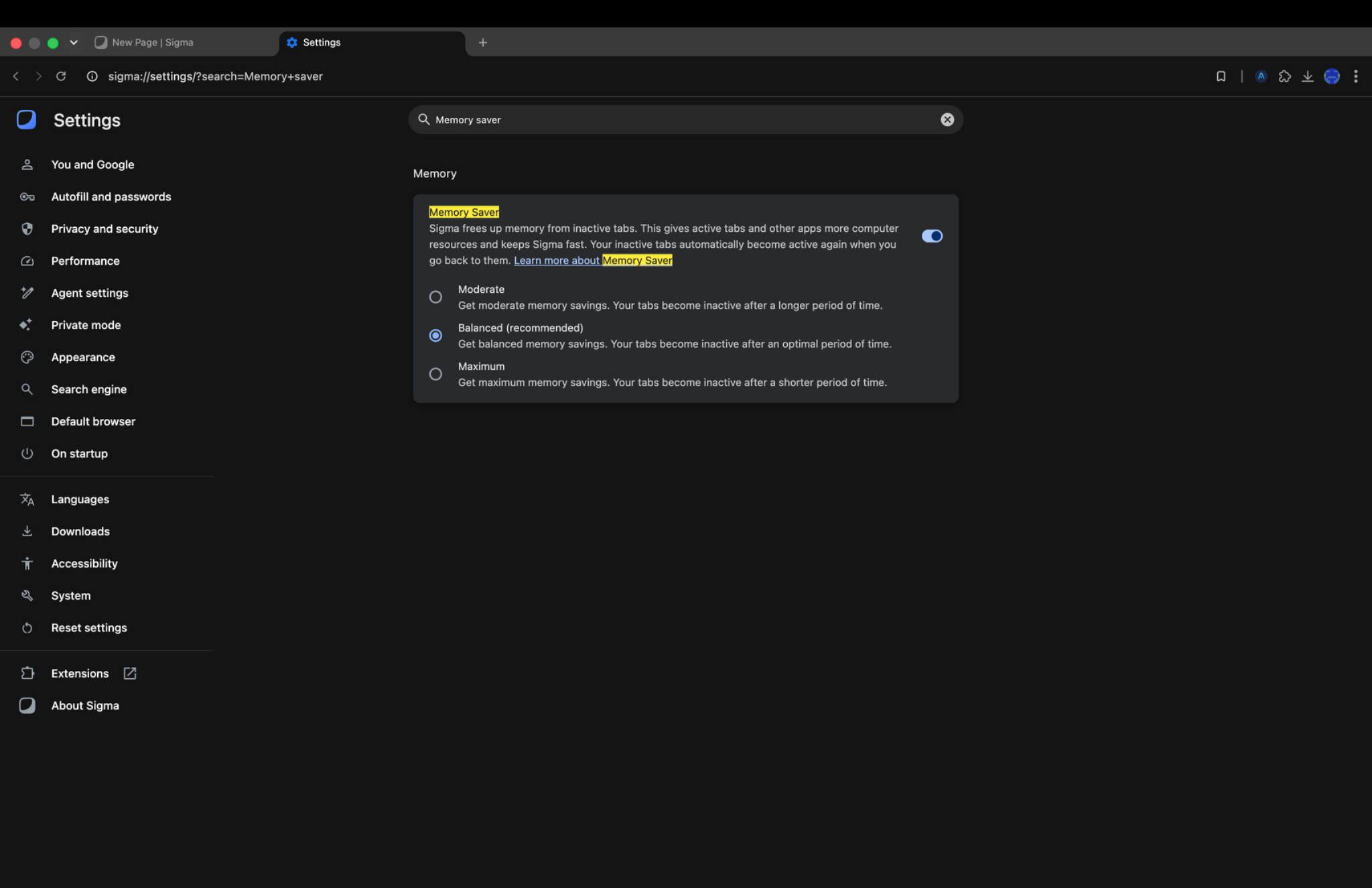
Chrome Memory Saver can deactivate tabs that have not been used for a while. When you return to one of those tabs, Chrome reloads it. This helps reduce memory pressure and gives active pages more resources.
Similar resource-saving systems appear in other browsers through sleeping tabs, tab unloading, or automatic tab discarding.
These features make large sessions easier to run, although the session itself still remains a session. Deactivating a tab does not create an independent backup of the URL, the browsing context, or the collection around it.
Memory management can therefore solve one part of tab overload while leaving the information-storage problem untouched.
How to Save Open Tabs Before Closing Them
The safest approach is to move pages out of the live session once you know you want to keep them.
Bookmarks are the simplest option because they preserve the URL without requiring the page to stay open. Tab groups can preserve the structure of an active project, while session managers can be useful when the exact collection and arrangement of tabs matters.
You do not have to choose one method for everything. A research session can stay grouped while it is active, then the pages worth keeping can move into a bookmark folder when the work is finished.
That creates a natural lifecycle for tabs instead of allowing every temporary page to remain open indefinitely.
How to Bookmark All Open Tabs at Once
Bookmarking every tab individually is unnecessary when a browser already has a way to save an entire window.
This is particularly useful when you already have a large session and want to create a safety copy before reorganizing anything.
How to Bookmark All Tabs in Chrome
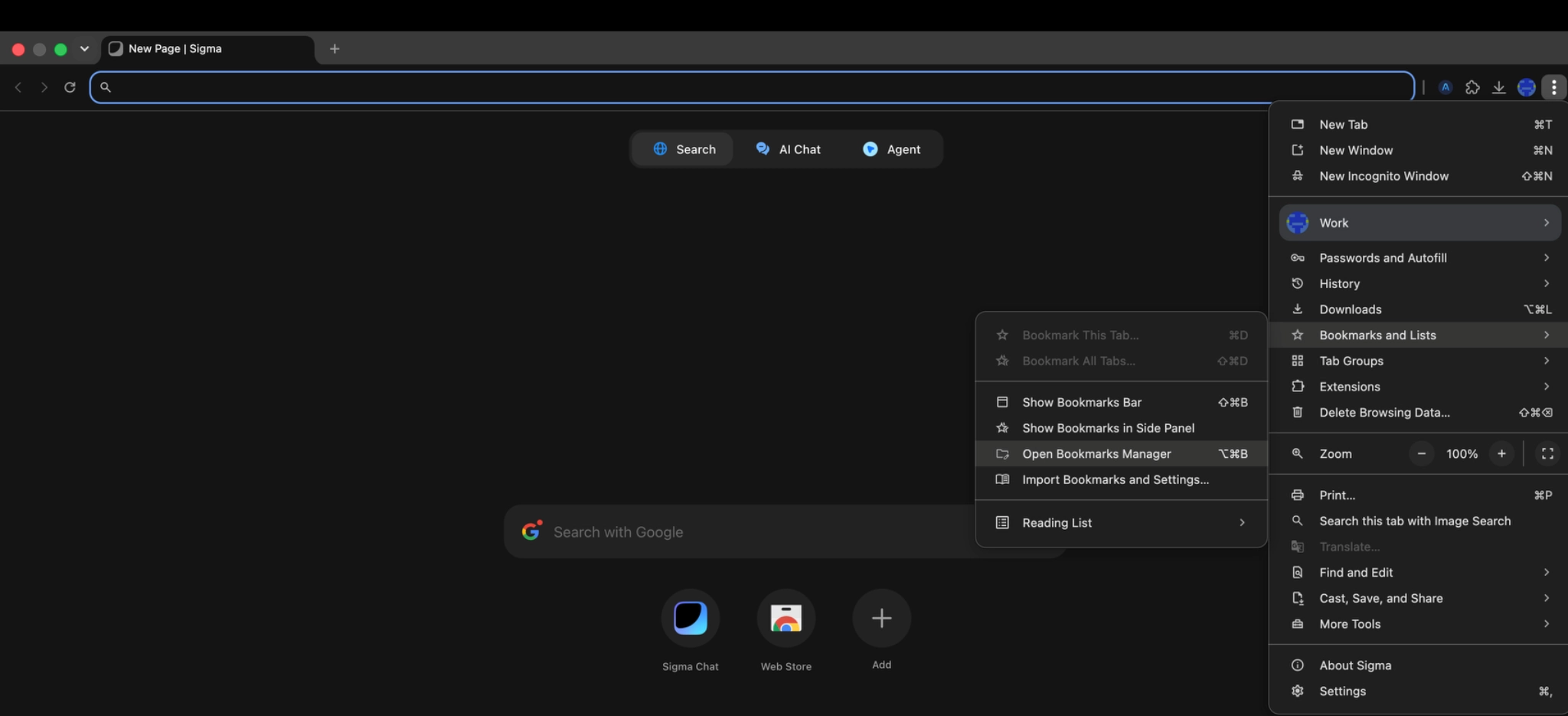
On desktop Chrome, you can use the browser's Bookmark all tabs option to place the current window into a bookmark folder. The keyboard shortcut is Ctrl + Shift + D on Windows and Linux or Command + Shift + D on macOS.
Give the folder a clear name such as Research September 2026 instead of leaving it with a generic label. Once the folder exists, you can close the tabs and reopen the saved pages later.
Chrome can also save bookmarks to your Google Account when browser data synchronization is enabled.
How to Bookmark All Tabs in Firefox
Firefox also lets you bookmark every tab in the current window. You can open the Bookmarks menu and select Bookmark All Tabs, or use Ctrl + Shift + D on Windows and Linux and Command + Shift + D on macOS.
Firefox creates a folder containing the saved pages, which means a large temporary session can be converted into a much smaller persistent collection in a few seconds. Mozilla also allows selected tabs to be bookmarked together when you only want to preserve part of the window.
This is the step we would have taken much earlier with the Firefox session that eventually turned into about:blank. Even a basic bookmark folder would have preserved the URLs independently from the session restore data.
How to Save All Open Pages in Microsoft Edge
Microsoft Edge calls bookmarks Favorites. Its current desktop interface includes an Add open pages to favorites option inside the Favorites menu.
The pages are saved together so they can later be reopened without keeping the original browser window alive.
The important part is the same across browsers. Once the URLs exist in saved browser data, closing an active session no longer means losing your only route back to them.
Tab Groups vs Bookmarks
Tab groups are extremely useful for reducing clutter while you are actively working.
A group can keep pages for one project together, collapse them when they are not needed, and make a crowded tab bar easier to navigate. Chrome can save closed tab groups and make them available again from the bookmarks bar or menu. When history and tabs are synchronized, changes to groups can also sync across devices.
Firefox now has built-in tab groups as well. A group can be saved and closed, then reopened through the tab list. Mozilla currently notes that Firefox tab groups remain local and do not sync through Firefox Sync.
That distinction matters when the pages are important.
Tab groups work well as an active workspace. Bookmarks make more sense when the goal is to keep a page for weeks or months. A saved group may still depend on browser-specific state, while a bookmark is a much simpler record of the destination you want to return to.
When a Session Manager Makes Sense
Bookmarks preserve pages well, but sometimes the session itself matters.
You may want to restore several windows, keep a large research project separated from everyday browsing, or return to a specific set of tabs repeatedly. A browser session manager can make that easier by saving collections of tabs together.
This can be useful for larger workflows, although the same rule still applies. If a page is genuinely important, keeping an additional bookmark or exported copy gives you another way to recover it.
Session managers should therefore be treated as organization tools rather than the only backup for valuable research.
How to Organize 50 or 100 Tabs Without Keeping Everything Open
A large tab collection becomes much easier to manage when pages are separated by how soon you expect to use them.
Pages needed today can stay open. A project you plan to resume later can move into a tab group or saved session. Pages that may matter months from now belong in bookmarks or another persistent reference system.
This approach also forces a useful decision. Some tabs have been open for weeks because they feel important, even though you no longer remember why you saved them. Moving them into a permanent collection gives you an opportunity to name the folder, remove duplicates, and discard pages that no longer matter.
How to Back Up an Important Browser Session
Bookmarks are more durable than live tabs, but anything stored only inside one browser profile can still be lost if that profile becomes corrupted or the device fails.
For genuinely important collections, create another copy outside the active browser state. That can mean syncing bookmarks to an account, exporting them periodically, or keeping important research links in the project where they belong.
A three-month research project should eventually have its useful sources inside the project documentation rather than living only across 150 browser tabs.
The same applies to workspaces built around tab groups or session managers. If restoring that workspace would be difficult, give the important links a second home.
What to Do If Your Tabs Have Already Disappeared
Once the tabs are gone, the problem changes from prevention to recovery.
Browsers often maintain recent tab history and session restoration data, so a failed session does not always mean the pages are permanently lost. Firefox, for example, provides previous-session recovery and documents additional recovery options when session restore data is available.
We cover those recovery methods separately in How to Reopen Recently Closed Tabs and Restore Your Browser Session.
If the lost tabs now point only to about:blank, avoid immediately creating a large amount of new browsing history before checking the available recovery options. The original session information may already be unavailable, although it is worth checking session restore, history, synced tabs, and browser backups before assuming the URLs are gone.
What We Would Do Differently After Losing Three Months of Tabs
The Firefox incident changed the way we think about a crowded tab bar.
Keeping pages open is convenient while they are part of an active task. The problem begins when temporary convenience quietly turns into long-term storage.
A tab that has survived for a month probably deserves a decision. It can be bookmarked, moved into an organized project, saved as part of a session, or closed because it was never important enough to keep.
The goal is not to force yourself to browse with five tabs at all times. Modern browsers are designed to handle many pages, and features such as Memory Saver and tab groups make large sessions much more practical than they used to be.
The goal is to make sure that the browser session is never the only place where months of useful information exist.
If losing a page would matter, save it somewhere that is meant to survive the tab.
More articles




Download Sigma Browser
Questions & Answers
reach out to us on X at @Sigma_Browser
Get Sigma on Android


