
Microsoft Edge vs Chrome: Which Browser has Better Features?
In this article we'll compare Microsoft Edge vs Chrome to decide which browser has better features

Choosing the right browser can make a noticeable difference in everyday browsing. Microsoft Edge and Google Chrome are two of the most popular options today. So in this comparison we’ll look at the key features of these two browsers and discuss the alternative to each of them.
Microsoft Edge vs Chrome: Quick Comparison
Microsoft Edge and Google Chrome are two of the most widely used browsers today. Both are built on the Chromium engine, which means they share similar performance, compatibility with modern websites, and support for the same extensions.
Speed and Performance Speed
Both browsers perform very similarly because they use the same Chromium rendering engine. The difference In everyday browsing in page loading time is usually minimal.
Google Chrome is often praised for its responsiveness and fast JavaScript processing, which makes it particularly good for modern web apps and complex websites.
Microsoft Edge has introduced several optimization features like Sleeping Tabs and efficiency modes that improve responsiveness when many tabs are open. So these optimizations can help Edge maintain smooth performance on less powerful devices.
Chrome may slightly win in benchmark tests, while Edge often performs more consistently when multitasking.
RAM Usage and System Resources
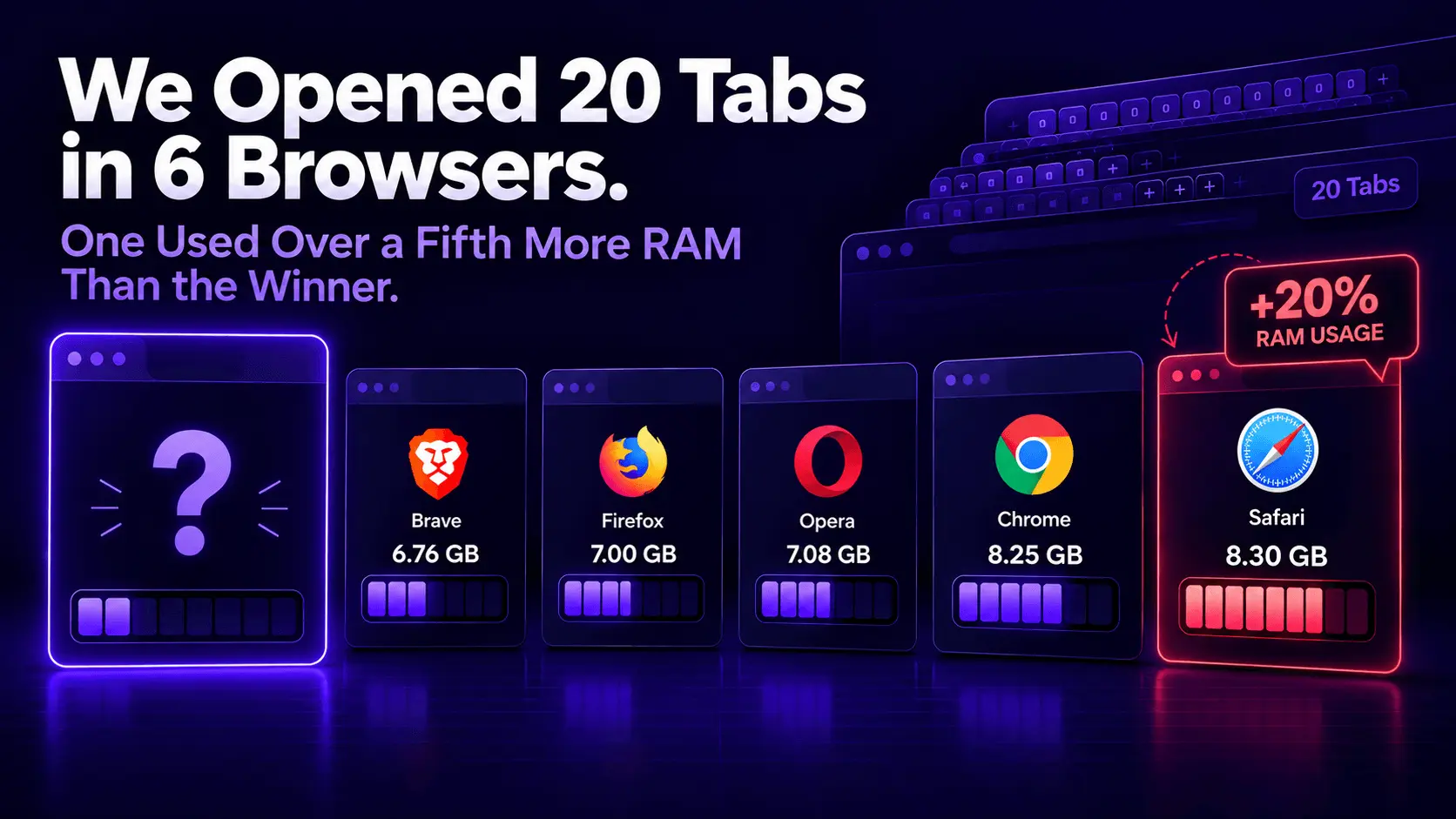
Several tests show that Microsoft Edge generally uses less RAM and CPU than Chrome when running the same number of tabs. For example, one comparison measured Edge using about 1.9 GB RAM and 5% CPU, while Chrome used around 2 GB RAM and 7% CPU in the same scenario.
Edge’s efficiency is partly due to features like Sleeping Tabs. It pauses inactive tabs to free memory and reduce system load. Chrome has improved its memory management in recent years, but it still tends to consume more RAM, especially when many tabs or extensions are active.
Interface and Customization
Google Chrome focuses on a minimalist design. It keeps the interface simple and familiar. Its customization mainly comes from themes and extensions available in the Chrome Web Store.
Microsoft Edge provides additional built-in features that allow more interface flexibility. These include vertical tabs, collections for organizing web content, split-screen browsing, and reading mode. So Edge may feel more customizable without relying on extensions for users who enjoy built-in productivity tools and layout options.
Privacy and Tracking Protection
Microsoft Edge includes built-in tracking prevention that blocks many trackers by default and integrates with Windows security features such as Microsoft Defender SmartScreen.
Google Chrome relies more heavily on Google’s ecosystem and security tools like Safe Browsing, phishing protection, and sandboxing. While Chrome is secure, its connection to Google services means Chrome collects lots of usage data compared. Read our article to know more about Microsoft Edge vs Chrome secure/privacy features.
Cross-Platform Support
Both browsers support nearly all major operating systems, which makes it easy to synchronize data across different devices. Microsoft Edge is available for Mac/Linux/Windows and for Android or iOS. You can download Google Chrome on Mac/Windows/Linux or get Chrome for Android/iOS.
Chrome is often preferred by users who actively use the Google ecosystem. It integrates smoothly with services like Gmail, Google Drive, and Google Docs. By the way, Edge works especially well for people who use Windows devices and Microsoft services such as Microsoft 365.
Microsoft Edge vs Chrome’s Extensions and Add-ons
Extensions play a huge role in how useful a browser can be. With them users add new features like ad blockers, password managers, productivity tools, note-taking apps, and privacy protection.
Google Chrome has the biggest extension ecosystem. You can get a free VPN for Chrome or adblock Chrome extension. Its Web Store includes thousands of tools created by developers around the world, covering almost every possible browsing need. Because of that many developers release their extensions there first.
Microsoft Edge also has its own extension marketplace called Microsoft Edge Add-ons. The library is smaller than Chrome’s. But it still includes most popular tools like ad blockers, security extensions, and productivity apps.
Besides, Edge has an important advantage. Since it is built on the Chromium engine, it can install most extensions designed for Chrome. Users can simply enable support for other stores and download extensions directly from the Chrome Web Store.
This means the difference between the two browsers is not as large as it might seem. Another small difference is how the browsers approach features. Chrome often relies on extensions to add new capabilities, while Edge includes more built-in tools, which sometimes reduces the need to install additional add-ons.
AI Extension for Chrome & Microsoft Edge
Because both browsers are based on the Chromium engine, most AI extensions work in Chrome and Edge. So users usually have access to the same tools regardless of which browser they choose.
Some popular AI extensions include Merlin AI for writing and summarizing content, Grammarly AI for improving grammar and tone, and Perplexity AI for quick research and AI-powered search.
Both browsers also include built-in AI tools. Microsoft Edge integrates Copilot. And Google Chrome is adding AI features powered by Gemini. These assistants can summarize webpages, answer questions, and help users work with online content more efficiently.
Microsoft Edge vs Chrome Alternative: Sigma Browser with AI Agent
While Microsoft Edge and Google Chrome remain two of the most widely used browsers, new alternatives are starting to appear. One example is Sigma Browser. It has built-in AI assistance, automation tools, and privacy protection. So users don’t need separate add-ons or extensions.
One of the main differences between Microsoft Edge, Chrome and Sigma is the built-in AI agent. Instead of simply opening websites, Sigma’s AI agent allows users to automate tasks while browsing. Here are several features of AI agents:
- Automated web tasks. An AI agent can complete tasks on the web after receiving a prompt from the user.
- Natural language commands. Users can describe tasks in plain language, and the AI performs them automatically.
- AI writing and research tools. The browser can summarize articles, generate text, translate content, and analyze information directly on a webpage.
- AI image generator. Sigma includes a built-in tool that creates images from text prompts without using external services
- Chat with web pages. Open tabs can be used as context for AI conversations, making research faster.
Sigma Browser also places strong emphasis on privacy and built-in protection. Tracking scripts and unnecessary network requests can be blocked directly at the browser level. This helps reduce data collection and can also improve page loading speed. Also Sigma has a local LLM. It is called Sigma Eclipse chat. This tool can work even without an internet connection and run locally on the device.
So Sigma Browser attempts to provide many capabilities out of the box through built-in AI tools and privacy protections.
More articles


Download Sigma Browser
Questions & Answers
reach out to us on X at @Sigma_Browser
Get Sigma on Android


