This guide takes a closer look at Firefox vs Brave Browser, comparing their key features, usability, and built-in tools to help you understand which one works better in real everyday browsing.
Firefox vs Brave Browser: Quick Comparison
If you’re choosing between Firefox and Brave, it usually comes down to what matters more to you: flexibility and customization, or built-in privacy with minimal setup. Here’s a simple side-by-side comparison to help you quickly see the differences:
Speed and Performance Speed
Both browsers are fast enough that you won’t notice a huge difference in simple tasks. The gap shows up on heavier websites. Brave often feels quicker on ad-heavy pages because it blocks a lot of content before it even loads. Firefox doesn’t block as aggressively by default, but it delivers smooth, stable performance, especially if you value consistency over raw speed.
RAM Usage and System Resourcesactive
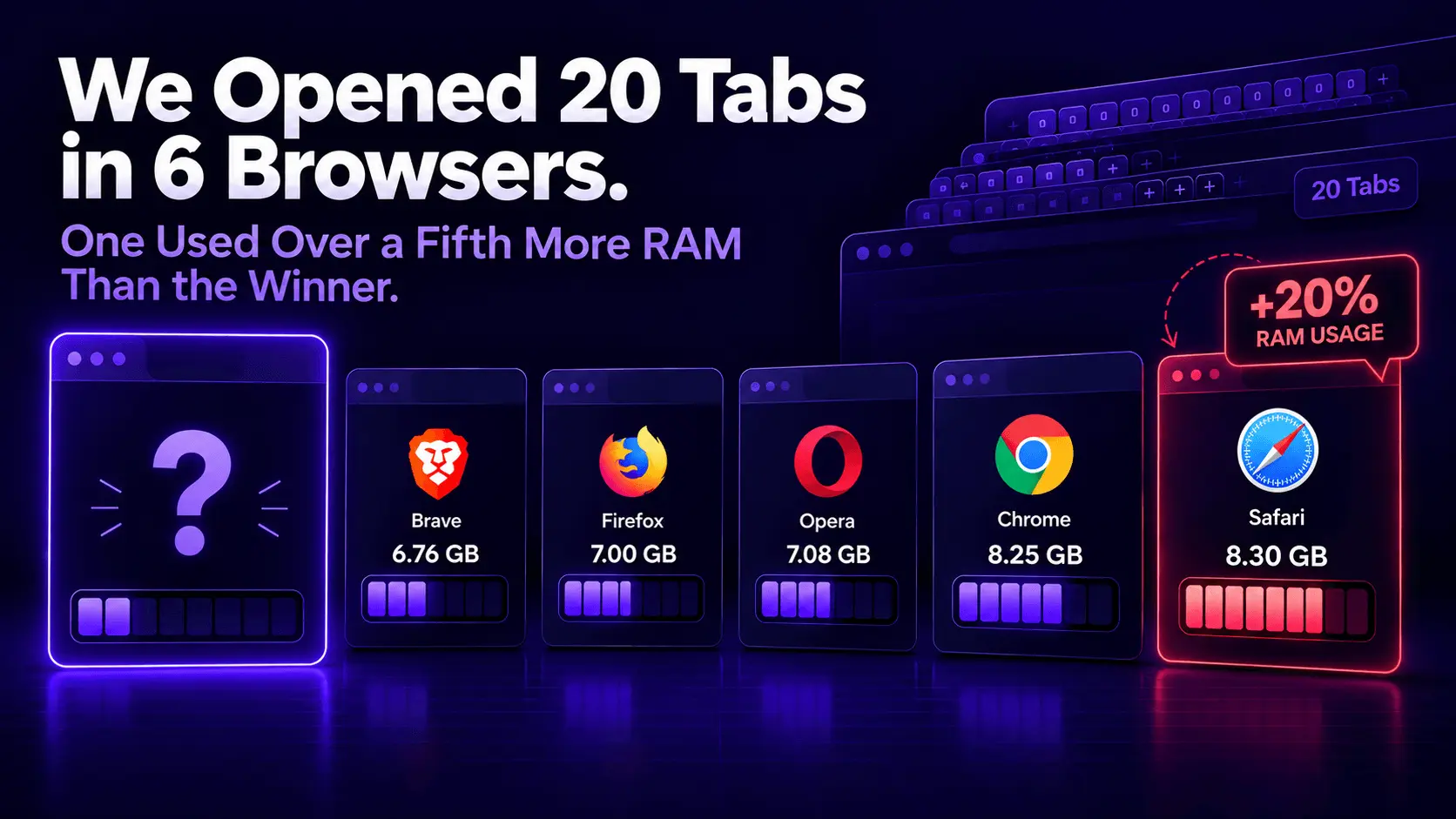
No modern browser is truly “light,” but they handle resources differently. Brave can save some memory by preventing ads and trackers from loading in the first place. Firefox focuses more on balance. It manages tabs well and tends to behave predictably during long sessions.
If users usually keep dozens of tabs open, Firefox may feel more stable. If users browse content-heavy sites, Brave might use fewer resources overall.
Interface and Customization
This is where Firefox really stands out. It feels more flexible. Users can tweak the interface, adjust behavior, and make it your own without much effort.
Brave is less about customization and more about built-in features. It includes things like Brave Rewards, its own search engine. And AI tools, which can be useful, but also make the interface feel a bit busier. So it comes down to preference. Firefox feels cleaner, Brave feels more packed.
Privacy and Tracking Protection
Both browsers care about privacy, but they approach it differently. Firefox gives you solid protection with options to fine-tune how strict you want it to be. Brave takes a stronger stance by default. It blocks ads and trackers right away with almost no setup required.
If a user wants privacy without thinking about it, Brave is simpler. If users prefer control and transparency, Firefox gives you more room to adjust things. Read our article to know more about Firefox vs Brave Browser secure/privacy features.
Cross-Platform Support
Users won’t run into limitations with either browser here. You can download Firefox on Windows, macOS, Linux, Android, and iOS. You can get Brave Browser on macOS, Windows, Linux or iOS and Android as well. The real difference isn’t availability. It’s consistency. Firefox keeps a familiar, minimal feel everywhere, while Brave carries its built-in features and ecosystem across all platforms.
Firefox vs Brave’s Extensions and Add-ons
Extensions are where Firefox and Brave take noticeably different approaches. Firefox is built for people who like to tweak everything. Its add-on ecosystem has been around for years. Users can find Firefox extensions for productivity, privacy, UI customization, even deep browser behavior changes. Users can get free VPN for Firefox or ad blockers. If you enjoy fine-tuning your setup or building a very specific workflow, Firefox gives you that freedom.
Brave takes a different route, it tries to make extensions less necessary. Because it already includes ad blocking, tracker protection, and some extra tools out of the box, you may find yourself installing fewer add-ons overall. That doesn’t mean you’re limited, though. Since Brave is based on Chromium, it works with most Chrome extensions, so the library is still ргпк.
There’s also an important difference in how extensions behave. In Firefox, certain tools (especially privacy-focused ones) often feel more powerful and less restricted. In Chromium-based browsers like Brave, extensions can be a bit more limited depending on platform rules. Most users won’t notice this, but if you care about maximum control, you’ll encounter it. So it’s clear that:
- Firefox is for building your own browser experience from the ground up.
- Brave is for getting a ready-made setup with fewer add-ons needed.
Extensions can improve your browser, but they can also slow it down or access your data. So regardless of which browser you choose, it’s better to keep your extension list small and intentional.
Brave Browser & Firefox: AI Extensions
Both Brave Browser and Firefox support AI features. But mostly through extensions rather than built-in tools.
In Firefox, AI functionality comes from its large extension ecosystem. You can add tools for writing, summarizing, translating, or even coding assistance. It’s flexible, but the experience depends on which extensions you choose and how well they work together.
Brave Browser also supports extensions (since it’s Chromium-based), and it includes a built-in AI assistant called Brave Leo. Still most advanced AI workflows (like automation or deep research) rely on external tools or add-ons.
Brave vs Firefox Alternative: Sigma Browser with AI Agent
While Firefox and Brave Browser are both solid choices they still feel like traditional browsers at their core. Users open tabs, install extensions, tweak settings. It works well, but it’s still the same format.
Instead of adding features through extensions, Sigma builds everything directly into the browser. The biggest shift is its AI agent which actually does things for users. They can describe what they want, and the browser handles the rest, whether it’s finding information, summarizing content, or completing simple web tasks. Here’s what makes Sigma feel different:
- Automated web tasks. Just type what you need, and the AI can navigate, collect data, or perform actions for you.
- Natural language control. No need to click through menus, you can simply describe what you want.
- Built-in writing & research tools. Summarize articles, generate text, translate, or analyze content just on the page.
- AI image generator. Create images from text prompts without leaving the browser.
- Chat with open tabs. Use your current pages as context for faster research and smarter answers.
Now compare privacy features. Brave blocks ads and trackers by default, and Firefox gives you flexible control over settings. Sigma blocks tracking scripts and unnecessary requests before they even load. This means fewer trackers, less data collection, and often faster page loading.
Another interesting feature is Sigma Eclipse Chat. It’s a local LLM that runs directly on your device. It can even work offline, which is something you don’t usually get with AI tools. That also means more control over your data, since everything stays on your machine.
In simple terms, Firefox and Brave are great if you want a reliable, customizable browser. Sigma is trying to rethink the experience entirely.
FAQ about Firefox and Brave Browser
If you’re comparing Firefox and Brave Browser, a few practical questions always come up along the way. This FAQ section gives straightforward answers to help you better understand how each browser works in real everyday use.
Is Brave better than Firefox?
It really depends on what you expect from a browser. Brave is a great choice if you want strong privacy without doing any setup: ad blocking and tracker protection are built in and work right away. Firefox is better if you value flexibility and control. It offers deep customization, a fully open-source foundation, and a large ecosystem of extensions. So Brave is more “ready out of the box,” while Firefox is more “customize it your way.”
Is Firefox open source?
Yes, Firefox is fully open source. It’s developed by the Mozilla Foundation and its subsidiary Mozilla Corporation. This means anyone can view, modify, and contribute to its source code. Being open source is a big part of Firefox’s identity. It allows independent developers and security researchers to audit the browser, which helps improve transparency and trust. It also means Firefox isn’t controlled by a single commercial ecosystem, unlike many Chromium-based browsers.
Who owns Brave Browser?
Brave Browser is developed by Brave Software, Inc., a private company founded by Brendan Eich, who is also known for creating JavaScript and co-founding Mozilla. The company focuses on building privacy-first products and alternative online advertising models.
Is Brave Browser free?
Yes, Brave Browser is completely free to download and use. Its core features like ad blocking, tracker protection, and private browsing, are available at no cost. Brave also has an optional rewards system (Brave Rewards), where users can earn cryptocurrency for viewing privacy-respecting ads, but participation is entirely optional.
Is Brave Browser Chromium-based?
Yes, Brave is built on the Chromium engine, the same foundation used by Google Chrome and Microsoft Edge. This means it supports Chrome extensions and offers high compatibility with modern websites, while adding its own privacy-focused features on top.
Is Firefox Chromium-based? / Does Firefox use Chromium?
No, Firefox isn’t based on Chromium. It uses its own engine called Gecko, which is developed by Mozilla. This makes Firefox one of the few major browsers that are independent from the Chromium ecosystem (used by Chrome, Edge, Brave, and many others). So Firefox often has different performance characteristics, privacy approaches, and compatibility decisions compared to Chromium-based browsers.
Does Brave Browser have a VPN?
Yes, Brave offers a built-in VPN service called Brave Firewall + VPN. It encrypts your internet connection and helps hide your IP address. But this feature is paid and requires a subscription. It’s designed for users who want an extra layer of privacy beyond standard browsing protection.
Does Brave Browser block YouTube ads?
In most cases, yes. Brave’s built-in ad blocker can block many ads on YouTube, including pre-roll and mid-roll ads. But YouTube regularly updates its anti-ad-blocking measures, so the effectiveness may vary over time. Brave usually adapts quickly, but occasional interruptions can still happen.
How to add Brave Search to Firefox?
To use Brave Search in Firefox, open the Brave Search website first. Then go to Settings → Search in Firefox and look for an option to add or manage search engines. In some cases, Firefox will detect Brave Search automatically after you use it once. You can then set it as your default. If it doesn’t appear, you can install an extension or manually configure it through advanced settings.
How to update Brave Browser?
Brave updates automatically in the background. To check manually, go to the menu → About Brave. The browser will check for updates and install them if available. Keeping Brave updated ensures you have the latest security fixes and improvements.
How to update Firefox?
Updating Firefox is simple and usually automatic. You can manually check by opening the menu, going to Help → About Firefox, and the browser will immediately check for updates and install them if available. Keeping Firefox updated is important because updates include security patches, performance improvements, and new features.
How to turn off hardware acceleration in Firefox?
Go to Settings → General → Performance. First, uncheck “Use recommended performance settings”. After that, you’ll see the option to disable hardware acceleration. Turning this off can help fix issues like screen glitches, crashes, or high GPU usage, especially on older or less compatible systems.
Why is Firefox so slow?
Firefox can feel slow for several reasons. The most common ones are too many open tabs, heavy or poorly optimized extensions, outdated versions, or corrupted cache data. Sometimes hardware acceleration can also cause slowdowns instead of improving performance. To fix this, try clearing cache, disabling unnecessary add-ons, updating the browser, or restarting it with fewer tabs open.
Why does Firefox use so much memory?
Firefox is generally efficient, but memory usage can increase with many open tabs, media-heavy websites, or multiple extensions running at the same time. Each tab and extension uses resources, so large browsing sessions can add up. You can reduce memory usage by closing unused tabs, disabling unnecessary add-ons, or using Firefox’s built-in task manager to identify what’s consuming resources.
How to use Mozilla Firefox?
Using Firefox is straightforward. After installing it, you can start browsing immediately by entering a website or search query in the address bar. From there, you can bookmark pages, install extensions for extra features, and adjust settings to match your preferences. Firefox is especially useful if you like customizing your browser experience, from appearance to privacy controls.
How to change the default search engine in Firefox?
Open Settings → Search, and you’ll see a list of available search engines. Simply select the one you want as your default. Firefox also allows you to manage multiple search engines, so you can easily switch between them depending on your needs.
How to remove Yahoo search engine from Firefox?
If Yahoo appears as your search engine unexpectedly, it’s often added by an extension. Go to Settings → Search and remove Yahoo from the list or change your default engine. Then check Add-ons → Extensions and disable or remove any suspicious extensions that may have changed your search settings.
How to export Firefox bookmarks?
Open the Bookmarks Manager (you can press Ctrl+Shift+O), then click Import and Backup → Export Bookmarks to HTML. This will save all your bookmarks as a file that you can later import into another browser or keep as a backup.
How to download Firefox on Chromebook?
There are two main ways. If your Chromebook supports Android apps, you can install Firefox directly from the Google Play Store. Also you can enable Linux (Crostini) on your Chromebook and install the desktop version of Firefox through the Linux environment. The second option gives you a more full-featured experience.
How to block websites on Firefox?
Firefox doesn’t include built-in website blocking, but you can easily do it with extensions like Block Site or similar tools. These allow you to block specific URLs, set schedules, or even create password-protected restrictions. Another option is to use parental control software or system-level settings if you need broader control across your device.


.png)