


Best AI
for Data Analysis
AI agent automates the full workflow with search automation, making data analysis effortless.


How it works
You start by giving the agent a simple instruction:
💬 Check tasks in Jira marked "In Review". If everything is done, close them.
And then the magic starts:
1) The agent’s categorizer first analyzes the prompt to understand the intent: it's a Jira workflow task involving review and resolution. Then, it identifies the key subtasks.
2) Next, the agent’s planner breaks subtasks into actions: logging into Jira, navigating to the project, finding tickets and interpreting content, testing task, reviewing code and finally resolving task.
3) The executor agent then steps in, performing each of these actions in your browser — just like a human would, but faster.
What looks like a single sentence is actually an orchestrated sequence of decisions and actions. The agent reads it, understands it, and gets it done.
💬 Check tasks in Jira marked "In Review". If everything is done, close them.
And then the magic starts:
1) The agent’s categorizer first analyzes the prompt to understand the intent: it's a Jira workflow task involving review and resolution. Then, it identifies the key subtasks.
2) Next, the agent’s planner breaks subtasks into actions: logging into Jira, navigating to the project, finding tickets and interpreting content, testing task, reviewing code and finally resolving task.
3) The executor agent then steps in, performing each of these actions in your browser — just like a human would, but faster.
What looks like a single sentence is actually an orchestrated sequence of decisions and actions. The agent reads it, understands it, and gets it done.
Agent actions step by step
1. Planning workflow
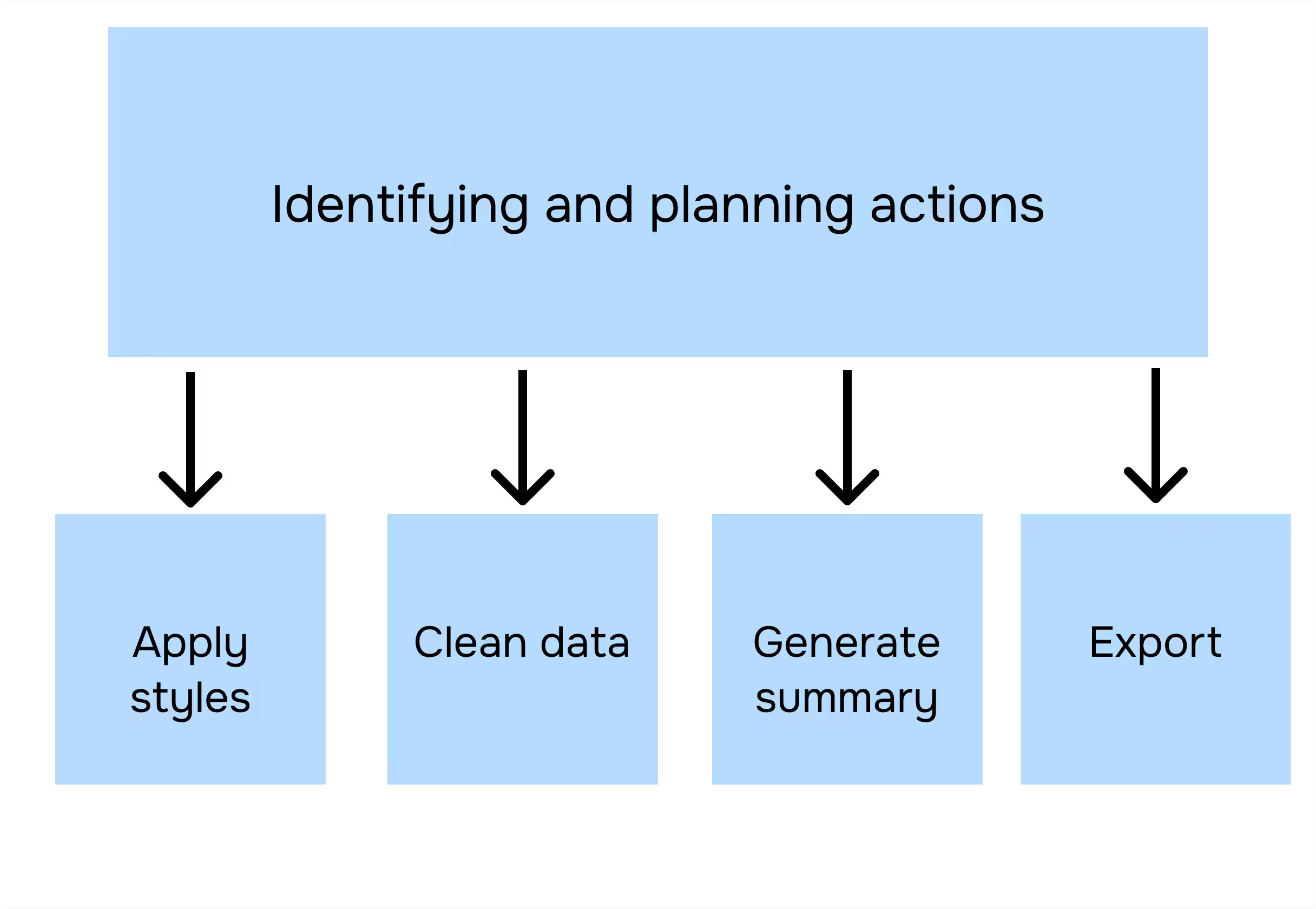
The agent analyzes users prompt and breaks it into subtasks, then transforms every subtask into action.
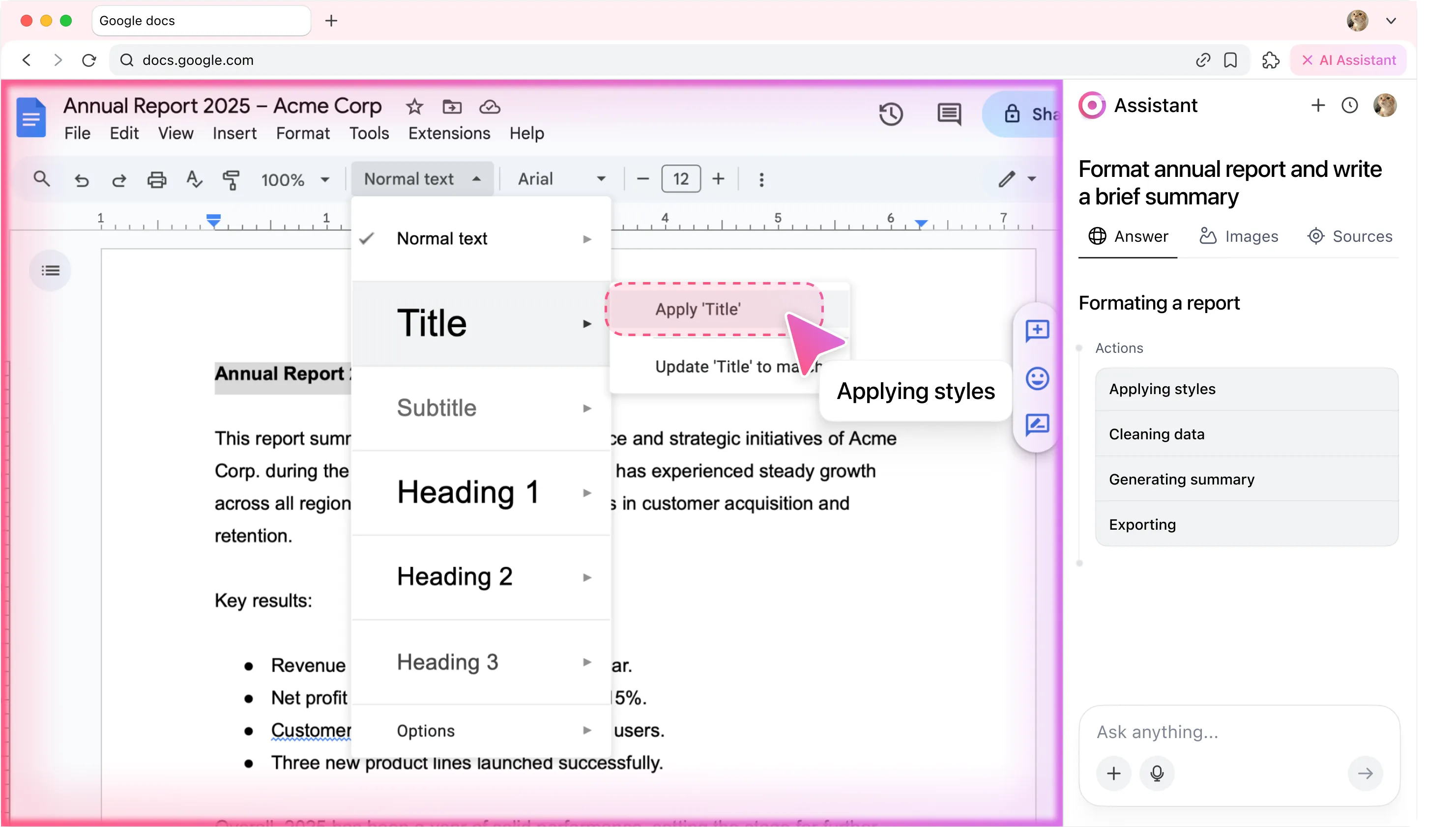
2. Applying styles
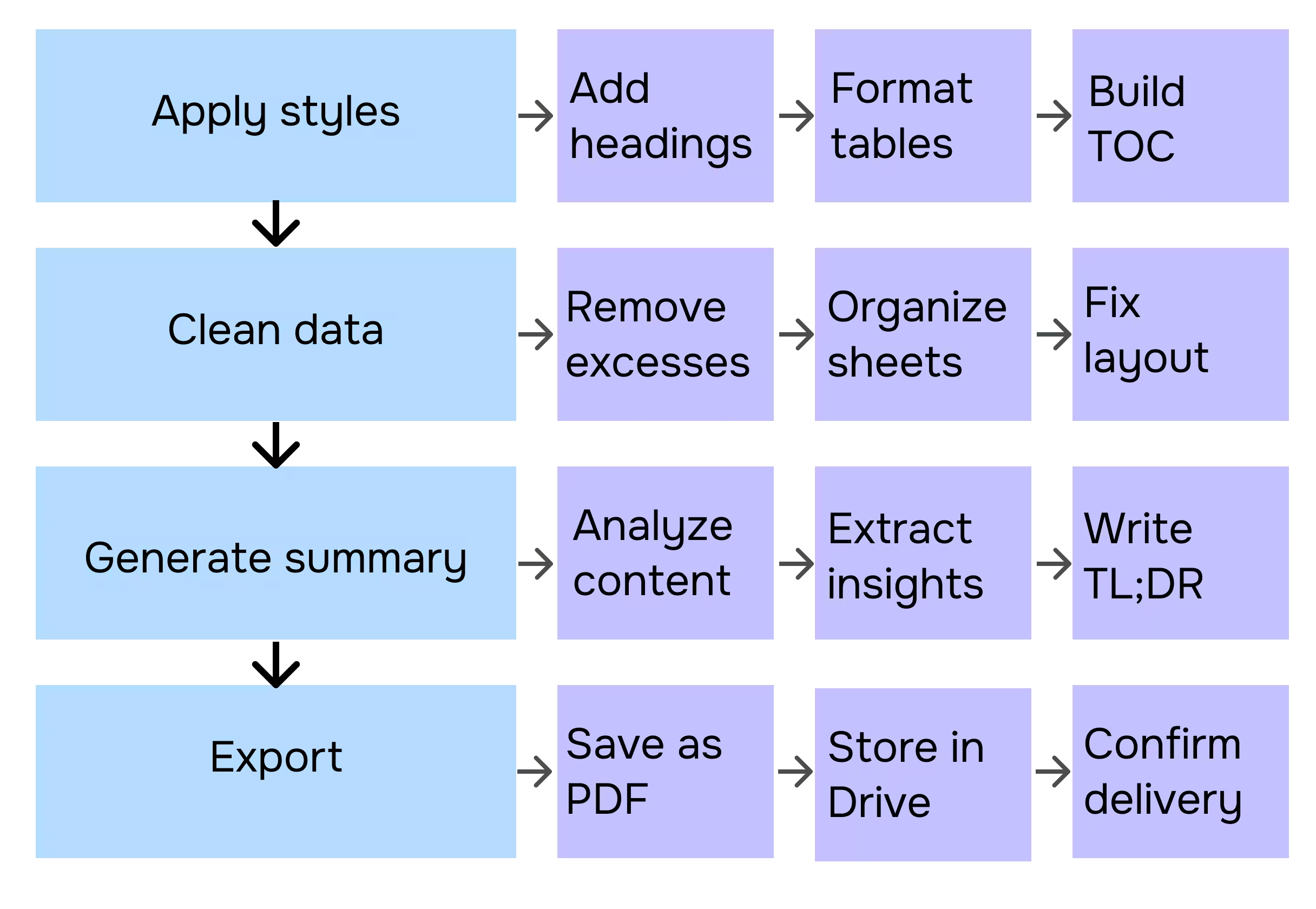
The AI agent formats your document with heading styles, tables, and a clear structure inside a private workspace on your device.
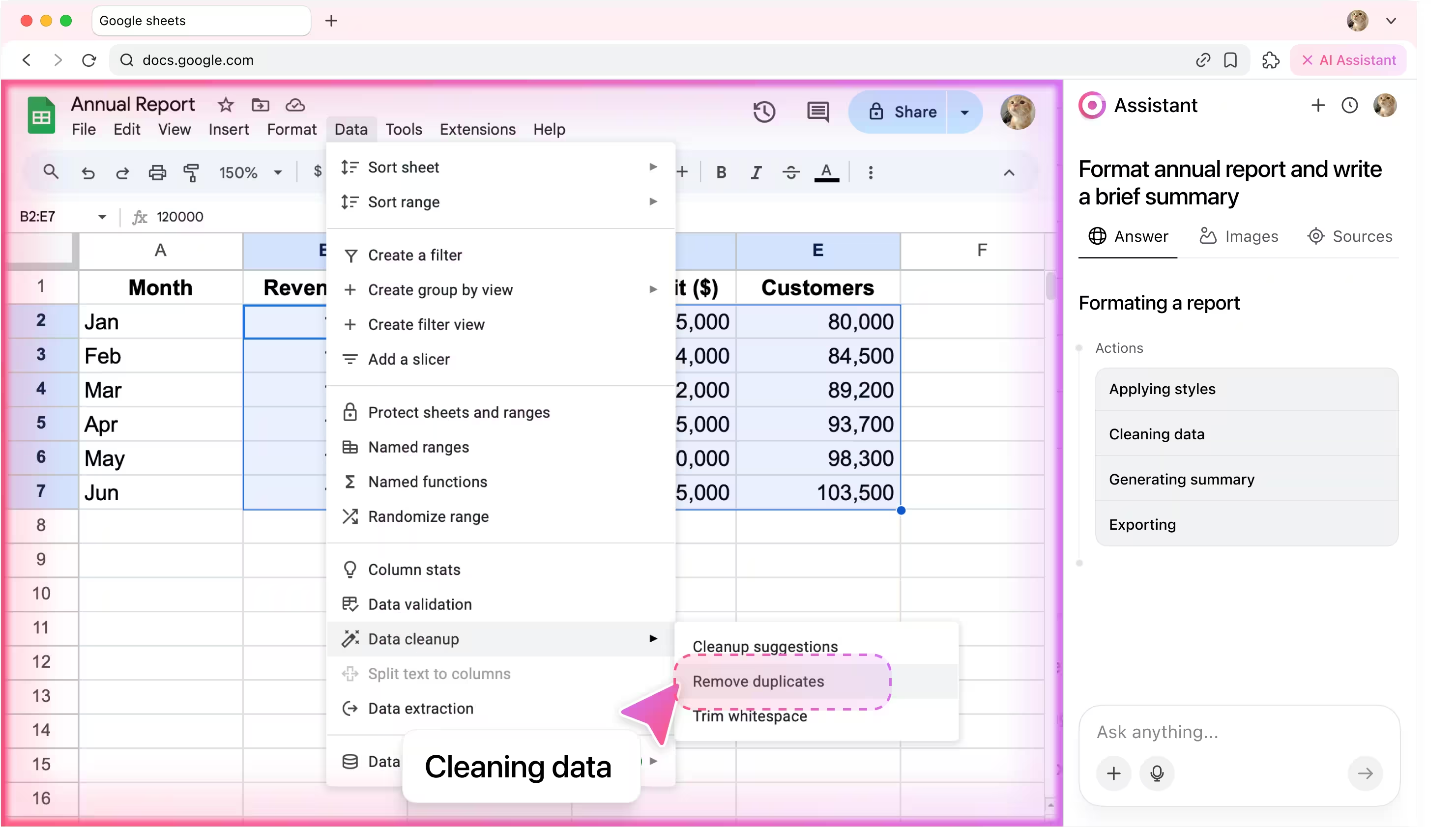
3. Cleaning data
The agent removes duplicates, organizes sheets, and prepares error-free datasets.
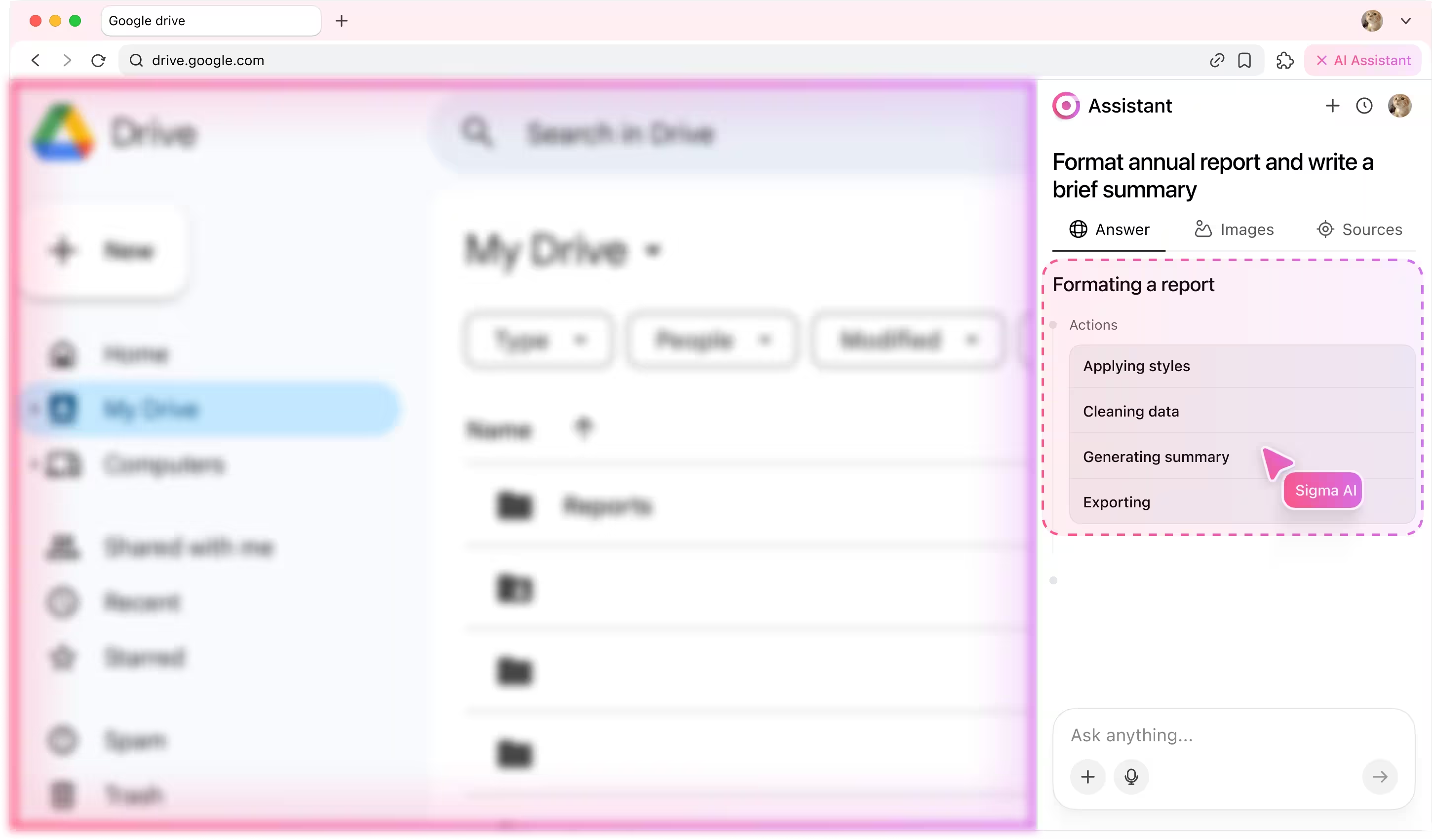
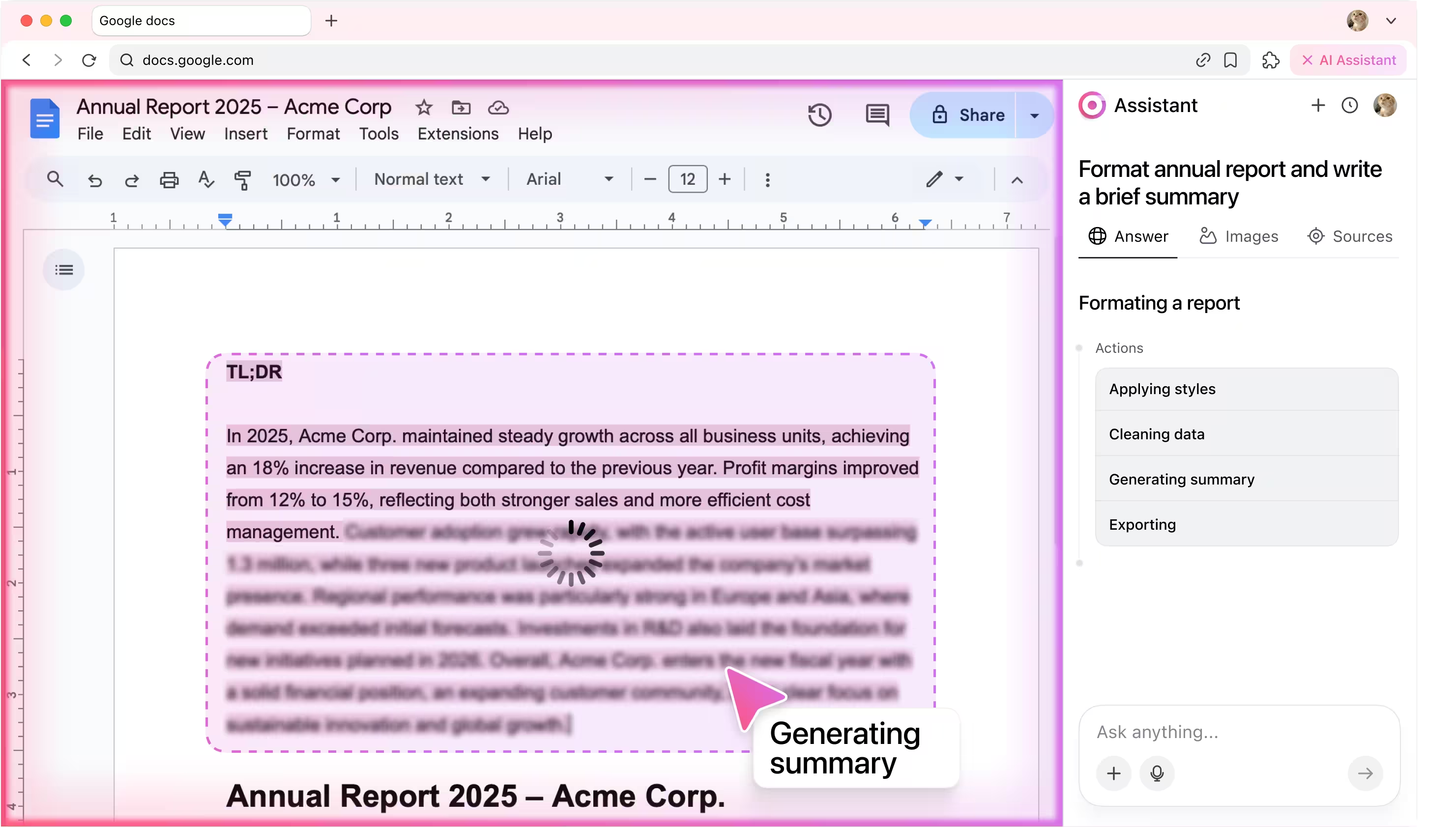
4. Generating summary
The agent reads your data, extracts key insights, and writes a concise TL;DR.
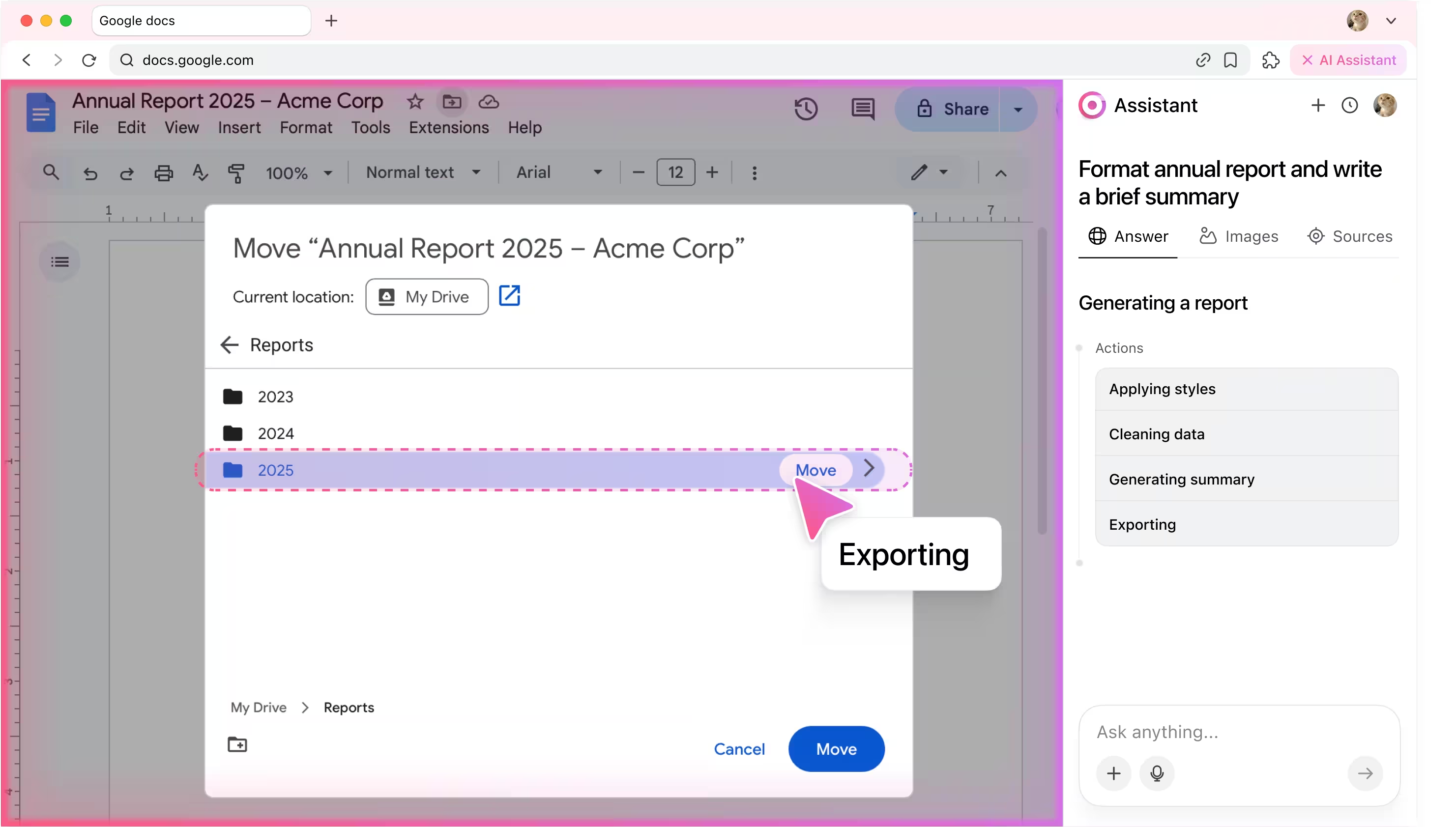
5. Exporting results
The agent generates a refined, ready-to-use output file and exports it securely, ensuring your processed data never leaves the protected environment.
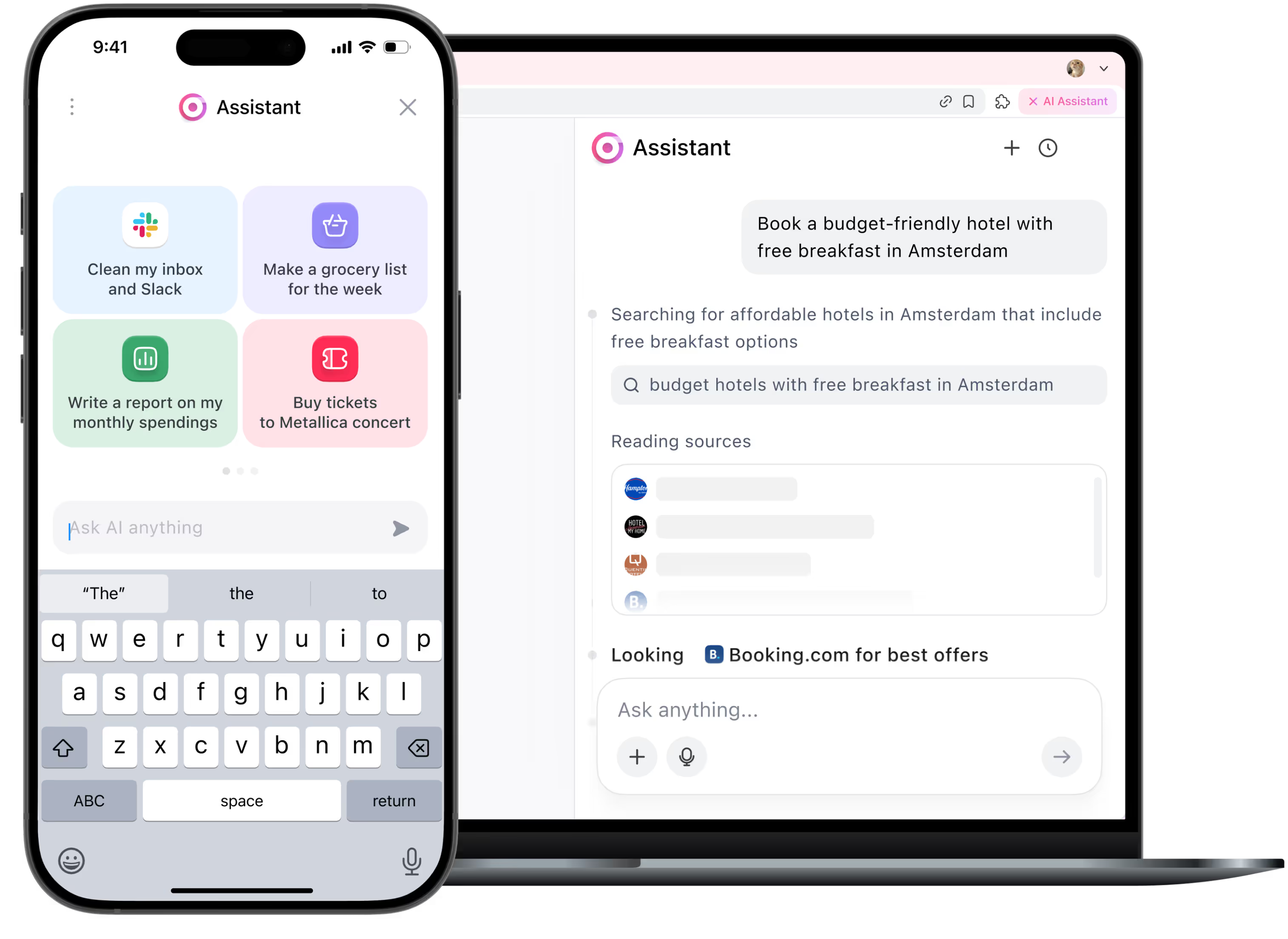
6. Reporting back
After finishing the task, agent writes back to user in chat window and confirms that the task is completed.

Be the first to try Sigma
We’re rolling out early access now. Join the waitlist and get notified as soon as your spot is ready.
Useful for:

Researchers
Save time by letting the AI agent clean data and generate clear summaries.
1

Small business owners
Turn messy spreadsheets into simple reports so you can focus on running your business.
2

Students
Use AI in data analysis to quickly structure assignments and create summaries without stress.
3
How it works
User enters the prompt.
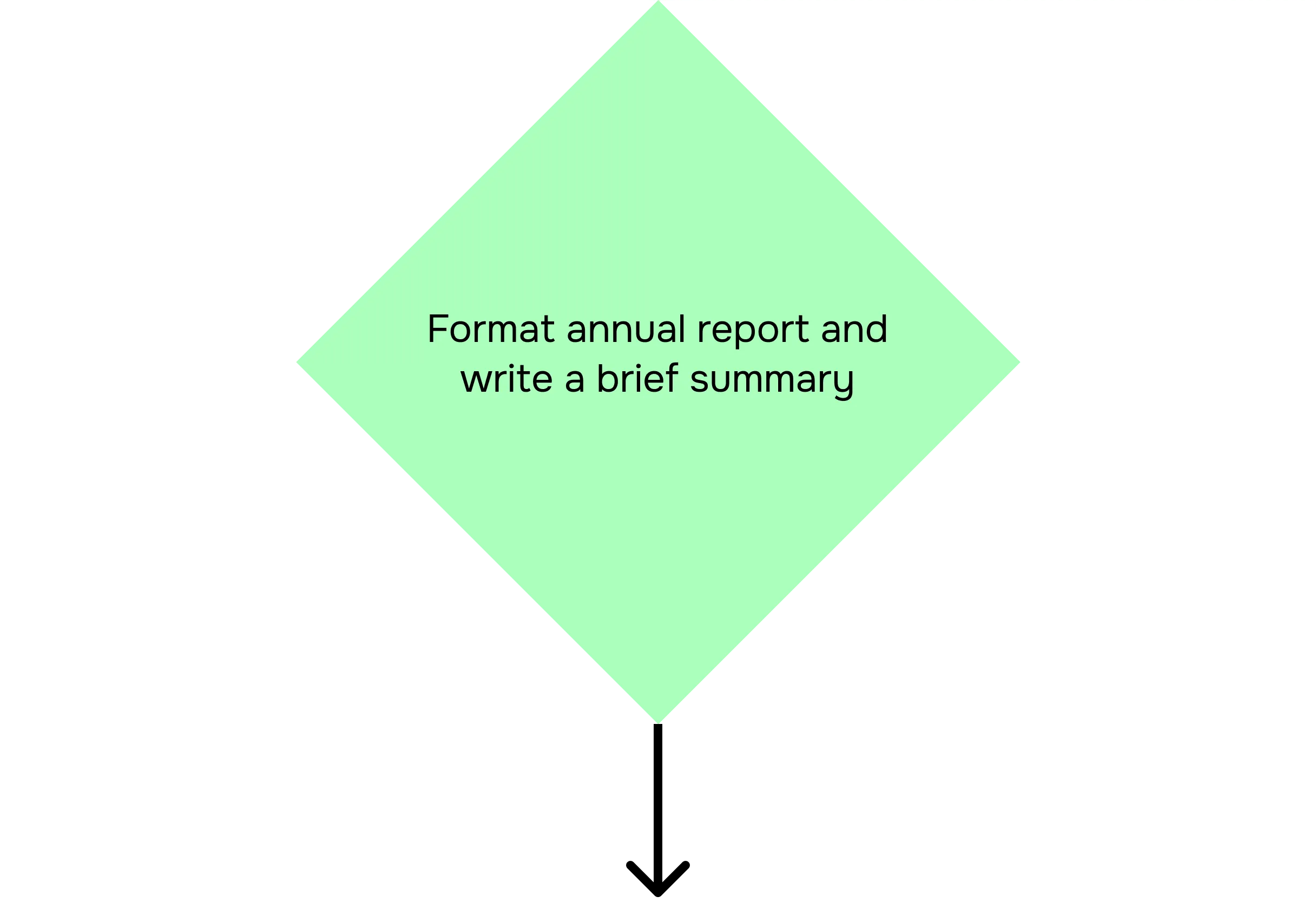

Categorizer agent analyzes the prompt.
Planner agent breaks subtasks into actions.
Executor agent performs these actions in your browser.
Task completed.
.avif)
Read more in our blog
Your security is our priority

End-to-end encryption
All AI Agent interactions are end-to-end encrypted, preventing third-party access or interception

No Tracking
Sigma AI Browser doesn’t track users, create profiles, or use data for ads or commercial purposes

Online protection
Sigma AI Browser detects phishing sites and warns you of threats for a safer browsing experience

GPDR and CCPA compliant
Sigma AI Browser complies with GDPR, ensuring your data follows European privacy laws

.avif)
FAQ
Can the AI agent really clean my data automatically?


How accurate are the AI-generated summaries?
Can it create charts as well?
Is my data safe with the AI agent?
Can I customize the report format?
.svg)


© 2026 Sigmabrowser OÜ
Kesklinna linnaosa, Vana-Posti tn 2, Tallinn, Estonia
Kesklinna linnaosa, Vana-Posti tn 2, Tallinn, Estonia


