Using Sigma Eclipse: A Step-by-Step Local AI Guide
Want to use local AI? Follow this Sigma Eclipse guide to set up a cloudless LLM, work offline, and keep your data private on your own device.

The Sigma Eclipse is an AI model that is integrated into the Sigma Browser. Once installed, the model will work even when the computer is not connected to the internet. There is also no need to create an account or provide credit card information.
Sigma Eclipse is designed to perform the same functions as a browser-based AI agent, such as answering questions, assisting with writing tasks, analysing content and completing tasks on websites. The significant difference here is that this functionality is carried out in a local environment, giving users full control over their data and the environment.
Sigma Eclipse Instead of Cloud AI
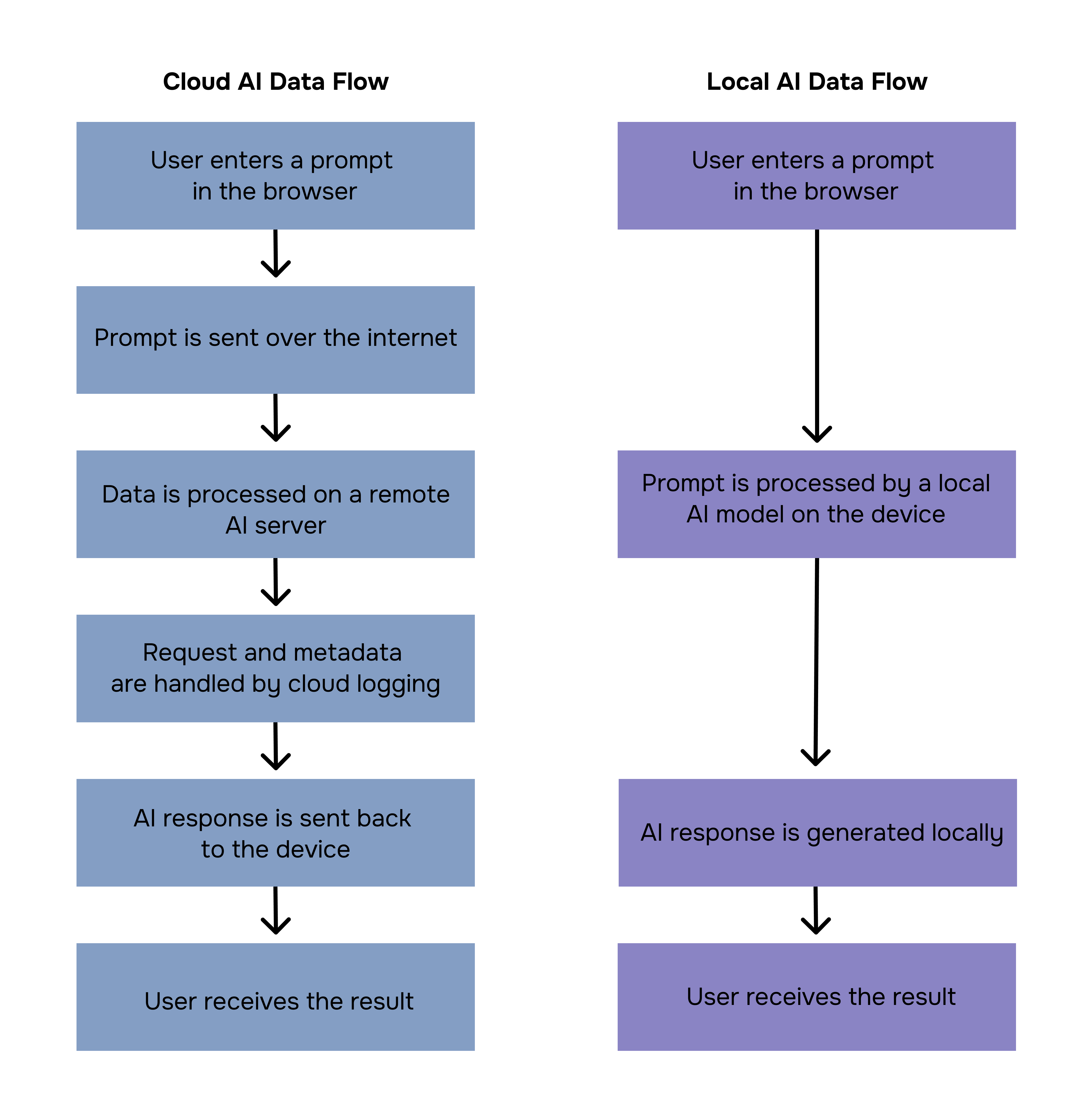
Sigma Eclipse is an alternative to cloud-based AI for users who need local execution, predictable usage, and full control over their data. The table below shows the main differences between Sigma Eclipse and traditional cloud AI solutions.
Understanding where AI computations take place helps to clarify what happens to prompts, contextual information and generated outputs. This also helps to explain why some AI systems require constant internet access and ongoing payments, while others, such as Sigma Eclipse, can operate offline without incurring additional costs per request.
How to Install and Enable Sigma Local AI
Getting started with Sigma Eclipse takes only a few minutes and does not require any technical setup. The local model is distributed directly through Sigma Browser and can be enabled from the browser interface.
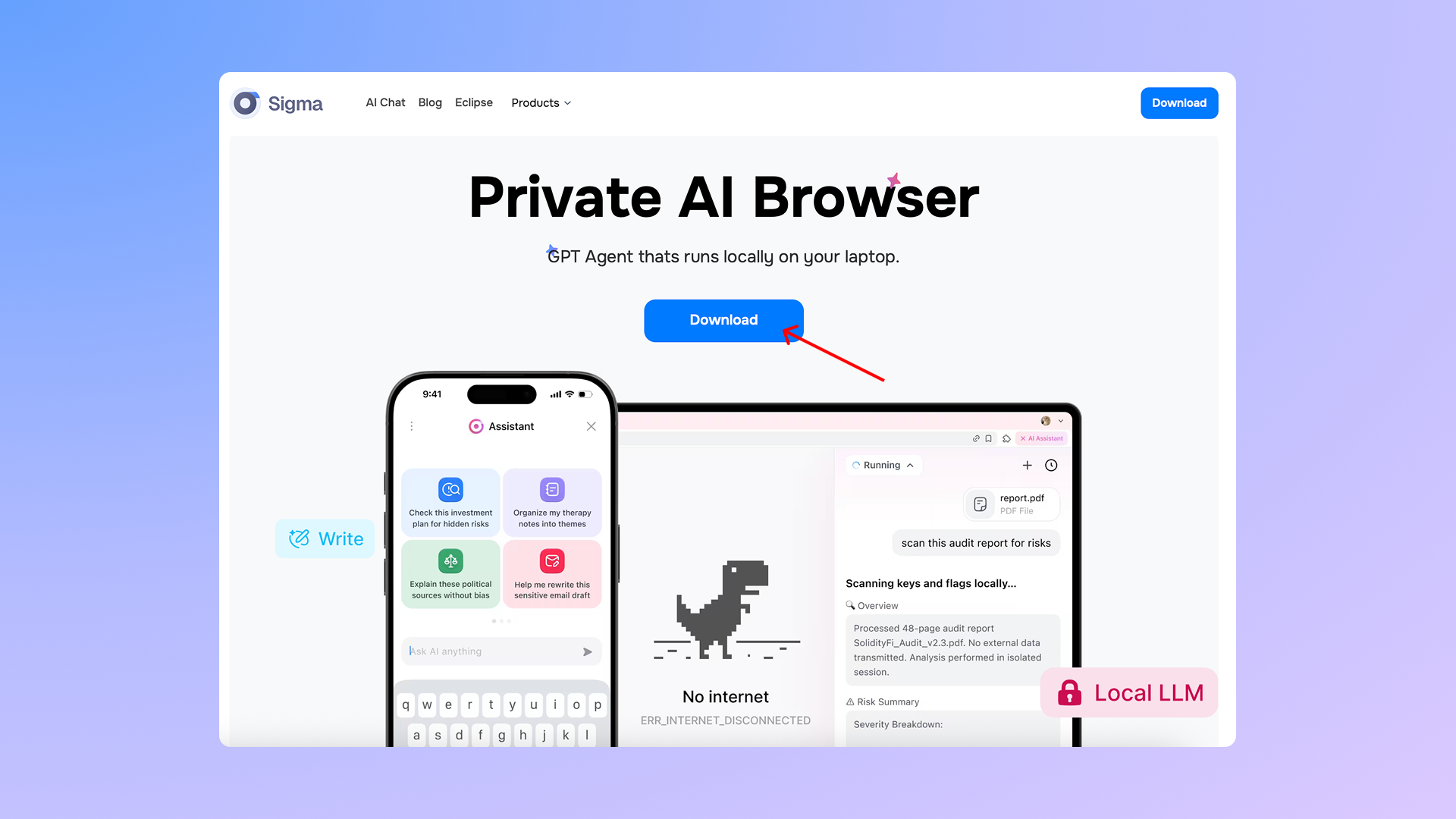
Step 1: Download Sigma Browser
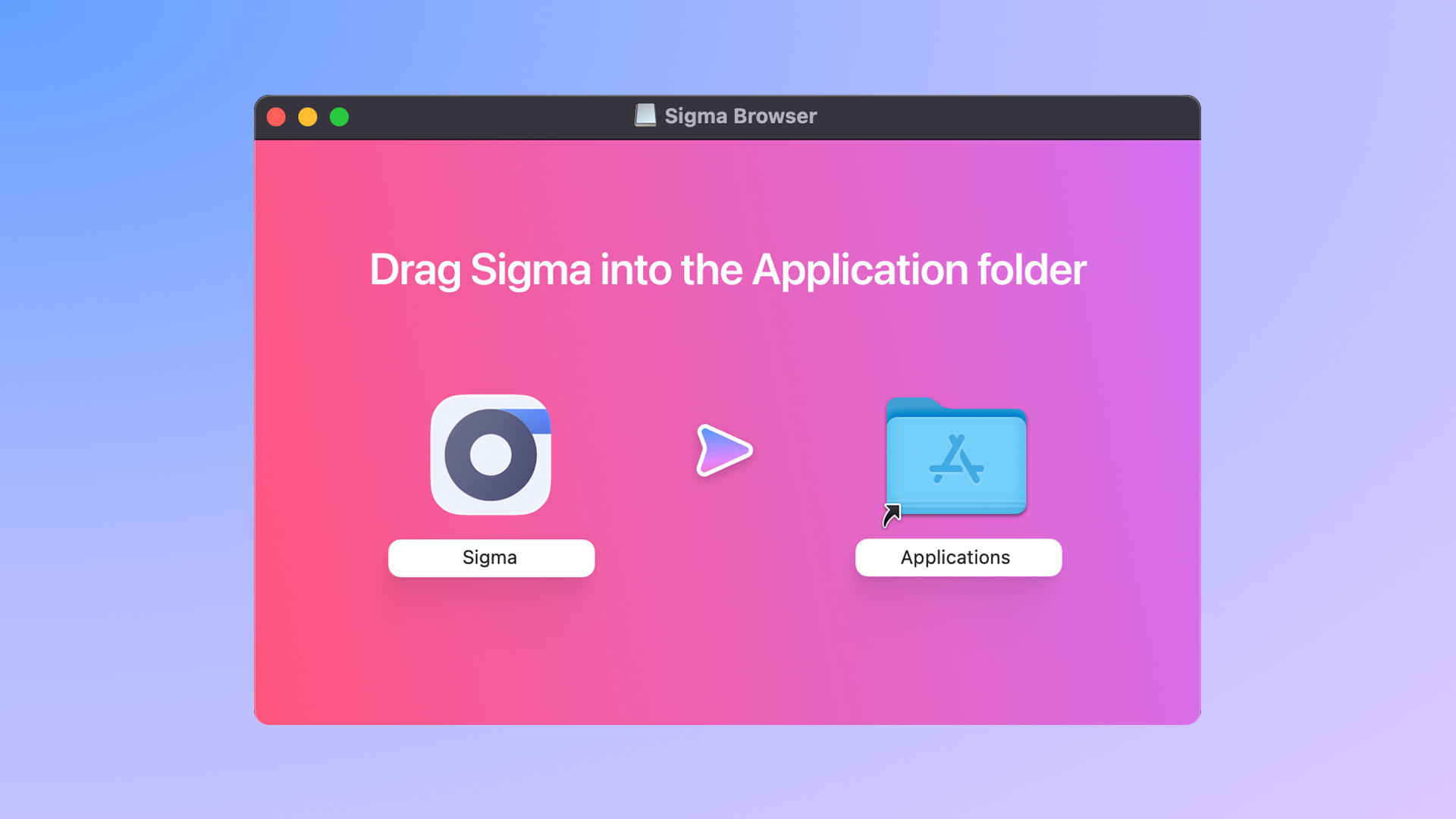
Visit the official Sigma Browser website and download the desktop version for your operating system. Run the installer and complete the installation process as you would with any standard browser.
Step 2: Sign In
After launching Sigma Browser for the first time, you will be prompted to sign in. You can create an account using your email address or sign in with Apple ID. This step is required to access browser features, but it is not tied to the local AI model usage or request processing.
Step 3: Download Sigma Eclipse
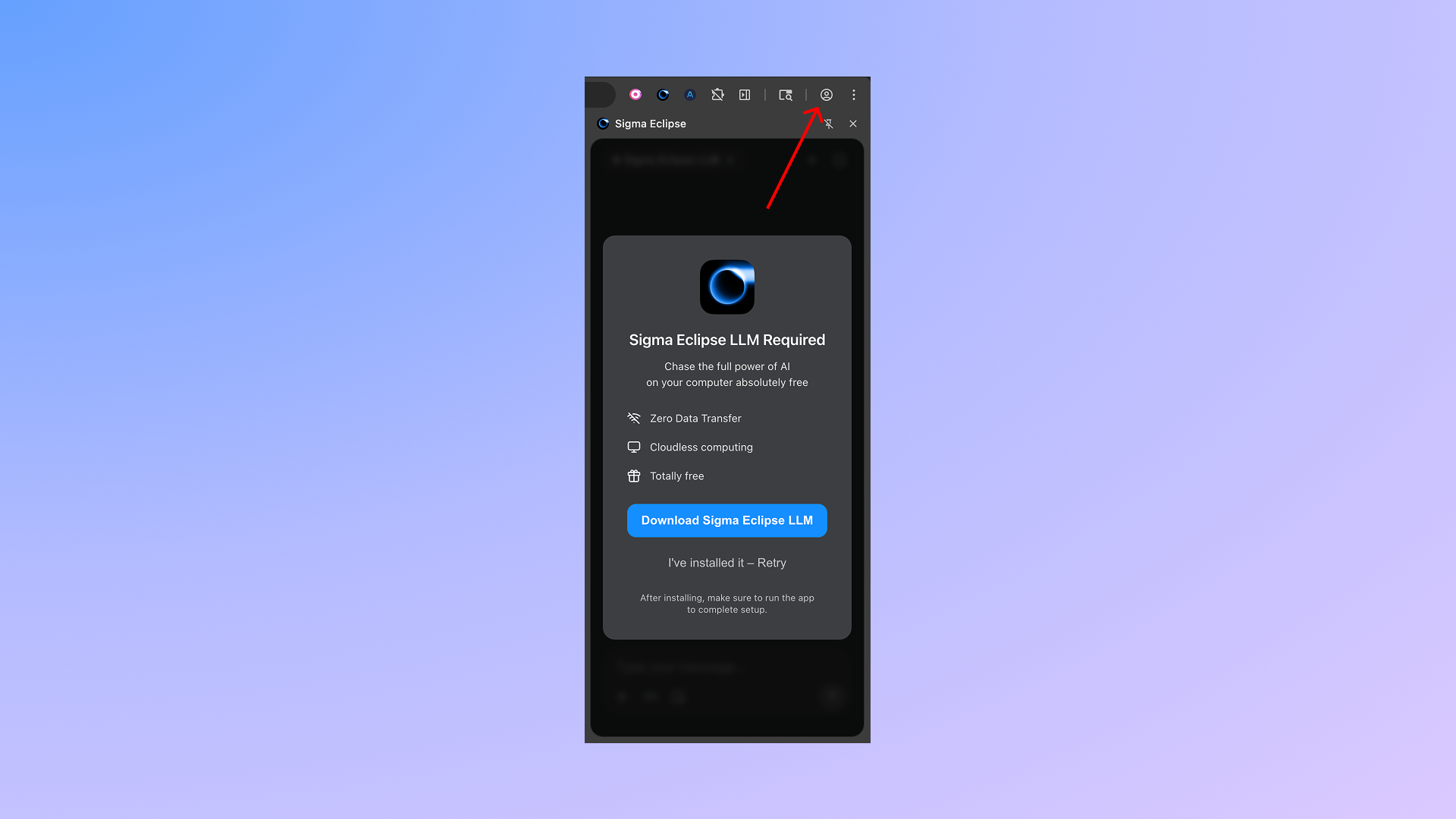
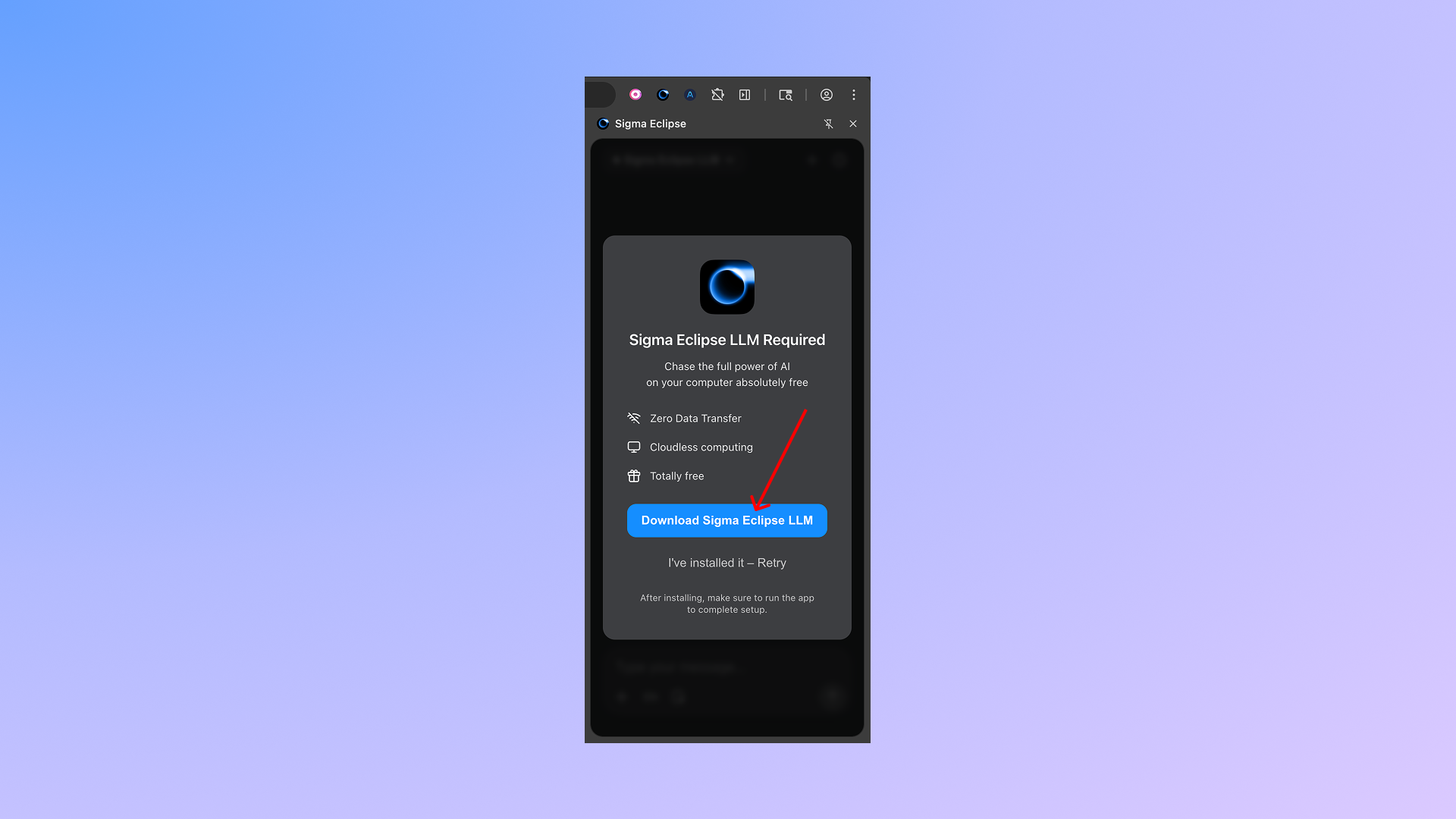
Once inside the browser, open the AI section. Sigma Eclipse is available as a local model that can be downloaded directly to your device. Start the download and wait until the model is fully installed. No additional configuration is needed.
Step 4: Enable Eclipse Mode
After the download is complete, open the AI panel and switch from the cloud-based mode to Eclipse mode. This activates the local LLM. When Eclipse is enabled, all AI requests are processed on your device.
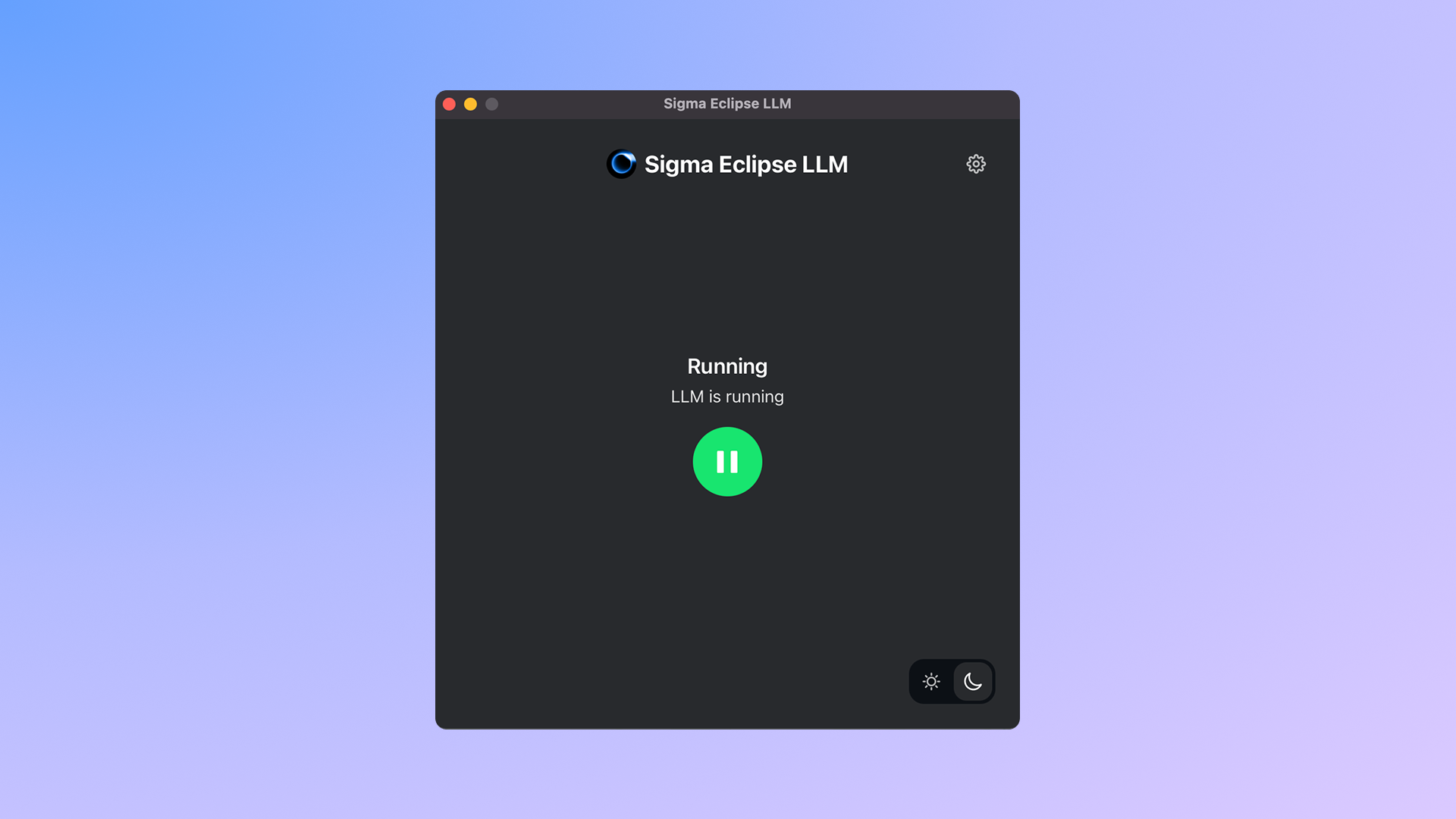
Step 5: Run Your First Agent Task
With Eclipse turned on, describe a simple task in natural language. For example, ask the agent to analyze a webpage, summarize content, or help draft a short message. Sigma will execute the task directly inside the browser using the local model.
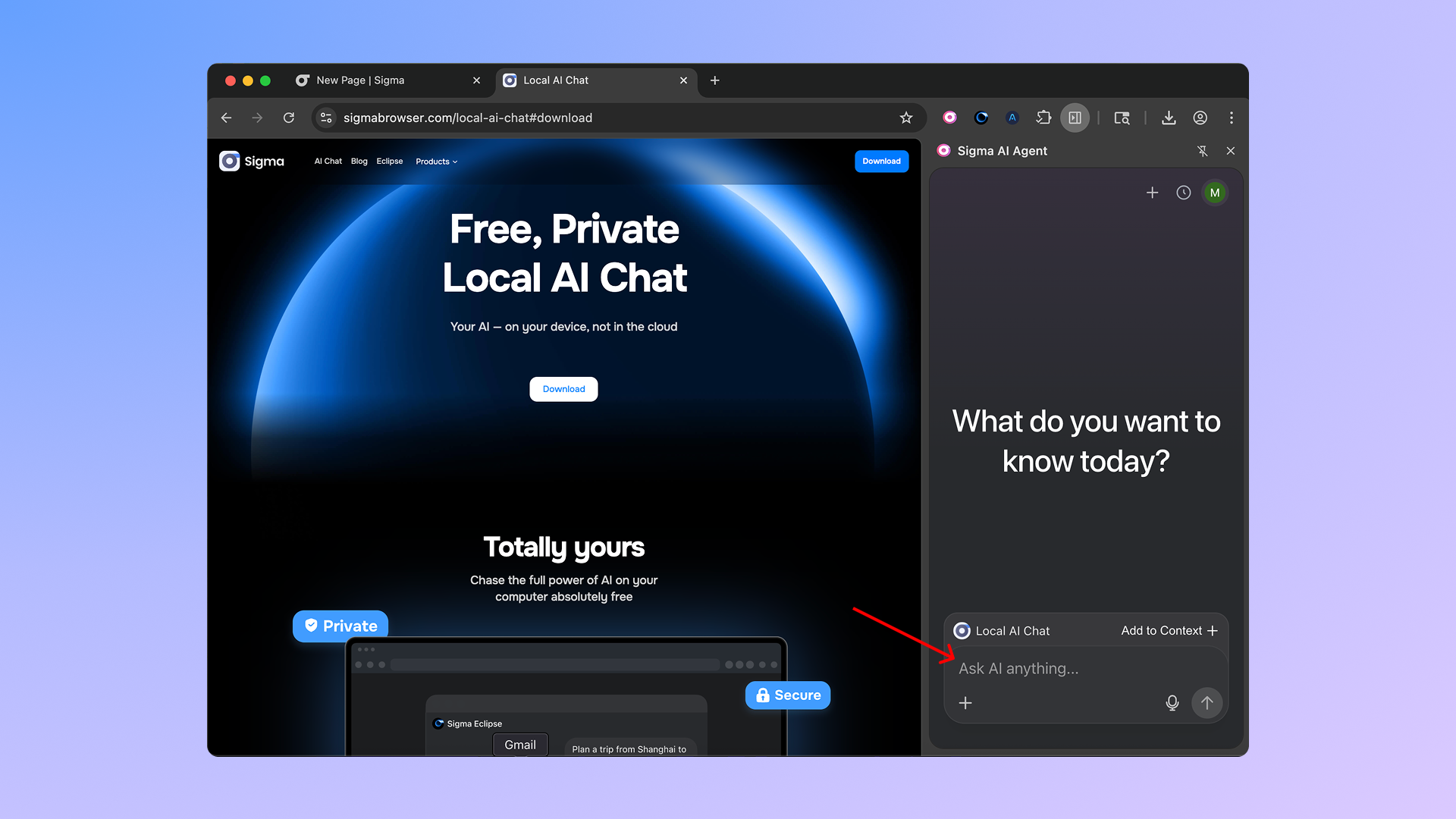
Sigma Eclipse is fully active and ready to use for private, offline AI-assisted browsing.
Conclusion
Sigma Eclipse is a convenient alternative to cloud-based AI solutions because it runs solely on the user’s machine. This enables users to access an AI assistant via a browser without uploading data to cloud servers or incurring usage costs. The system is easy to install and can be easily changed to run on a user’s machine.
Through the application of local code execution and browser automation, Sigma Eclipse can perform daily tasks while putting users in full control of their data and environment. To maintain privacy and enable easily predictable offline behaviour, Sigma Eclipse offers a clear and practical approach.
More articles