

Chat with Pages is a browser feature that brings contextual interaction into the browsing experience more directly. When you open a webpage in the main browser window, you can activate Sigma Browser's sidebar and add that page to your AI chat context. Once you've added it, you can ask questions about the content on the page, and the AI will generate answers based on the text, images and information from that page. The advantages of using chat with pages can be summarized as follows:
- You won't have to keep switching between tabs or copy and paste text into a separate chat interface
- The whole thing happens in a panel on the side of your current browsing session
- You can add pages to the chat context with a click or tap, rather than a manual extract
- You can combine multiple tabs to build a richer context for a single question
As AI becomes a more common part of the online experience, people are seeing more and more AI-generated summaries and responses while they're searching for information. For example, a 2025 study found that about 58 % of U.S. Google users saw AI-generated summaries in search results, showing a trend toward relying on context-aware AI content rather than traditional links and navigation.
Where Similar Features Exist and How They Differ
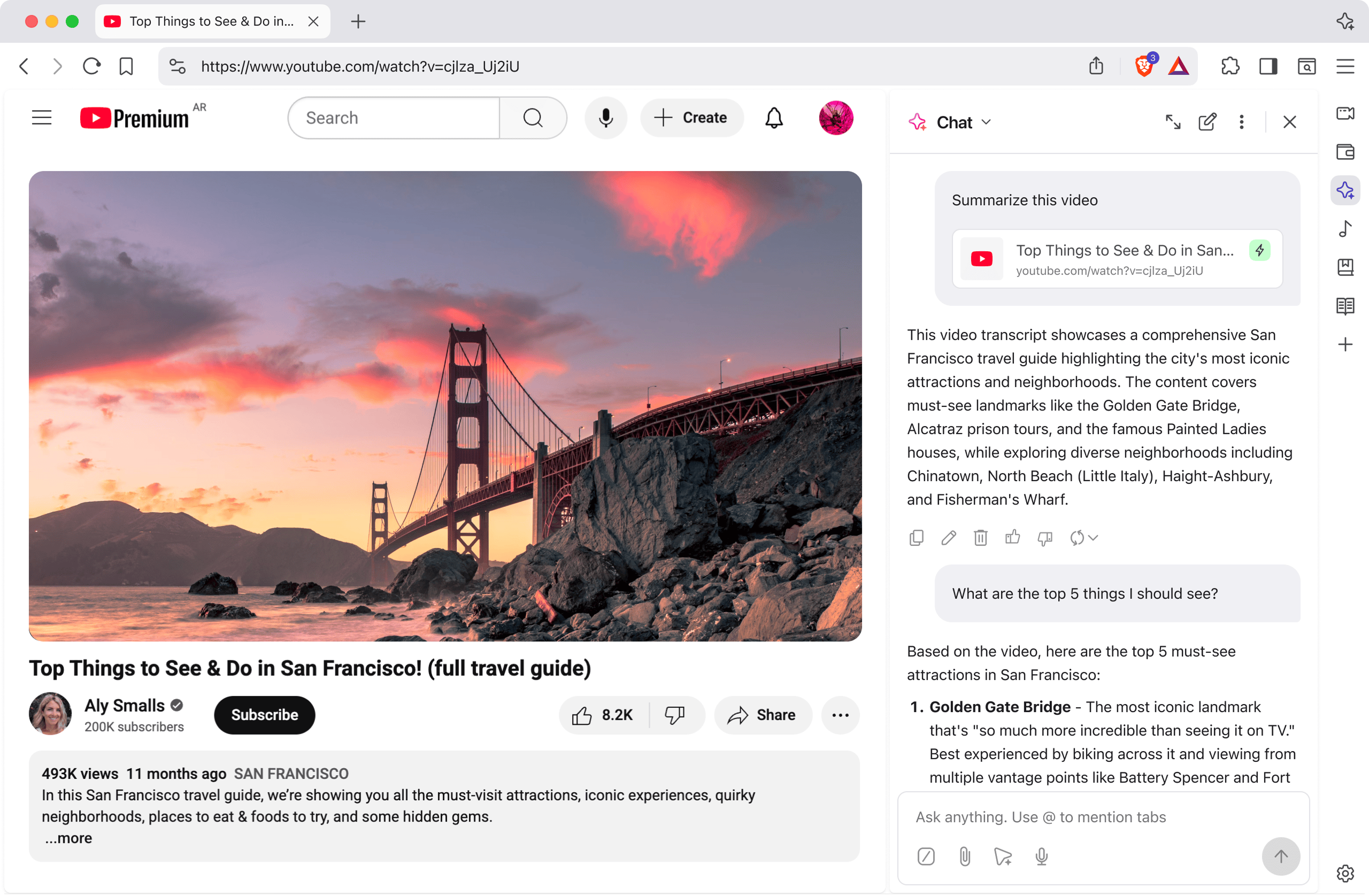
Other browsers and AI assistants, like Atlas, Comet, Brave, Dia, and Aria, offer similar features, but they're different in how context is captured, presented, and integrated into the browsing interface.
OpenAI Atlas incorporates ChatGPT directly into the browser with a context-aware sidebar that can answer questions about the content of the current page without copying and pasting. As well as summarising and explaining text, Atlas has a feature called "browser memories" which you can use to store details from pages for future reference. The idea is that it'll make the assistant more responsive to the content you're viewing, with the stored context being managed by OpenAI and the user controlling what happens.

Perplexity’s Comet browser gives you automatic summaries and lets you interact with web content straight away using voice or text prompts. Comet's AI can handle multiple open tabs at once and remember what you're doing so you can keep working on the same thing when you come back to your browser.
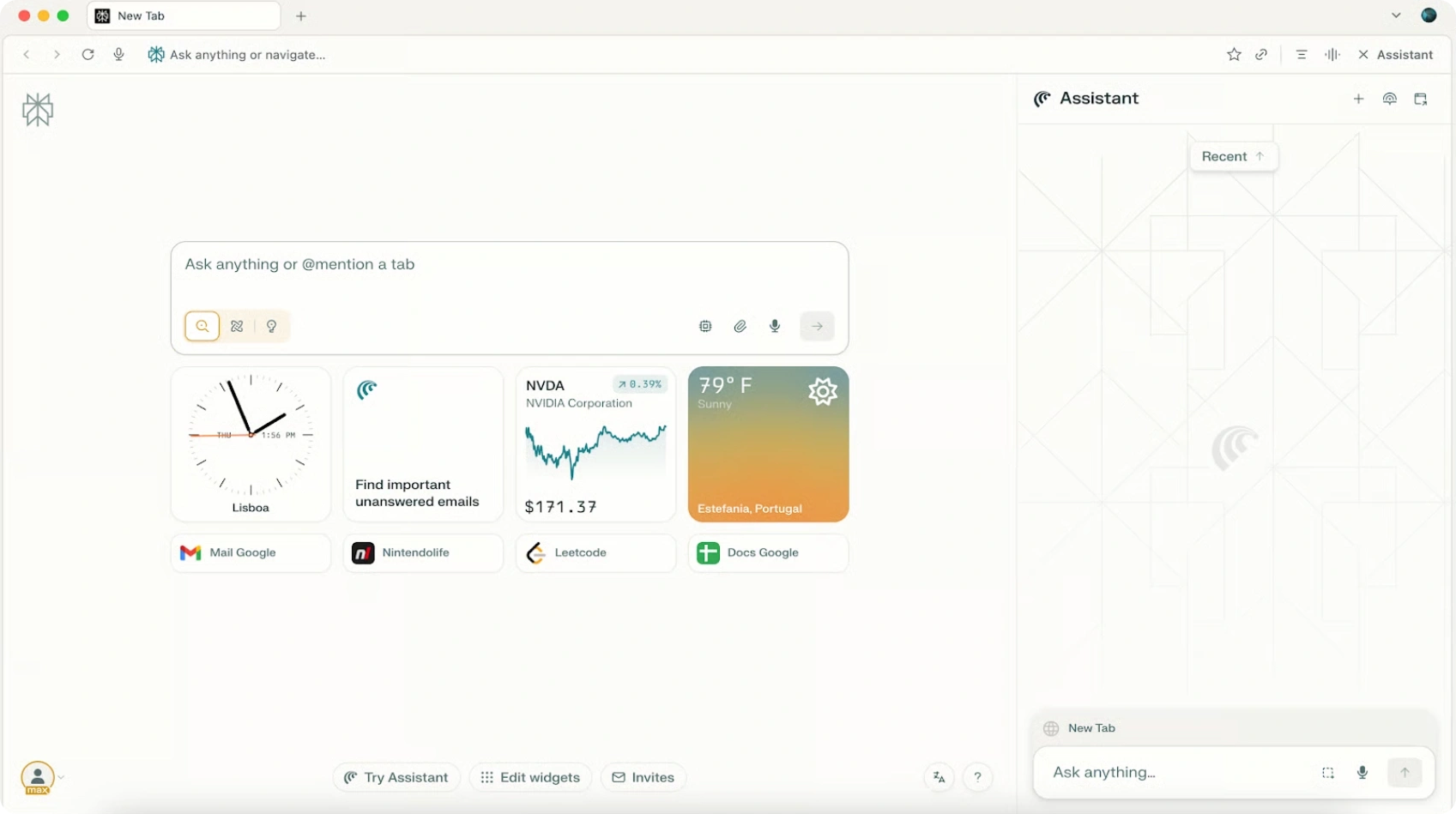
Dia’s design is all about keeping the conversation going and making it easy to switch between search and chat on different tabs. It can also understand multiple sources at once, which makes it useful for research-oriented tasks, though it's currently only available on a limited number of platforms.

Brave Leo uses the Leo AI assistant to summarise pages and answer questions about web content. It's not as agentic as Atlas or Comet, but it focuses on privacy and tries to summarise content without sending unnecessary data.
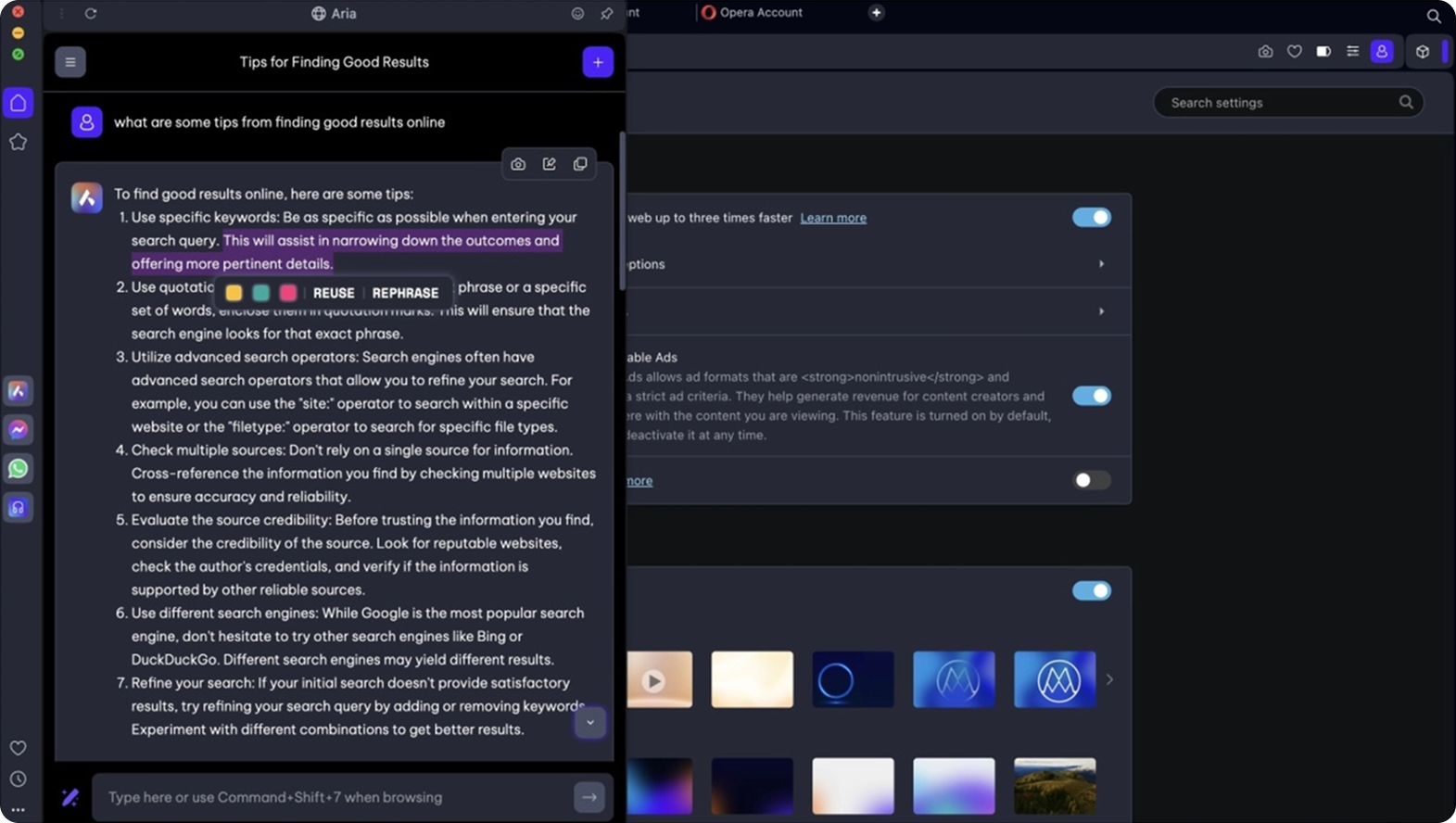
Opera with Aria is an AI helper that can generate real-time responses and analyse page content. This feature connects AI assistance more closely to the browser's UI and task workflows, but mostly operates as a cloud-based service rather than as a local context engine.
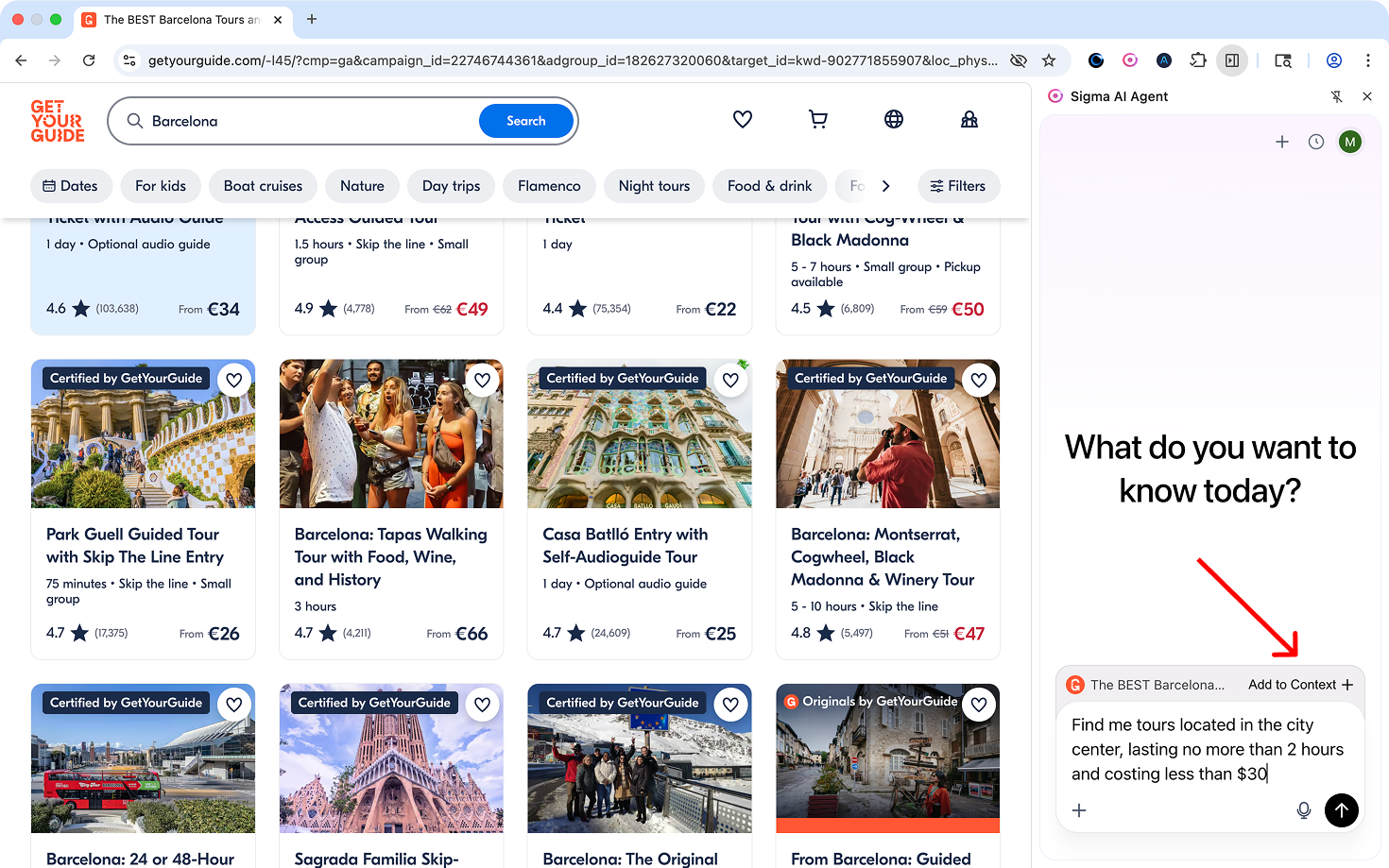
Chat with Pages in Sigma Browser is different because it integrates page content into the AI context and processes it locally, even when it's online. Instead of just sending text to a remote service, Sigma adds the opened page to the local chat context, which reduces unnecessary data transfer and potentially lowers latency and privacy exposure.You can find out more about how local AI works here.
The following table shows the main points of these implementations:
Each browser has its own way of balancing context awareness, workflow integration and privacy. Sigma's Chat with Pages is all about adding page content to the local context of the AI agent, with the aim of reducing data leaving the user's environment while still enabling detailed, page-specific responses.
How to Use Chat with Pages
The whole idea behind Chat with Pages is to let the AI understand and answer questions using the exact content of the web pages you're looking at. Instead of copying and pasting text into a new chat window, you can work with the page already open in your browser, so you don't have to stop what you're doing.
One Page In Context
- First, go to any web page that has the info you're after.
- Open Sigma Browser's sidebar panel and look for the "Add page to context" option.
- When you click this button, it tells the AI that the current page should be included in the chat.
- Once the page is added, you can ask questions about that specific content.
Multiple Pages In Context
If you're dealing with more complex research scenarios, you might want to compare different sources. You can also add several open tabs into the chat context in the same way. Once you've added a couple of pages, you can start asking questions like "Where do these sources agree or disagree?" or "Which version seems more reliable?"
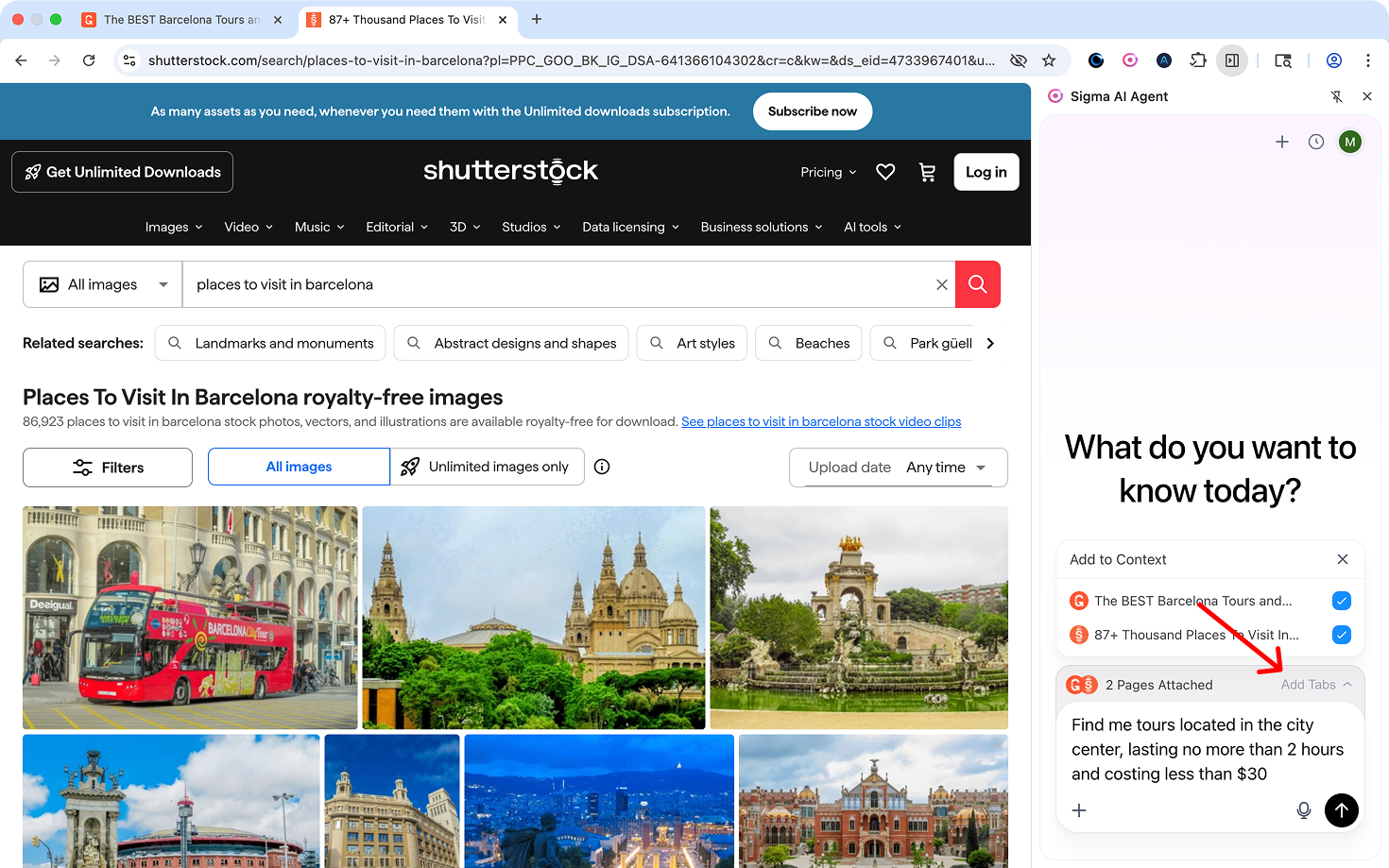
Chat with Pages and Deep Research
The same approach to building context is also used in other tools in Sigma's AI suite. Once you've got pages in the chat, you can use that combined context with Deep Research to generate structured insights across sources.
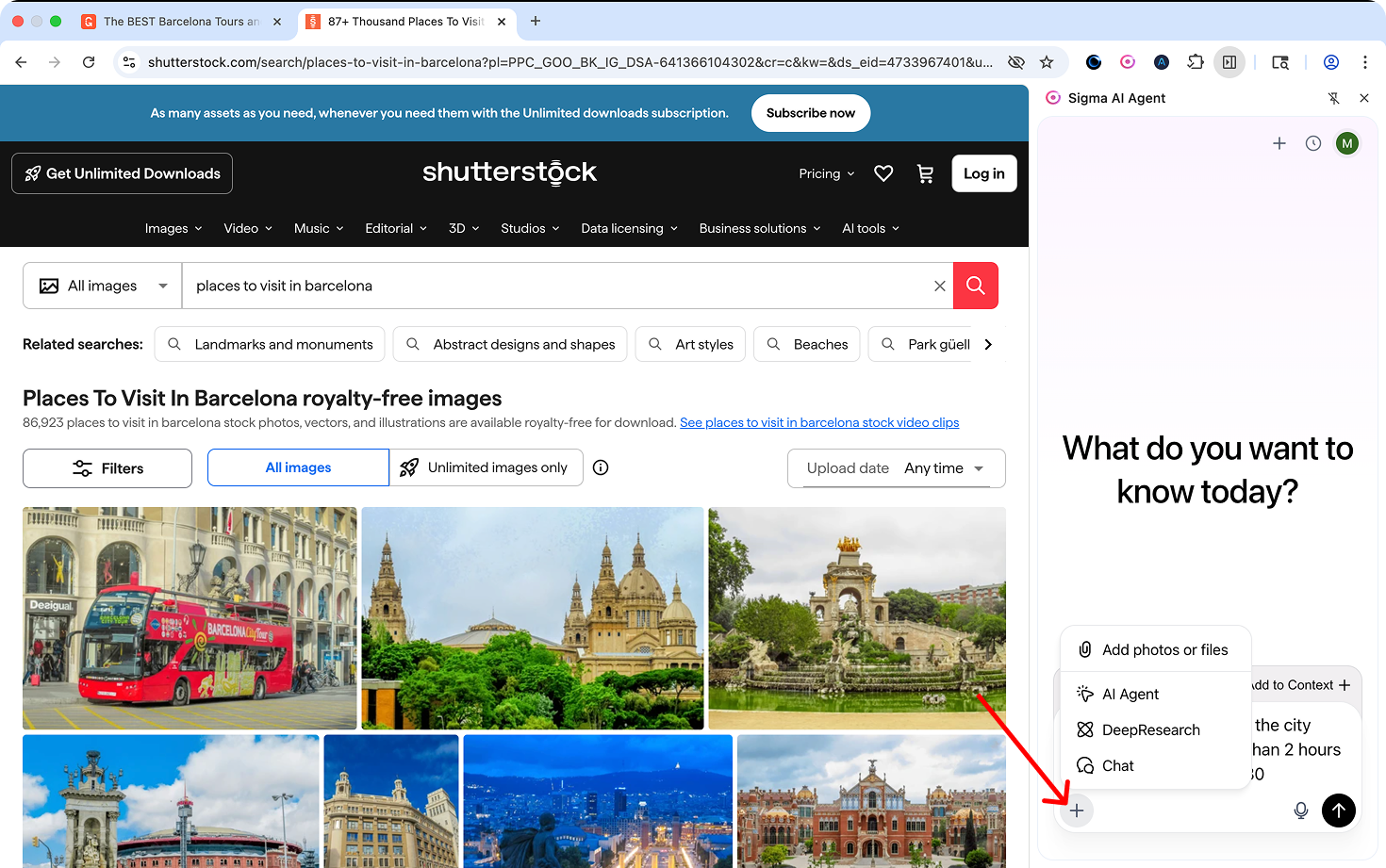
Why This Matters in Real Work
The Chat with Pages feature turns passive reading into an interactive dialogue. Instead of going through the hassle of manually extracting key points, switching between tabs, or copying and pasting text into separate tools, you can just ask clear questions about the content you're looking at and get real answers straight from the page itself. This makes it easier to stay focused on a task and reduces the friction between reading and understanding.
In real professional and academic work, this can change how research and decision-making happen. It's great for workflows where you need to verify information quickly, compare viewpoints across sources, or extract facts without losing your place in the original material.
Read your next page in Sigma Browser and let Chat with Pages turn it into a dialogue.
FAQ
What is Chat with Pages?
Chat with Pages is a feature that lets you ask questions about the content of the web pages you have open. The AI uses the actual page as context instead of relying only on a general prompt.
How is this different from copying text into a chat?
You don’t need to paste anything manually. You add a page to the context with one click, and the AI works directly with the full content of that page.
Can I use more than one page at the same time?
Yes. You can add multiple tabs to the context and ask questions that compare, summarize, or analyze them together.
Does Chat with Pages work with other AI tools in Sigma?
Yes. Pages added to the context can also be used in Deep Research workflow.
Is my page content sent to the cloud?
Sigma processes page data locally. Even when the agent uses online capabilities, the content of the page is handled on your device rather than uploaded in raw form to external servers.
What kinds of tasks is it best for?
It works well for summarizing articles, comparing sources, extracting key points, and turning long pages into usable insights.





.png)
.avif)
.svg)